How to check your Apple Pay transaction history on iPhone (and see what you actually spent)
Open Wallet, tap the card, and your latest Apple Pay payments are listed under the card. That covers the quick check. What Wallet shows, how far back it goes, and whether you can see a total depends on which card you tapped with.
By Pierre Teo · Updated
On this page
- Quick reference: what Wallet shows by card type
- Check your Apple Pay history for a bank card
- Two quirks every iPhone user should know
- Why a payment is missing from Wallet
- Apple Cash history (US)
- Apple Card history and spending totals (US)
- Connected bank accounts (UK, and PayPal debit in the US)
- How to see your total spending on Apple Pay
- Apple Pay receipts and returns
- Returning an item bought with Apple Pay
- Frequently asked questions
- How far back does Apple Pay history go?
- Can I export my Apple Pay transactions to a spreadsheet?
- Does Apple Wallet show total monthly spending?
- Why is a recent purchase missing from Wallet?
- Can I delete my Apple Pay transaction history?
- Does Wallet show online Apple Pay purchases too?
Apple designed the Wallet app to answer a simple question at the checkout counter: did that tap go through? It was never built to be your personal expense tracker.
How much history you see, and whether you can export it or view a monthly spending total, depends entirely on the type of card you used.
Quick reference: what Wallet shows by card type#
| Card type | History visible in Wallet | Export options |
|---|---|---|
| Standard bank card | Last 10–30 transactions (set by your bank) | None (use your bank app) |
| Apple Cash (US) | Grouped by year | 12-month PDF statement |
| Apple Card (US) | Full history by month & year | Monthly CSV, PDF, or OFX |
| Connected account (UK, PayPal US) | Up to 2 years (includes non-Apple Pay) | None from Wallet |
Check your Apple Pay history for a bank card#
On iPhone:
- Open the Wallet app.
- Tap the credit or debit card you paid with.
- Your latest transactions appear directly under the card. Tap any payment to view the timestamp, merchant name, and amount.
You can also check from Settings: go to Settings > Wallet & Apple Pay > [Your Card] > Transactions.
On Apple Watch: If you tapped with your watch, it maintains its own device history. Open the Wallet app on Apple Watch, tap the card, and turn the Digital Crown to scroll through recent taps.
Two quirks every iPhone user should know#
- Your bank controls what appears: Wallet displays only what your card issuer transmits to your device. Some banks push every card transaction in real time; others only sync in-store Apple Pay taps; a few send nothing at all once the payment notification clears.
- Holds and tips will look different at first: Gas stations often pre-authorize $100–$150 on your screen before settling the true $35 fuel cost, and restaurant tips often take 24–48 hours to update. The Wallet entry initially shows the temporary authorization hold, not the final cleared bank total.
Wallet also treats each card as an isolated island. If you use two cards throughout the day, you get two separate lists, and Apple Wallet will never add them together.
Why a payment is missing from Wallet#
If a purchase you just made does not appear under the card:
- The card's history toggle is off: Go to Settings > Wallet & Apple Pay > [Your Card]. Ensure Show History (or Transaction History) is turned on. If it was switched off, Wallet stops recording incoming transactions for that card.
- The transaction is still pending with your bank: Some card issuers do not transmit transaction data to Apple Wallet until the merchant settles the batch at the end of the day.
- You used plastic or another device: Most banks only display purchases made directly on that specific iPhone. If you swiped the physical card or tapped with your Apple Watch, it may not sync to your iPhone's Wallet list.
- The card was recently added: Wallet does not backfill past purchases retroactively. History only begins from the day you added the card to Apple Pay.
- Removed cards delete their history: Deleting a card from Wallet immediately removes its transaction list from your phone. (Your bank's official statement remains untouched.)
Apple Cash history (US)#
Apple Cash keeps its own ledger, separate from your bank cards:
- Open Wallet and tap your Apple Cash card.
- Your recent activity appears under Latest Transactions.
- Scroll down and tap Transactions in [Year] to browse older charges and peer-to-peer transfers grouped by year.
To get an official statement: Tap the More (...) button in the top-right corner > Card Details > Request Transaction Statement. Apple will email a 12-month PDF statement to your Apple Account address, complete with fee breakdowns (Apple Cash transaction details).
Apple Card history and spending totals (US)#
Apple Card is the only card inside Wallet designed with native budgeting tools. Tap Apple Card in Wallet, and you can:
- Track spending cycles: Tap the spending summary button to switch between Week, Month, and Year views. Wallet tells you whether your spending is pacing higher or lower than the previous period.
- Filter and recategorize: Search transactions by merchant, category, date, or amount, or reassign a miscategorized purchase.
- Export for spreadsheets: Tap Card Balance > Monthly Statements, pick a month, then tap Export Transactions. Apple lets you download a clean CSV file for Excel or Google Sheets, alongside OFX and QFX formats for accounting software (Apple Card export instructions).
The catch? These summaries and exports apply only to Apple Card. Taps on your debit card or third-party credit cards do not count toward these totals.
Connected bank accounts (UK, and PayPal debit in the US)#
On iOS 17.1 or later, some UK banks let you connect your account directly to Wallet using open banking (including Barclays, HSBC, Lloyds, Monzo, NatWest, Santander, and Starling). In the US, PayPal offers a similar connection for its debit card.
Once connected, Wallet displays your live account balance and up to two years of transaction history, including direct debits and non-Apple Pay purchases (UK connected accounts guide). UK accounts also get Spending Highlights with weekly and monthly totals. However, you still cannot export these transactions directly from Wallet.
How to see your total spending on Apple Pay#
Here is the central dilemma with Apple Wallet: it intentionally walls each card off from the others.
If you buy groceries on Card A, grab coffee on Card B, and pay for transit with Apple Cash, Wallet never combines them. There is no master "Total Spent This Month" screen, no unified category breakdown, and no coverage for cash.
To see your true total spending across everything, you have three options:
- Reconcile bank apps manually: Log into each bank portal separately and add up the numbers yourself. Complete, but high friction, and it misses cash.
- Log at the register (2 seconds): Punch the amount and category tag into a dedicated expense app the moment you pay. This is the simplest daily habit to sustain; our iPhone expense tracking guide covers how to set this up.
- Automate Apple Pay taps on-device: On iOS 17 and later, a personal Shortcuts automation can trigger whenever you tap with Apple Pay. It captures the merchant, amount, and card instantly and passes them to an expense app on your phone, without connecting your bank account or sharing login credentials.
CashJot uses this exact mechanism via Apple Pay capture (part of CashJot Plus). In-store taps record themselves into your ledger automatically, while online orders and cash stay quick manual entries.
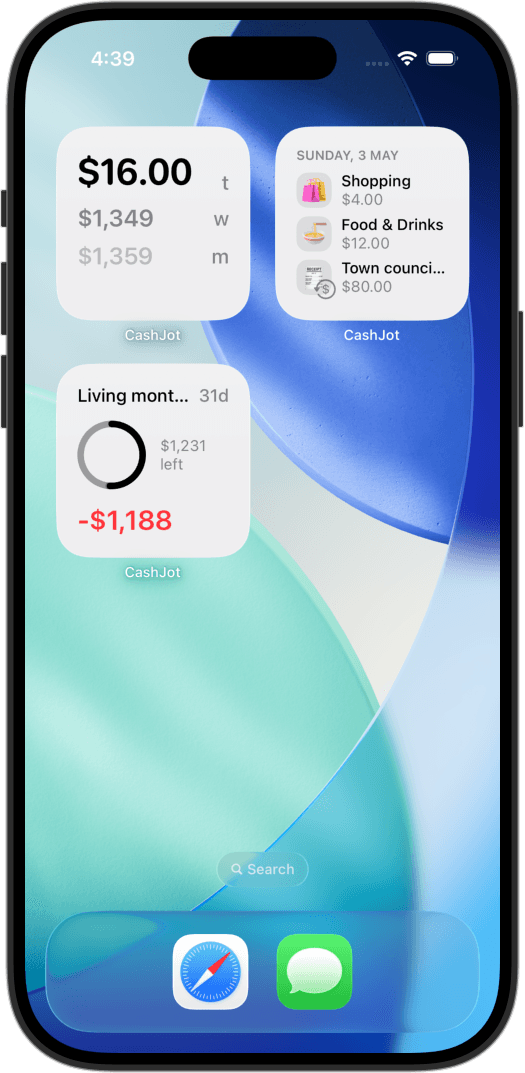
Once all your cards and cash flow into a single ledger, a home screen spending widget shows your real running total throughout the day, without needing to open Wallet at all.
Apple Pay receipts and returns#
Wallet's transaction detail shows the merchant, amount, and timestamp, but lacks itemized products and tax breakdowns. It will not stand in for an official tax receipt or warranty invoice. For those, you need the merchant's printed paper receipt or digital email copy.
Returning an item bought with Apple Pay#
When returning an item in-store, cashiers often ask for the "last 4 digits of the card."
Do not look at your physical plastic card. Apple Pay masks your actual card number using a tokenized Device Account Number for privacy.
To find it:
- Open Wallet and tap the card you used.
- Tap the More (...) button in the top right > Card Details.
- Scroll to Device Account Number to see the 4 digits printed on your merchant receipt.
Frequently asked questions#
How far back does Apple Pay history go?#
For regular bank cards, Wallet only keeps recent transactions (usually 10 to 30), depending on what your bank transmits. Apple Cash groups transactions by year and can email a 12-month PDF statement. Apple Card keeps full monthly and yearly histories in Wallet. UK connected accounts display up to two years.
Can I export my Apple Pay transactions to a spreadsheet?#
Not from Wallet for a standard bank card. You must export statements through your bank's own website or app. Apple Card can export monthly CSV files directly from the Card Balance screen. If you want a unified spreadsheet combining all card taps and cash, an expense app with automated Apple Pay capture can export a single CSV.
Does Apple Wallet show total monthly spending?#
Only for Apple Card and UK connected accounts with Spending Highlights. For regular debit and credit cards, Wallet lists payments per card without a sum. To see your total spending across every card and cash, you need an external tracking app.
Why is a recent purchase missing from Wallet?#
Wallet only displays transactions that your bank transmits to your phone. Some issuers delay notifications until the charge settles, some only push in-store taps, and some do not support on-device history in your region. Check your bank's official app for the final settled record.
Can I delete my Apple Pay transaction history?#
Not individual transactions. Removing the card from Wallet clears its transaction list from your phone, and some cards offer a history toggle in Settings > Wallet & Apple Pay. In either case, your bank retains the official record.
Does Wallet show online Apple Pay purchases too?#
Yes, as long as your issuer transmits them. Wallet typically lists Apple Pay checkouts completed within apps and Safari websites alongside physical in-store taps. Whether transactions made with your physical plastic card appear depends on your bank's integration.
Written by Pierre Teo, maker of CashJot.
Track daily spending without the chore
2-second keypad logging, automatic Apple Pay capture, and live home screen widgets. Free, private, and 100% offline.