Guide
How to require Face ID for any expense tracker on iOS
Updated
On this page
- Why you might want it
- How to set it up
- What it protects
- Troubleshooting
- Require Face ID doesn't appear in the menu
- The app icon disappeared from the home screen
- The app stopped appearing in search and notifications
- It works for any expense tracker
- How this fits with CashJot
- One long-press is the whole setup
- Frequently asked questions
- Does CashJot have a built-in Face ID lock?
- Which iPhones can lock apps with Face ID?
- Does locking an app with Face ID encrypt its data?
- Can I hide the expense app's icon entirely?
- Does the lock cover home screen widgets?
iOS has a built-in way to require Face ID, Touch ID, or your passcode before any app opens, including any expense tracker on your phone. It's an Apple feature, not an app feature, which means it works for any app on your home screen.
To be clear up front: CashJot itself does not have a built-in Face ID lock. The approach described below is the iOS-level Face Lock that any iPhone running iOS 18 or later can apply to any app. It's the same setting that protects Notes, Wallet, or your journaling app, pointed at your money tracker.
Why you might want it#
Even without bank balances, the log of where you spent (coffee shops, doctors, a particular bar, that one bookstore) reads like a diary. A few situations where requiring Face ID on the app itself starts to feel reasonable:
- You hand your phone to kids who know the passcode for games or videos.
- You share an Apple ID or a phone with a partner and want some financial things kept just to yourself.
- You travel and would prefer that someone glancing at the home screen can't open the ledger.
- You just want one fewer category of thing visible if your phone is ever lost or borrowed.
How to set it up#
On iOS 18 or later, the fastest way is from the home screen itself:
- Long-press the app's icon on the home screen until the context menu appears.
- Tap Require Face ID (or Require Touch ID on devices without Face ID).
- Confirm with Require Face ID in the prompt that appears.
From now on, the app will ask for Face ID every time it's opened from a cold start. If Face ID fails (sunglasses, low light), iOS falls back to your passcode.
You can also reach the same setting from Settings → Face ID & Passcode → App Lock, which is useful if you want to flip it on for several apps in one go.
What it protects#
A few specifics worth knowing, since the lock doesn't do everything people sometimes assume:
- It protects opening the app. Anyone with your phone unlocked still can't see the ledger without your face or passcode.
- It also hides search results, notifications, and Siri content from that app. A related iOS 18 setting, Hide and Require Face ID, takes this further by removing the icon from the regular home screen and stashing it in a "Hidden" folder in the App Library.
- It does not encrypt the underlying data. Apps that sync to a cloud service still send and receive data normally; the lock is on the door, not on the contents of the room.
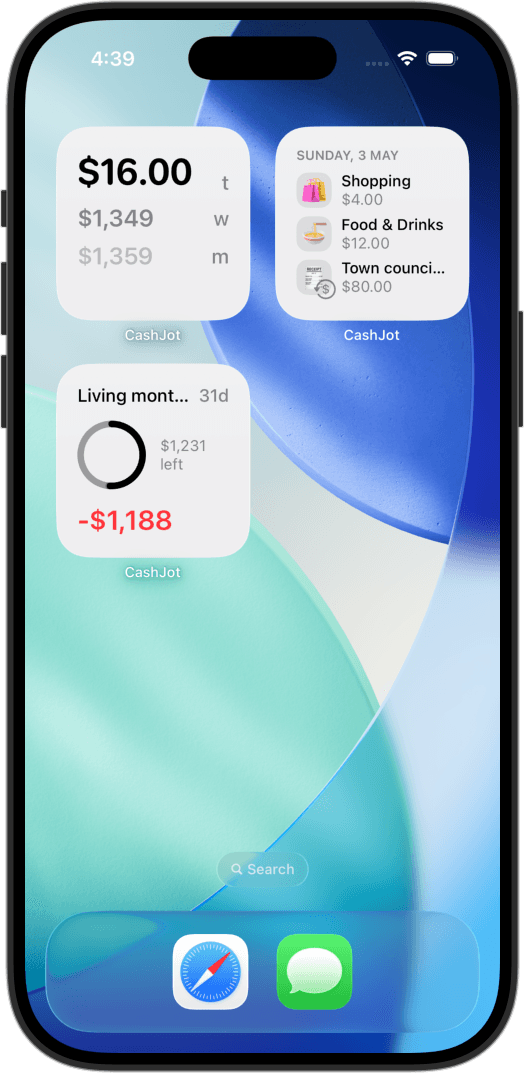
- It does not protect home screen widgets. If you've set up an expense or budget widget that shows a number, that number is still visible on the home screen. If that bothers you, remove the widget from any screen someone else might see.
Troubleshooting#
Require Face ID doesn't appear in the menu#
The long-press option arrived with iOS 18. On earlier versions the menu simply has no lock entry; update the phone from Settings → General → Software Update first.
The app icon disappeared from the home screen#
That happens when Hide and Require Face ID was chosen instead of Require Face ID. The app now lives in the Hidden folder at the bottom of the App Library (swipe past your last home screen page). Open that folder with Face ID, long-press the icon, and choose Don't Require Face ID to bring it back; you can then drag it onto the home screen again.
The app stopped appearing in search and notifications#
That's the lock working, not a bug: content from a locked app is kept out of search, suggestions, and notifications. Removing the lock restores them.
It works for any expense tracker#
Since this is an Apple-level toggle, it works the same way whichever expense app you use. The icon of the app you long-press is the only thing that changes.
How this fits with CashJot#
One thing worth noting if you use CashJot: because the app has no account, no servers, and no bank login, the iOS Face Lock ends up being the only login surface that exists. There's no separate password to a CashJot account (because there isn't one), no bank session in the loop, and no cloud copy of your data outside your own iCloud. Locking the app with Face ID covers the path to your spending log in a single step.
With a bank-linked app, the picture is a little different: your credentials live in the loop somewhere, and the data also lives on the provider's servers behind their account system. The Face Lock still helps, and the rest is a separate trust call about the provider you choose.
One long-press is the whole setup#
Long-press the icon, tap Require Face ID, and the lock is on. Combined with the basics you probably already have (a strong passcode, automatic updates, Find My), the expense app you use is about as locked down as a consumer app gets.
If you're looking for the expense app itself: CashJot is a quick-log expense tracker for iPhone, with no account and no bank login. And if you're still deciding how you want to track expenses at all, start there.
Frequently asked questions#
Does CashJot have a built-in Face ID lock?#
No. CashJot relies on the iOS-level App Lock described above. Because the app has no account and no server login, that one lock covers the only login surface there is.
Which iPhones can lock apps with Face ID?#
Any iPhone on iOS 18 or later. Devices with Touch ID show Require Touch ID instead, and the fallback on every device is the passcode.
Does locking an app with Face ID encrypt its data?#
No. The lock gates opening the app; it doesn't change how the app stores or syncs its data. An app that syncs to a cloud service keeps doing so.
Can I hide the expense app's icon entirely?#
Yes. Hide and Require Face ID, in the same long-press menu, also removes the icon from the home screen and moves the app into a Hidden folder in the App Library.
Does the lock cover home screen widgets?#
No. A widget that shows a spending total stays visible without Face ID. If that bothers you, keep widgets off the screens other people might see.
Know what today cost you
CashJot is an iPhone expense tracker. Jot each expense in a couple of taps, then see today's total straight from the home-screen widget. Free on the App Store.