
Today's spending, on your home screen and lock screen
Live daily spending totals, real-time budget pacing, and upcoming bills right where you look. Numbers update the moment you log, with no app opening and no bank sync delay.


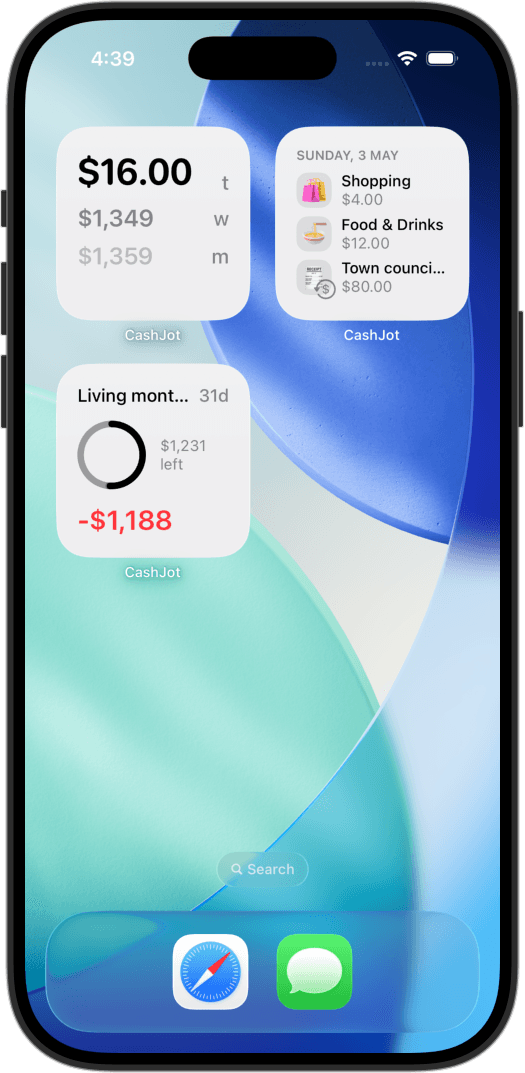
Interactive Home Screen Widgets
Live spending totals
A live running total for today, this week, and this month. Check your daily number at a glance before making your next purchase.
Real-time budget pacing
Track remaining allowances in real time. Switch between remaining balances and over/under pacing indicators for the budget.
Today's recent transactions
A glanceable list of the purchases you logged today. See your recent spending on your home screen, and tap to open straight to the Log tab.
Upcoming recurring bills
Countdown reminders for subscriptions and recurring bills, so standing commitments never surprise you.
Glanceable numbers on your Lock Screen
Check your spending dial or budget progress bar right from iOS 16+ lock screens with no unlocking required.
Tap any lock screen widget to jump straight into the Log tab or budget view the moment your phone unlocks.
Tailored to how you organize your money
Every widget can be customized independently via iOS widget settings:
Scope to Expense Groups
Place travel budgets on a Vacation focus screen and side hustles on a Work screen, keeping daily totals on your main screen.
Filter recurring bills
Exclude fixed rent and subscriptions so daily widgets show only discretionary counter purchases.
Flexible display modes
View budget pacing as a simple remaining balance or an Over / Under pace benchmark.
Adding a widget takes under a minute: our step-by-step widget setup guide covers home screen placement, lock screen dials, and troubleshooting.
Frequently asked
No. Spending and transaction widgets launch CashJot directly to the Log tab, ready for you to type. Only Apple Pay capture notifications open with prefilled amounts and merchant details for your confirmation.
Yes. Each widget instance is configured separately. Put a Spent Today widget for your Daily group on the main home screen, a Budget widget for a trip on a focus screen, and a Recent Transactions widget for your Side Project group on a work screen. Long-press the widget, tap Edit, and pick the group.
Widgets update immediately when you log an entry or capture an Apple Pay tap. iOS also refreshes them in the background, keeping your Spent Today total and Budget progress current without needing to open the app.
Yes. CashJot is offline-first, and widgets read from local on-device data. They render instantly whether you are on a flight, on the subway, or in an area with no cellular signal.
Yes. CashJot provides circular dials and rectangular summary bars for iOS 16+ lock screens: view today's spend, weekly totals, or a real-time budget progress gauge without unlocking your device. Tapping any lock screen widget opens CashJot directly to that view.
All six widgets are free to place on your home screen and lock screen. Tracking progress against custom spending targets requires a budget created in CashJot Plus.
More ways people use CashJot
Put today's spending total right where you look.