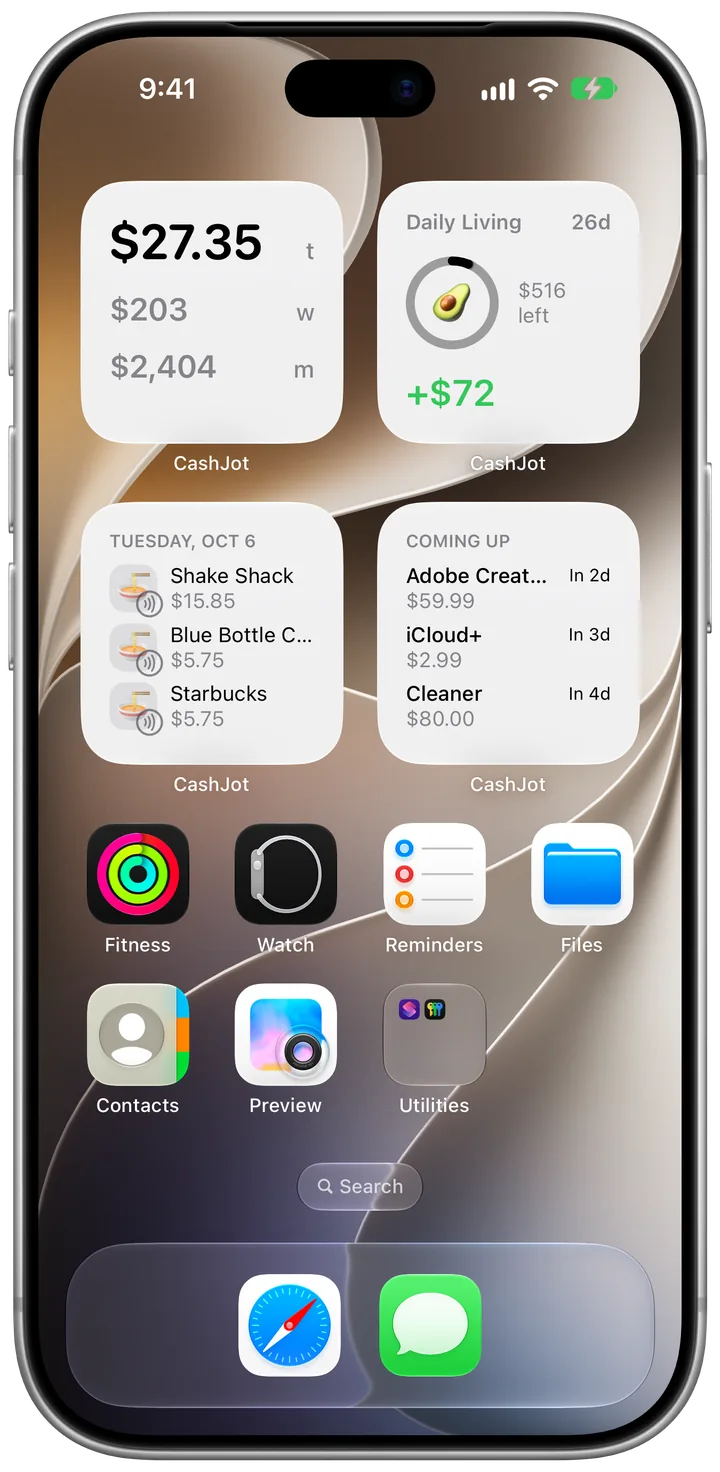
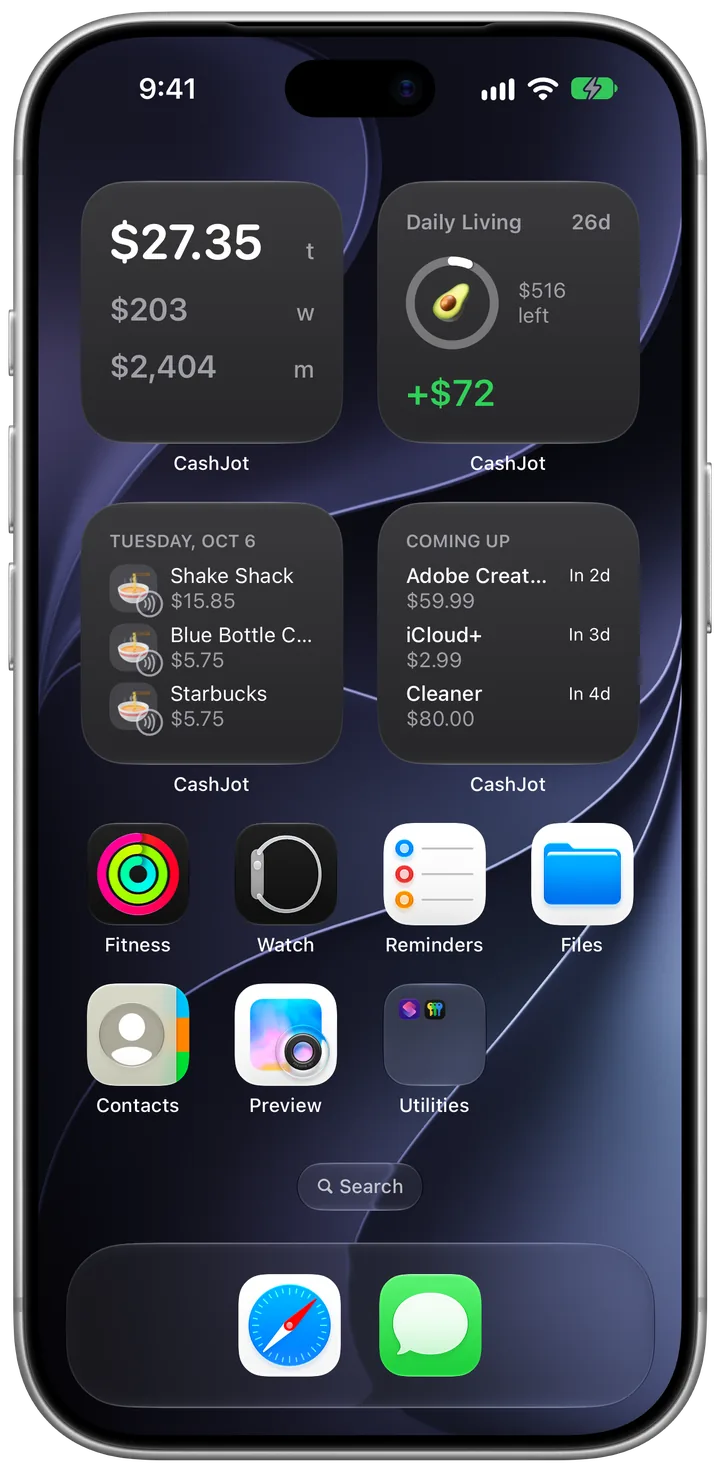
How to log an expense by tapping the back of your iPhone
Double-tap the back of your phone and jump straight to the keypad. How to pair iOS Back Tap and the Action button with CashJot for instant, one-gesture logging.
Updated
On this page
- What you'll end up with
- Before you start
- Set up Back Tap
- 1. Save the Open Log shortcut
- 2. Assign the shortcut to Back Tap
- Use the Action button instead
- Using Back Tap with other expense apps
- Troubleshooting
- Taps don't register every time
- Accidental triggers
- Back Tap is missing in Settings
- Open Log doesn't show up under Back Tap
- Frequently asked questions
- Does Back Tap log the purchase automatically?
- Can I use the Action button for the camera and Back Tap for CashJot?
- Does this work with any expense tracker?
Back Tap is a built-in iPhone setting that runs a shortcut whenever you double- or triple-tap the back of your phone. Pair it with CashJot's Open Log shortcut and you can jump straight to the keypad without hunting for the app icon on your Home Screen.
What you'll end up with#
Double-tap the back of your iPhone and CashJot opens with the number pad ready: type the amount, tap a category, and save. Skipping the Home Screen keeps you from getting distracted by notification badges along the way.
This shortcut opens the keypad for manual entries; it doesn't read payment cards on its own. In-store card taps can arrive automatically via an Apple Pay Wallet automation, while Back Tap handles cash, split bills, and online orders.
Before you start#
- Back Tap works on iPhone 8 or later (Apple Back Tap guide).
- CashJot installed (requires iOS 18 or later).
- The Action button option requires an iPhone 15 Pro, iPhone 16 series, or newer.
Set up Back Tap#
You can also view these steps inside CashJot under Settings → Set Up Back Tap.
1. Save the Open Log shortcut#
iOS Back Tap only lists shortcuts saved in your Shortcuts library, so save CashJot's action there first:
- Open Apple's Shortcuts app and tap the Shortcuts tab at the bottom.
- Tap + in the top-right corner to create a new shortcut.
- Search for CashJot in the bottom search bar and tap Open Log.
- Tap Done to save it as Open Log.
2. Assign the shortcut to Back Tap#
- Open Settings → Accessibility → Touch.
- Scroll to the bottom and tap Back Tap.
- Tap Double Tap (or Triple Tap), scroll down to the Shortcuts section, and pick Open Log.
Tap the back of your iPhone twice to test it. CashJot will open straight to the keypad.
Use the Action button instead#
On iPhone 15 Pro, iPhone 16, and newer models, you can use the physical Action button on the side of the phone instead:
- Open Settings → Action Button.
- Swipe to Shortcut.
- Tap Choose a Shortcut, scroll to CashJot or Shortcuts, and pick Open Log (Apple Action button guide).
Press and hold the Action button anytime to open the keypad. You can even keep both Back Tap and the Action button set up at the same time.
Using Back Tap with other expense apps#
Back Tap works with any shortcut in Apple's Shortcuts app. If you use another expense tracker that includes a "New Expense" Shortcuts action, save it in Shortcuts and assign it under Settings → Accessibility → Touch → Back Tap.
If you track expenses in Notion, building a Back Tap shortcut takes a few input prompts; see our comparison of spreadsheets, Notion, and apps.
Troubleshooting#
Taps don't register every time#
Back Tap works through most cases, though thick or rugged cases can muffle the tap. Tap firmly near the Apple logo in the middle of the back glass, or switch from Double Tap to Triple Tap if you get false triggers when setting your phone down.
Accidental triggers#
If Back Tap fires by accident, it just opens CashJot to the Log tab without saving anything. Anything you were already typing stays on screen until you save or clear it.
Back Tap is missing in Settings#
Back Tap requires an iPhone 8 or newer. Check that your iOS version is up to date under Settings → General → Software Update.
Open Log doesn't show up under Back Tap#
Back Tap only shows shortcuts saved in your Shortcuts library. Complete Step 1 in the Shortcuts app first, then return to Settings → Accessibility → Touch → Back Tap.
Frequently asked questions#
Does Back Tap log the purchase automatically?#
No. Back Tap opens CashJot straight to the keypad so you can type the amount and tap Save in two seconds.
If you want in-store card taps to log themselves without typing, set up Apple Pay capture too.
Can I use the Action button for the camera and Back Tap for CashJot?#
Yes. Back Tap and the Action button are completely separate settings, so you can keep the Action button on Camera or Silent Mode and use Back Tap for logging expenses.
Does this work with any expense tracker?#
Yes. Back Tap can open any app on your iPhone or run any shortcut saved in Apple's Shortcuts app.