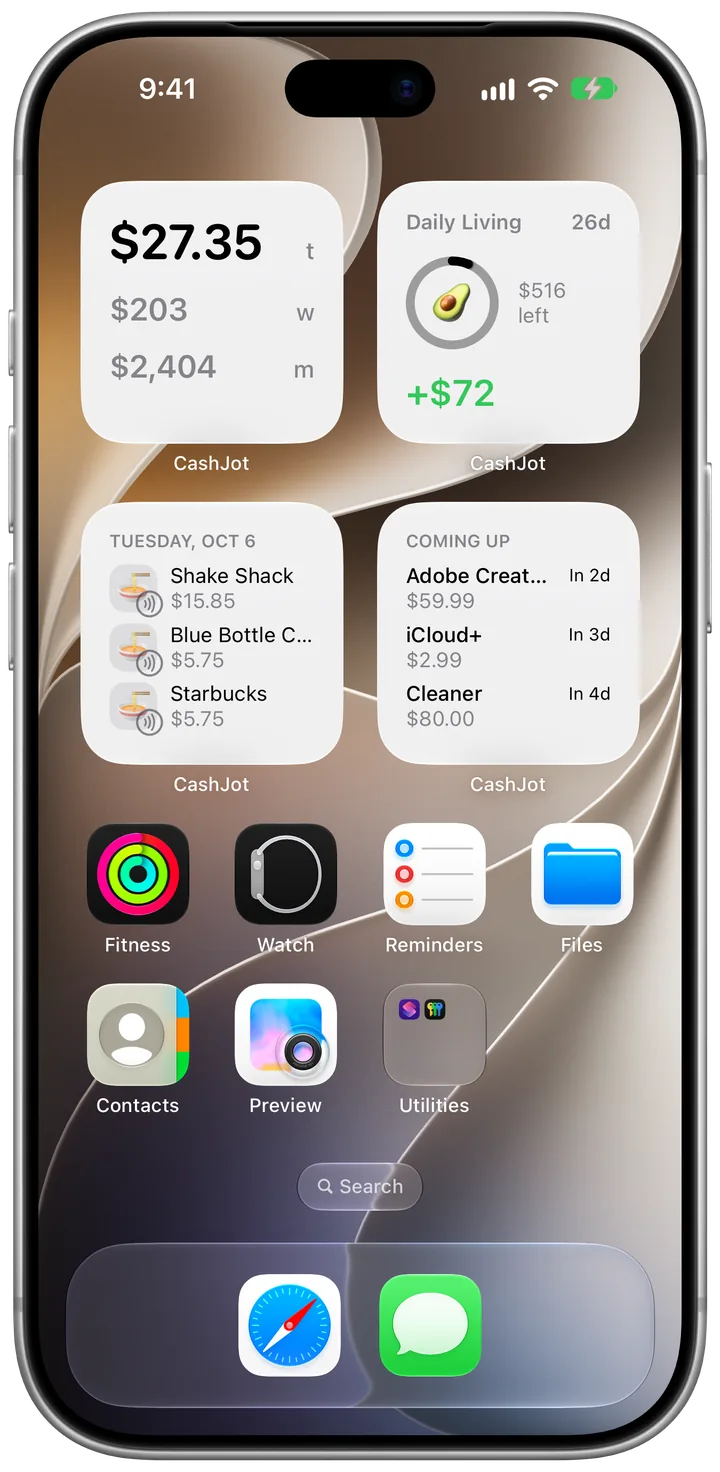
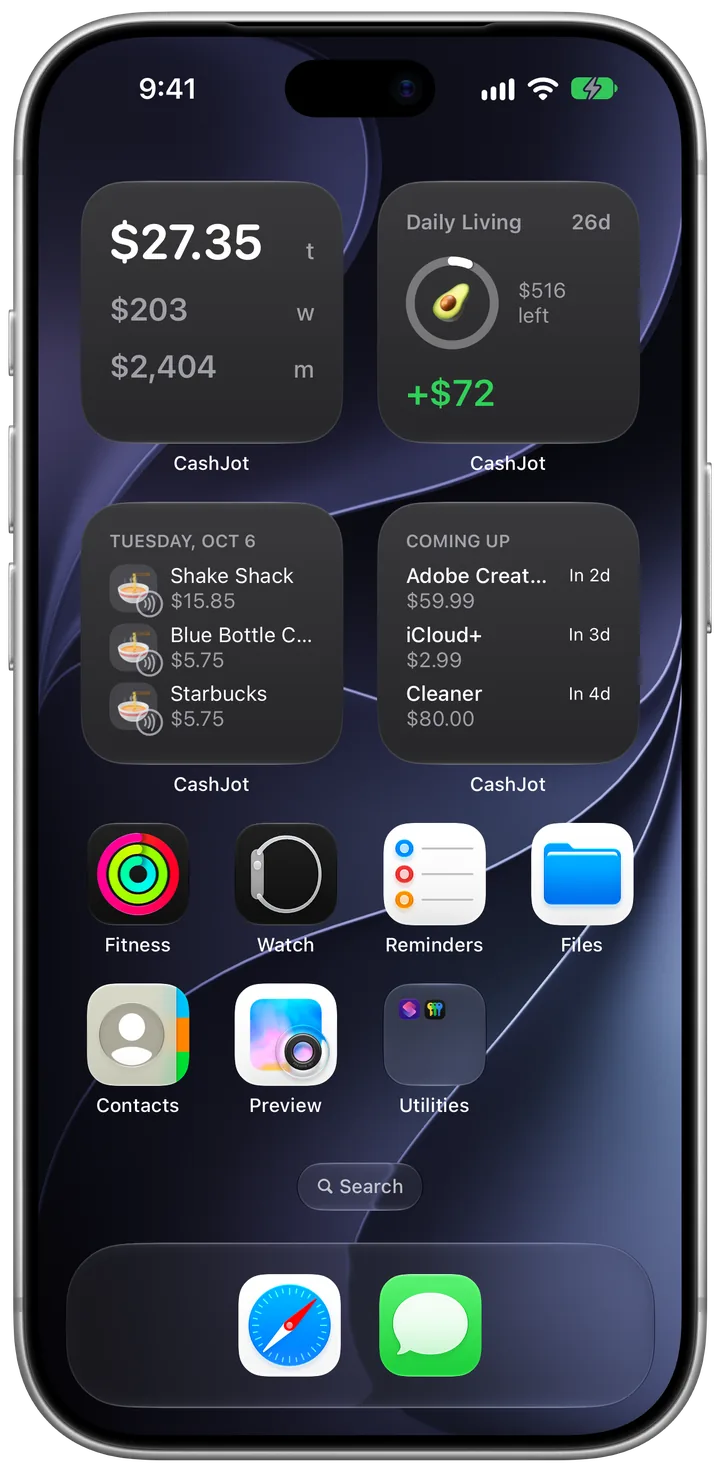
How to log expenses from bank and wallet notifications on iPhone
On iOS 27, payment notifications from your bank, card, or wallet app show up right above the Log keypad, like iOS one-time code AutoFill, with no bank login.
Updated
On this page
- How it works
- What you'll need
- Set up Payments from Notifications
- 1. Add the CashJot shortcut
- 2. Choose your apps
- 3. Turn on the automation
- Adding or managing apps later
- Pairing with Apple Pay capture
- Frequently asked questions
- Will a payment count twice if I use Apple Pay and my bank also notifies me?
- Which notifications count as payments?
- Do I need Apple Intelligence?
- What's free, and what needs CashJot Plus?
- Does CashJot read all my notifications or keep their text?
- Why didn't a payment show up?
- What about an app I pay with directly, like a transit card?
- Does it work on iOS 26 or earlier?
Apple Pay capture handles in-store taps, but plenty of everyday spending happens elsewhere: physical cards, bank apps like Revolut or Chase, digital wallets like PayPay or Venmo, or transit cards. On iOS 27, you can pair a Shortcuts notification automation with CashJot so payment alerts from those apps wait right above the keypad on the Log tab.
Everything runs on your iPhone, with no bank login and no account aggregator. For how this works alongside Apple Pay capture on each plan, see Log as you pay.
How it works#
Unlike Apple Pay auto-logging, there is no extra CashJot notification. Instead, it works like iOS's built-in one-time code (OTP) suggestion above the keyboard. When your bank, wallet, or transit card app sends a payment notification, iOS 27's "When I receive a notification" automation passes it to CashJot's Capture Payment Notification shortcut, and the payment sits above the keypad the next time you open the Log tab.
- On the free plan: The payment appears above the keypad so you can see the amount and log it quickly by hand.
- With CashJot Plus: Tap the suggestion once to fill in the expense details automatically.
If your bank spells shop names in capitals or with terminal codes, Payment Names and Tidy Names in Settings can rename them.
What you'll need#
Before you start, make sure you have:
- An iPhone running iOS 27 or later.
- Notifications turned on for the bank, wallet, or transit card app you want to capture.
- CashJot installed (setup and seeing suggestions on the Log tab are free; one-tap fill-in is part of CashJot Plus).
Set up Payments from Notifications#
1. Add the CashJot shortcut#
In CashJot, go to Settings → Payments from Notifications → Setup Guide, or tap the link below on your iPhone with iOS 27 or later:
Shortcuts opens with Capture Payment Notification ready to add. Tap Add Shortcut.
2. Choose your apps#
In Apple's Shortcuts app, open Capture Payment Notification, then:
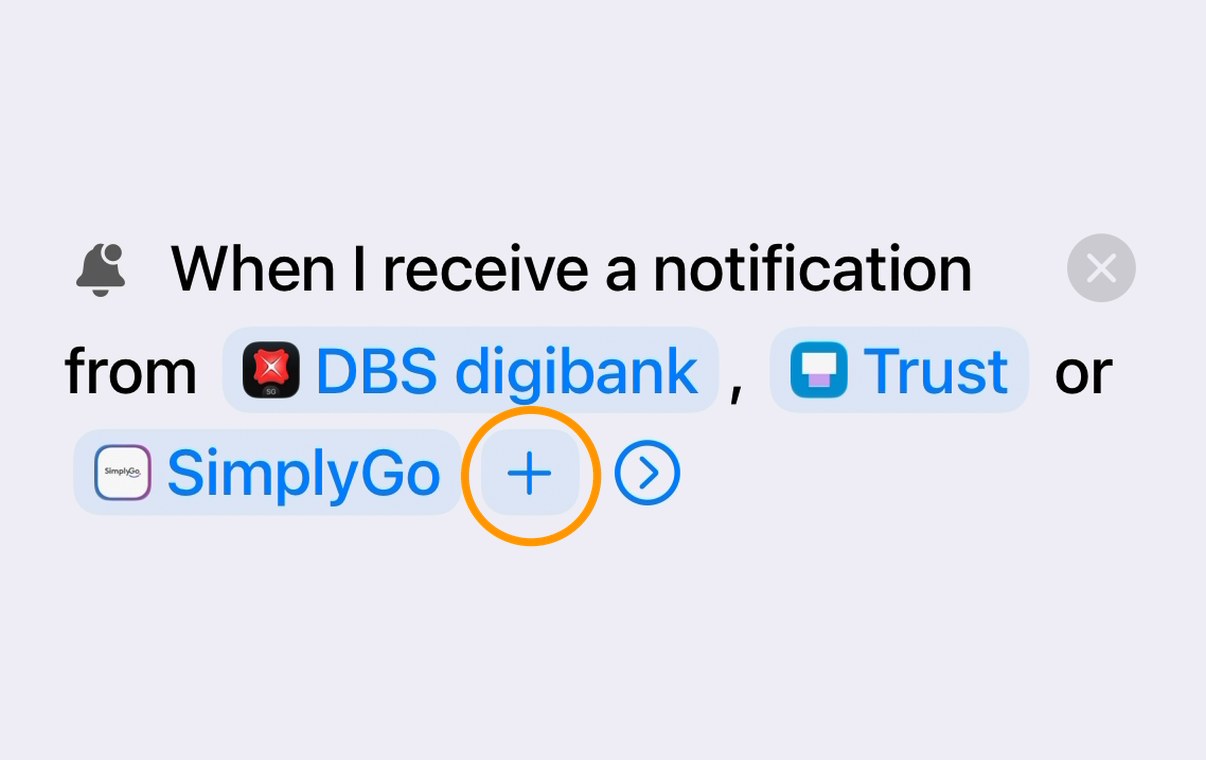
- Tap App and choose your bank, wallet, or transit card app.
- Tap + next to it to add more apps into the same automation.
3. Turn on the automation#
Shortcuts adds new automations switched off by default:
- Go back to Library in Shortcuts.
- Open Automation.
- Turn on the notification automation.
Adding or managing apps later#
- Add another app: Open Capture Payment Notification in Shortcuts and tap + next to the existing app in its automation.
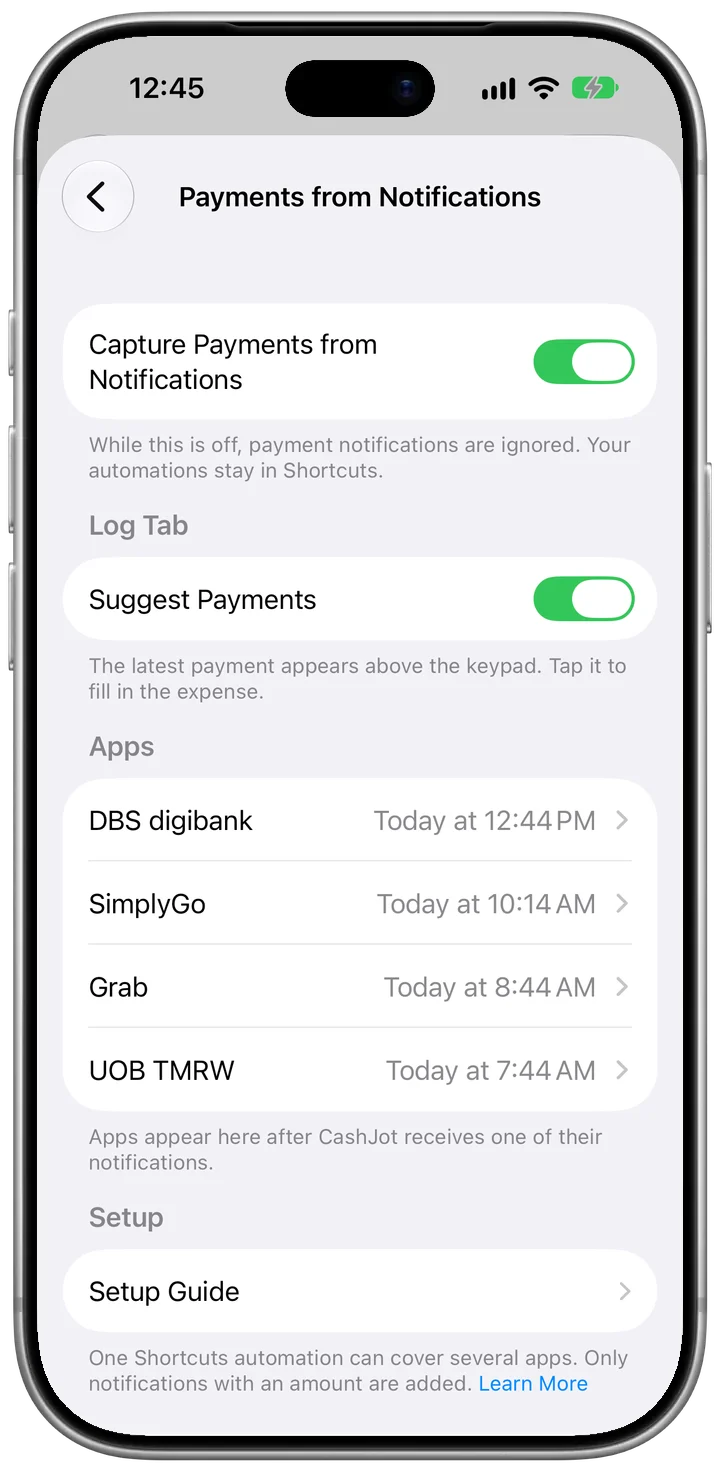
- See active apps in CashJot: An app appears under Apps in Settings → Payments from Notifications after its first notification reaches CashJot.
Pairing with Apple Pay capture#
You can run Payments from Notifications alongside Apple Pay capture: use Wallet automation for instant in-store taps, and notification capture for physical cards, online transfers, digital wallets, and transit cards.
For which apps to add where you live, and how to count each payment once, see the setup guides for the US (card alerts, Venmo, Cash App), Singapore (PayNow, NETS QR, SimplyGo), and Japan (PayPay, card alerts, Suica top-ups).
Frequently asked questions#
Will a payment count twice if I use Apple Pay and my bank also notifies me?#
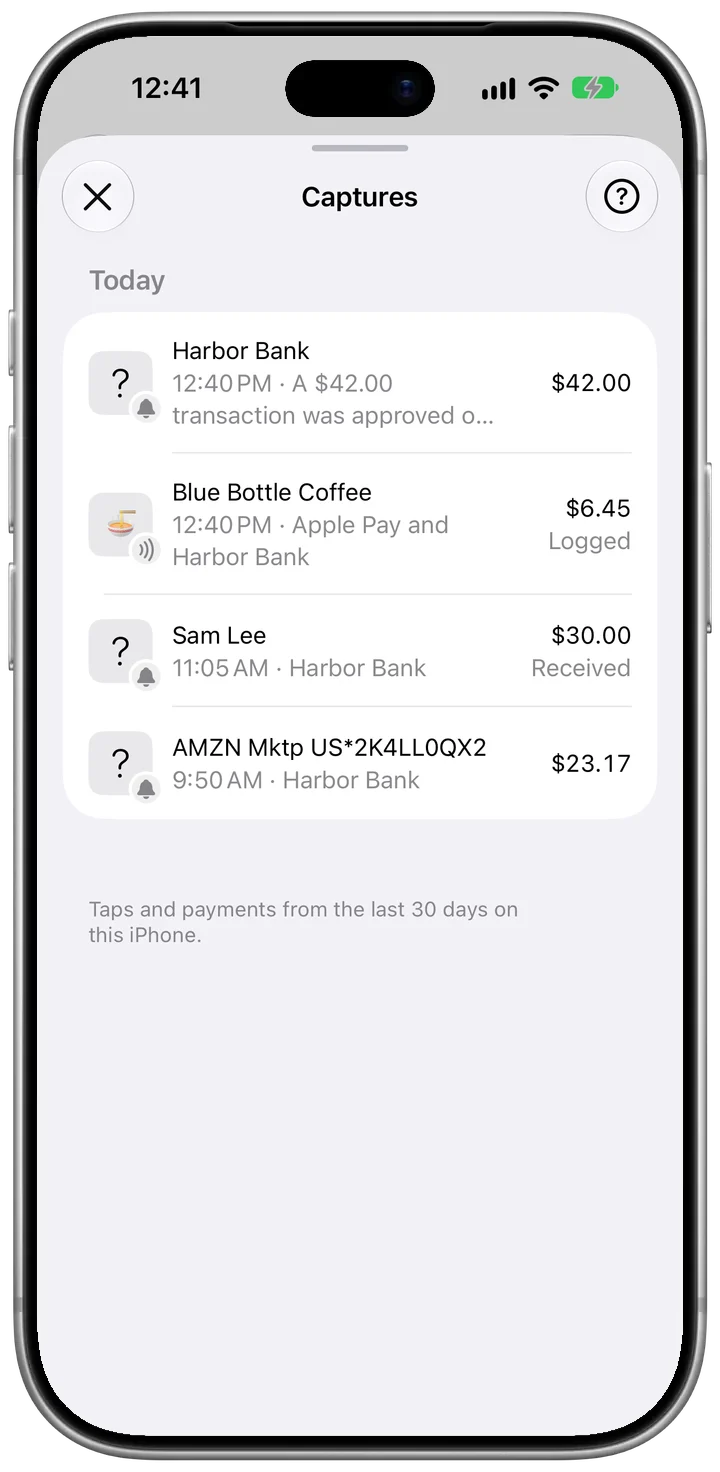
No. When an Apple Pay tap and a notification have the same amount within 3 minutes, CashJot counts them as one payment, and Captures lists it once with both under From. The same goes when several apps notify you about one payment, like a wallet app and the bank behind it. The payment takes its name from Apple Pay, or else from the first notification that has one.
Which notifications count as payments?#
A notification counts when it shows an amount with a currency, such as $5.61 or 1,200円. Others, like sign-in codes, are ignored and not kept. Money you send to people or receive counts too.
Do I need Apple Intelligence?#
Not for the amount. On iPhones with Apple Intelligence, CashJot reads who was paid and whether money went out, and uses the name only when it appears in the notification word for word. Money you receive and refunds are marked Received or Refund in Captures and don't appear on the Log tab. Without Apple Intelligence, payments come in with their amount and no name.
What's free, and what needs CashJot Plus?#
Setting up the automation and seeing payments above the keypad are free: the amount is shown for you to enter. With CashJot Plus, one tap fills in the amount, the date, and the name if there is one, with the category from past expenses with that name.
Does CashJot read all my notifications or keep their text?#
CashJot only receives notifications from the apps you choose in the Shortcuts automation, and it reads them on your iPhone. Payments stay in Captures for 30 days. Logging one saves an ordinary expense, without the notification's text.
Why didn't a payment show up?#
Check these in order:
- Notifications are turned on for that app in the iPhone's Settings → Notifications.
- The automation is switched on under Automation in Shortcuts, with that app chosen in it.
- In CashJot, Capture Payments from Notifications and Suggest Payments are on in Settings → Payments from Notifications.
- The notification showed an amount. Notifications without one are ignored.
Only the latest payment appears above the keypad. Earlier ones are in Captures.
What about an app I pay with directly, like a transit card?#
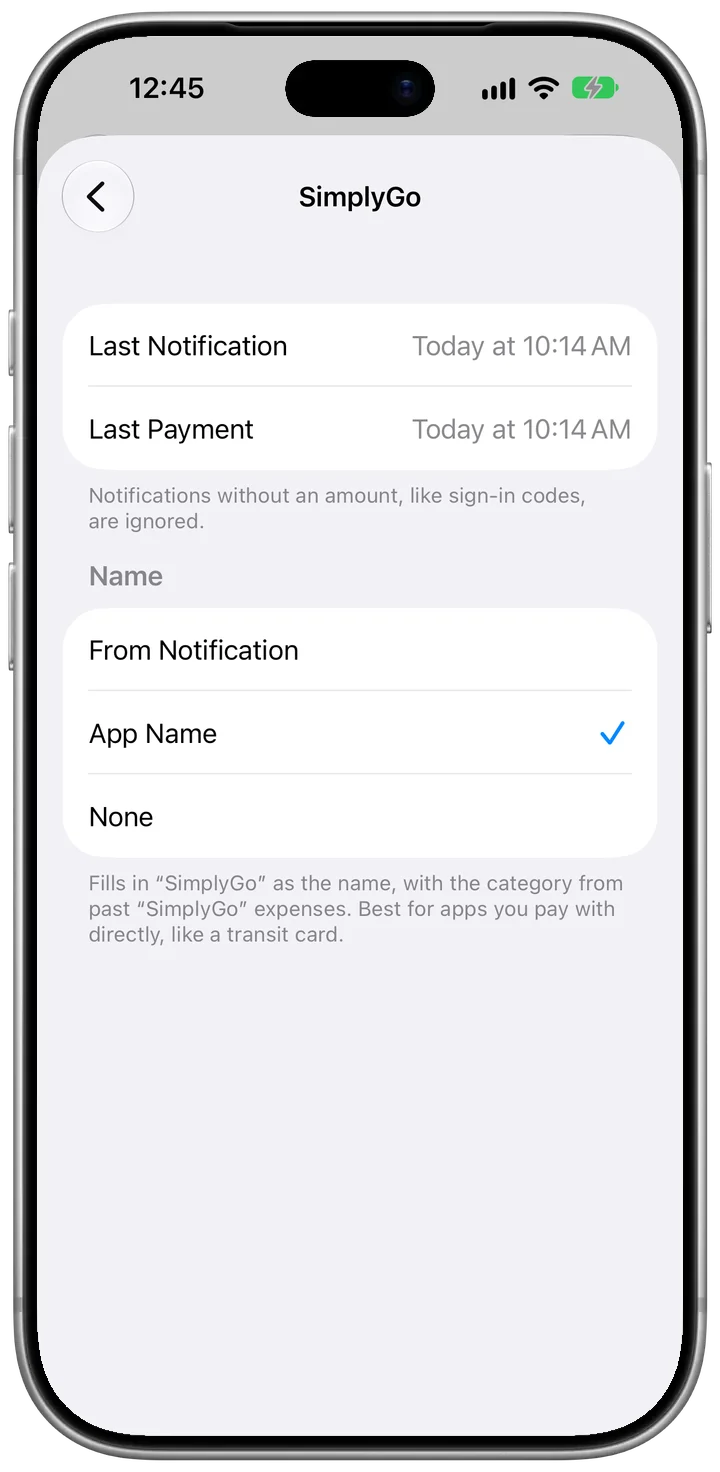
In Settings → Payments from Notifications, tap the app under Apps and set Name to App Name. Its payments then fill in with the app's name and the category from past expenses with that name.
Does it work on iOS 26 or earlier?#
No. The notification automation is new in iOS 27. On iOS 18 to 26, Apple Pay capture still records in-store taps.