How to track PayNow, SimplyGo, and GrabPay payments from notifications on iPhone
Apple Pay catches card taps at the register, and iOS 27 notifications cover PayNow QR, NETS QR, GrabPay, PayLah!, and SimplyGo. Here is which bank alerts to turn on and how to avoid counting a payment twice.
Published
On this page
- In-store Apple Pay taps
- Bank and wallet notifications on iOS 27
- Bank app settings that block alerts
- Hawker stall UENs, card names, and friends paying you back
- Counting each payment once
- Merged automatically (within 3 minutes)
- When to tap ×
- SimplyGo: MRT and bus fares
- Frequently asked questions
- Do my bank's SMS alerts work?
- How do I track GIRO bills and insurance premiums?
- What about Atome and other buy-now-pay-later plans?
In Singapore, card taps are only half of daily spending. A typical day also runs through PayNow QR or NETS QR at a hawker stall, SimplyGo on the MRT and bus, GrabPay or PayLah!, and transfers to friends.
Apple's Wallet automation only sees in-store Apple Pay taps. On iOS 27, you can pair that with CashJot's Capture Payment Notification shortcut so push alerts from DBS digibank, OCBC, UOB TMRW, Trust, PayLah!, Grab, and SimplyGo wait right above the keypad on the Log tab.
| Payment | How it reaches CashJot | What to watch for |
|---|---|---|
| In-store Apple Pay tap | Apple Pay taps | Merges with your bank's push alert if both arrive within 3 minutes |
| PayNow QR, NETS QR, FAST transfer | Bank app notifications | Switch bank alerts from SMS to push, and lower the $ threshold |
| Physical card or online checkout | Bank app notifications | Wallet shortcuts don't run for online or chip-and-PIN payments |
| GrabPay, PayLah! | Wallet notifications | Log either the top-up or what you spend from the balance, not both |
| Bus and MRT | SimplyGo or bank alerts | Log settled fares or top-ups, never individual gate taps |
Cash and fixed bills stay separate: log cash by hand (and if you type in a card payment yourself, a same-day alert for the same amount counts as already logged), and set rent, telco plans, and subscriptions as recurring expenses.
In-store Apple Pay taps#
Follow the Apple Pay setup guide to add the Wallet automation once. With CashJot Plus, in-store taps log themselves as you pay. On the free plan, they appear in Captures and above the keypad on the Log tab with the amount in view.
If you carry a multi-currency card like YouTrip, Revolut, or Wise in Apple Wallet for trips, add a Card Rule under Settings → Apple Pay Taps → Card Rules to send that card's taps straight to your trip Expense Group.
Bank and wallet notifications on iOS 27#
On iOS 27, a single Shortcuts automation passes notifications from the apps you choose to CashJot on your iPhone. See the payment notification guide for the setup steps.
For Singapore, one automation usually covers:
- Your bank app (DBS or POSB digibank, OCBC, UOB TMRW, Trust, Citibank, Standard Chartered) for PayNow, NETS QR, transfers, and online card purchases.
- DBS PayLah! and Grab, if you pay from their wallet balances.
- YouTrip, Revolut, or Wise, for online foreign-currency checkouts and regional travel.
- SimplyGo, if you want bus and MRT fares above the keypad (see SimplyGo below).
Bank app settings that block alerts#
If a PayNow or card payment doesn't show up above the keypad, check your bank app's notification settings:
- SMS vs. push notifications. Many Singapore banks default transaction alerts to SMS or email. A Shortcuts automation for
DBS digibankonly sees push notifications from the digibank app itself, never SMS texts in Messages. Turn on Push Notifications inside your bank app's alert settings. - Minimum alert thresholds. Some bank apps only send card and transfer alerts above a minimum, such as S$50 or S$100. Lower that threshold in your bank app down to S$0.01 or S$1.00 so a S$1.80 kopi or S$5.50 hawker lunch sends a push alert.
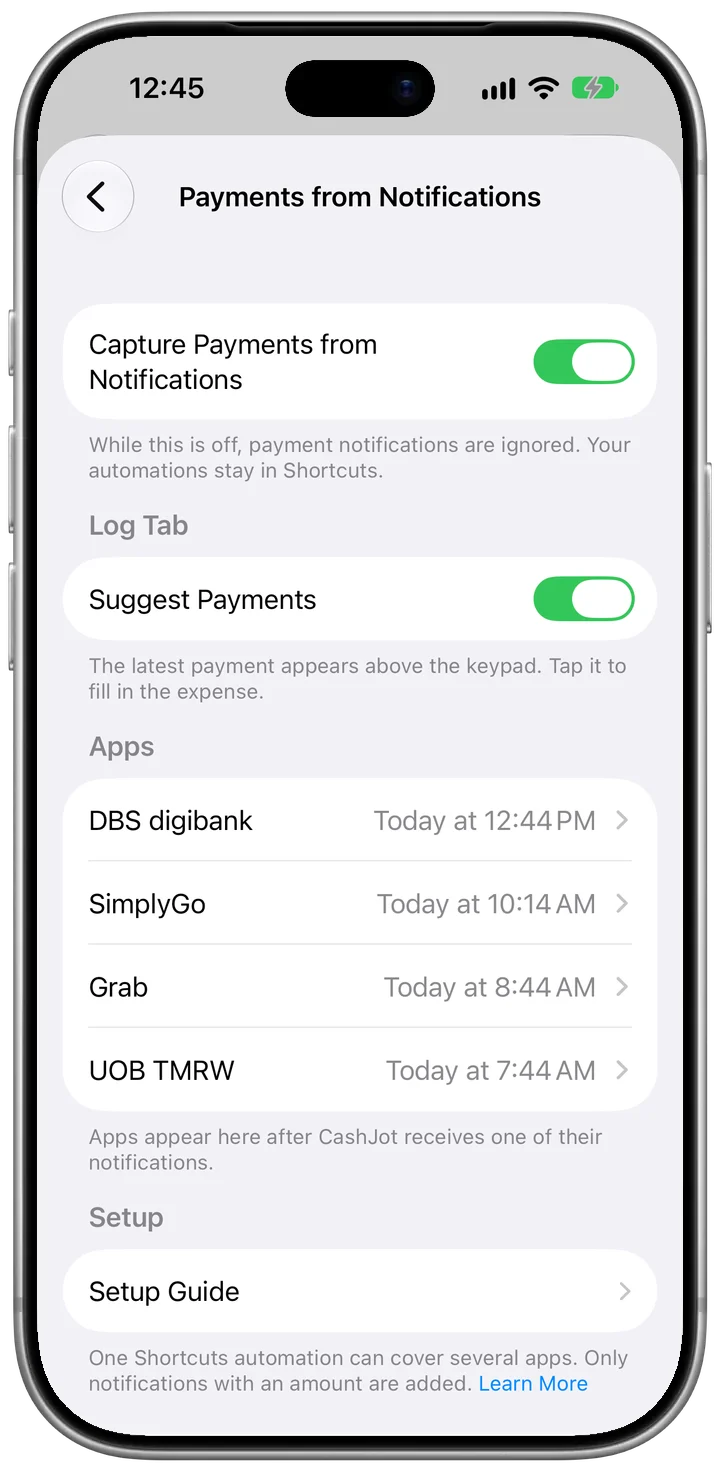
After your first payment, open Settings → Payments from Notifications and tap the app under Apps. If the app sent a notification but shows None in the last 30 days, its push preview doesn't include an amount CashJot can read.
Hawker stall UENs, card names, and friends paying you back#
Singapore bank notifications carry a few formatting quirks of their own:
- Hawker stall UEN suffixes: A PayNow QR alert to a stall or small shop often appends the business registration code, such as
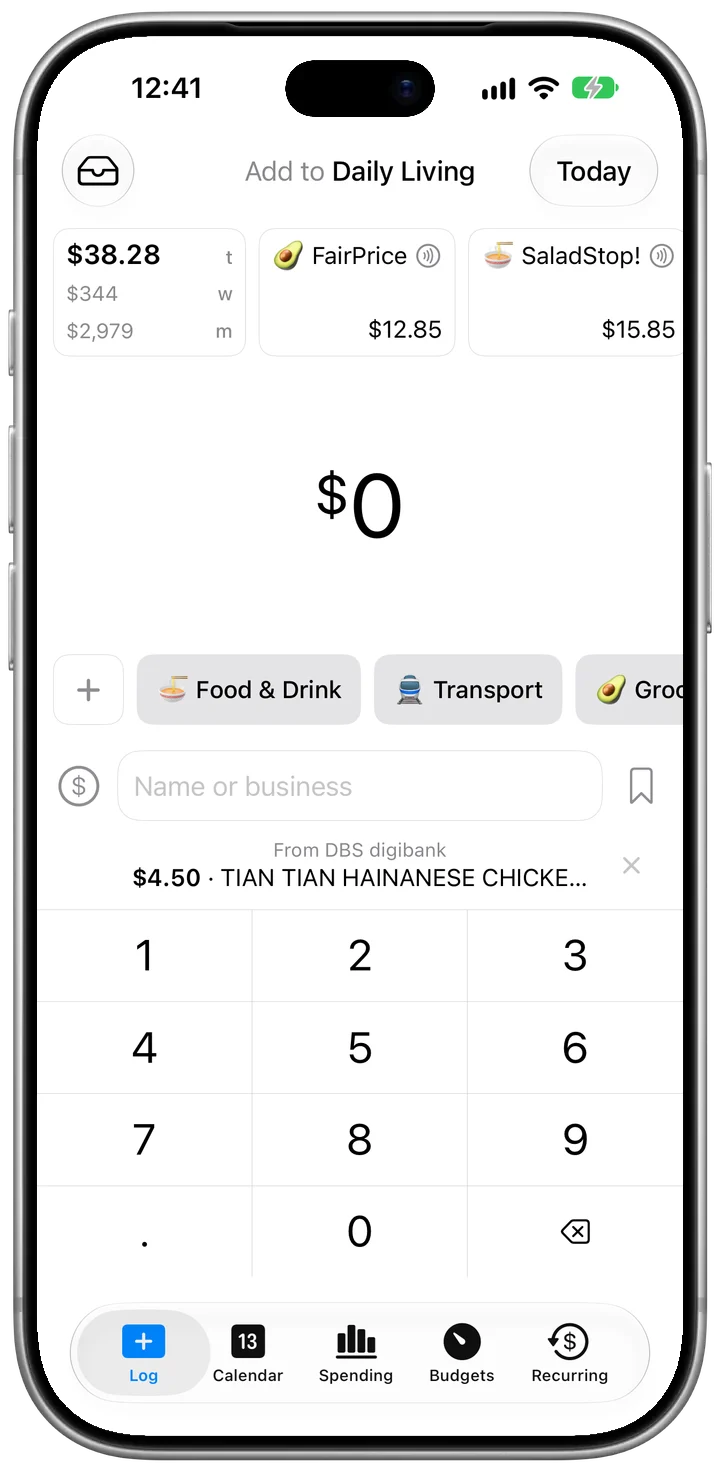
TIAN TIAN CHICKEN RICE (UEN ending 53KD). On iPhones with Apple Intelligence, CashJot reads who was paid on-device and strips the(UEN ending ...)suffix automatically. - Card names in bank alerts: When an alert only names your card (like
DBS Visa Debit ending 1234) without naming the shop, CashJot leaves the card name out and offers the amount by itself, so the payment doesn't arrive named after your card. - Uppercase business names: To turn ACRA or terminal strings like
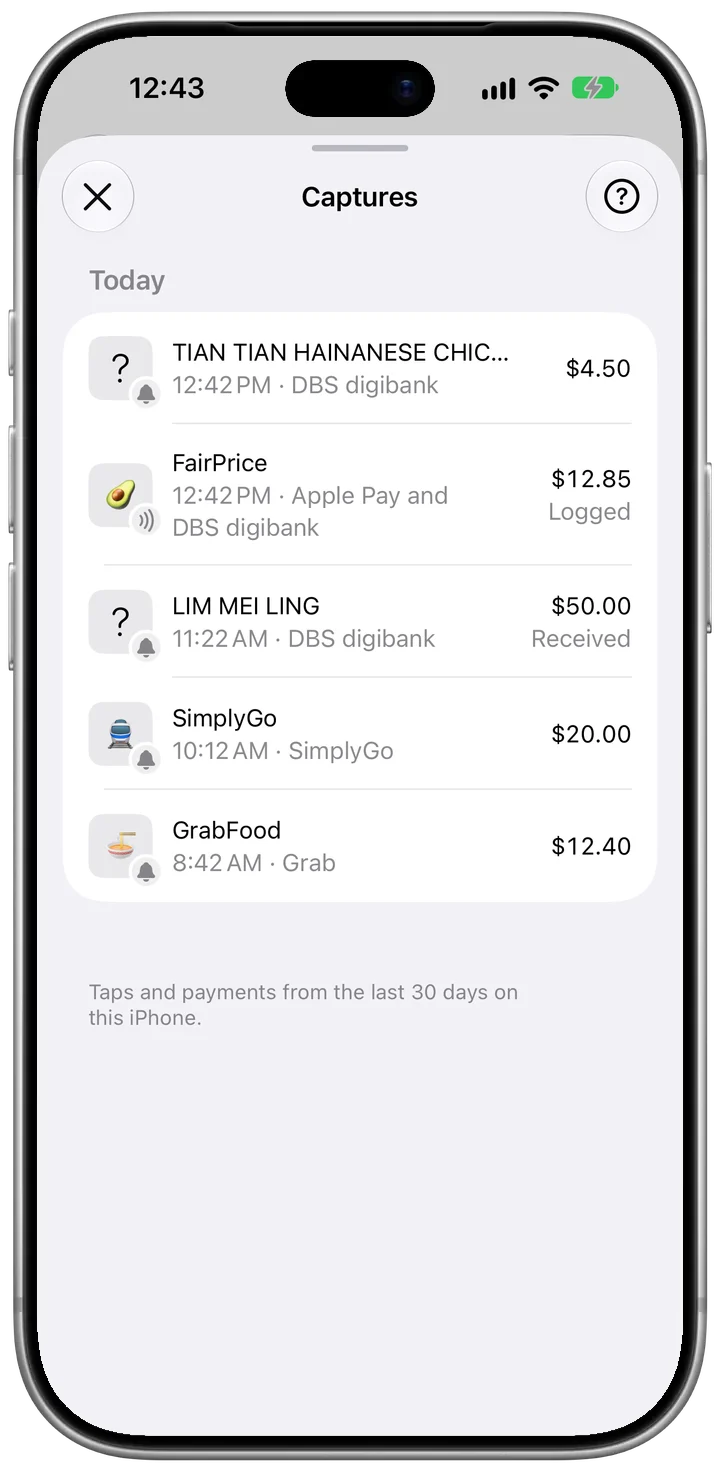
NTUC FAIRPRICE FINEST #124intoFairPrice, add a Contains rule under Settings → Payment Names, or clean up past entries in Settings → Tidy Names. - PayNow from friends: With Apple Intelligence on, incoming PayNow or PayLah! transfers and refunds are marked Received or Refund in Captures and stay off the Log tab. When you pay for the whole table and friends PayNow you back, change the capture's amount to your own share before saving.
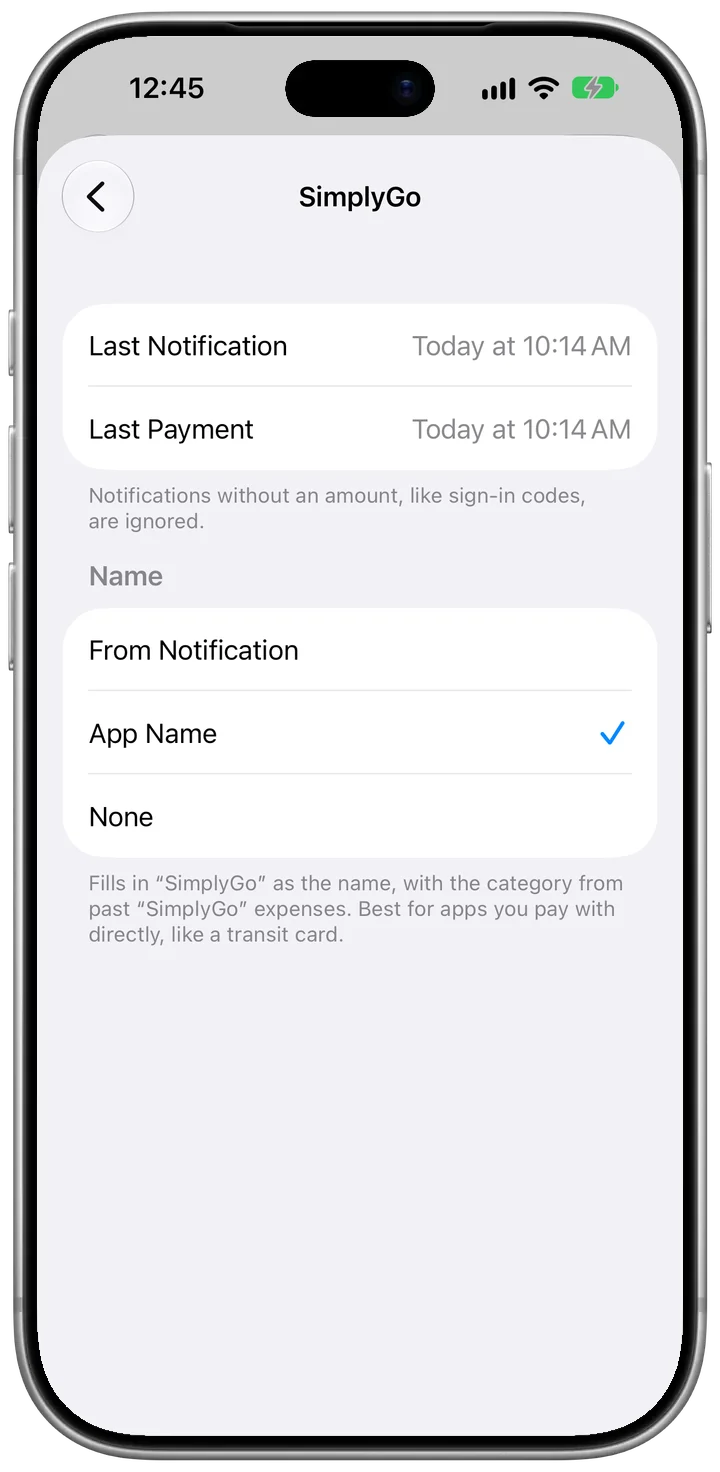
For apps where the app itself is the merchant (such as SimplyGo), open Settings → Payments from Notifications → Apps, tap the app, and set Name to App Name. Every payment from it then fills in the app's name and your past category for it.
Counting each payment once#
Using both Apple Pay and bank notifications means one payment often sends two alerts. Notifications are only ever offered, never logged on their own, and CashJot merges the matching pairs automatically. For everything else, tap × on the suggestion above the keypad to hide it from the Log tab while keeping it in Captures.
Merged automatically (within 3 minutes)#
When an Apple Pay tap and an alert, or alerts from two different apps, share the same amount and currency within 3 minutes, CashJot counts them as one payment:
- Apple Pay + your bank's alert: Tap your DBS or OCBC card with Apple Pay at FairPrice, and the tap and the bank push become a single payment, keeping the merchant name from Apple Pay.
- GrabPay or PayLah! + your bank: If a S$12.40 GrabPay checkout notifies both Grab and the card or bank behind it within 3 minutes, it counts once.
When to tap ×#
- GrabPay and PayLah! top-ups vs. spending: A S$50 wallet top-up and the S$12.40 you spend from it later happen at different times with different amounts, so both arrive in Captures, and each waits above the keypad until a newer payment takes its place. Pick one per wallet: for GrabPay or PayLah!, log each purchase so food and rides get their own categories, and tap × on top-ups.
- Foreign-currency taps on a Singapore bank card: If you tap a DBS, OCBC, or UOB card overseas, Apple Pay captures the local currency (¥1,500 or MYR 45.00) while your bank app may push the converted
SGDamount (S$13.20). Because the currencies differ, CashJot keeps both. Log the one you want and tap × on the other (logging in yen or ringgit needs CashJot Plus; on the free plan, log the SGD one). (Multi-currency cards like YouTrip, Revolut, and Wise usually notify in the local currency you spent, so their alert matches the Apple Pay tap. For regional trips where cash still dominates, see cash or card in Southeast Asia.) - Delayed or duplicate bank alerts: The same notification passed on twice in a row is ignored, but if a bank sends two differently worded alerts for one payment, or pushes more than 3 minutes after an Apple Pay tap, both stay in Captures. Log one and tap × on the other.
- Recurring bills and card instalments: Scheduled recurring expenses (including 0% card instalment plans set up with End Repeat) log themselves on their due date. When your bank notifies you that a recurring bill was charged, tap × on the suggestion.
SimplyGo: MRT and bus fares#
CashJot's ready-made Wallet shortcut leaves out the Transport category so transit gate taps don't fire errors. A gate tap isn't the fare anyway: SimplyGo works out distance-based fares across transfers and charges them later.
CashJot treats every notification that carries an amount as its own payment, so check Captures after one commute to see what your setup sends:
- Per-journey or daily batched charge alerts (SimplyGo or bank app): Add that app to the automation and set SimplyGo's Name to App Name under Settings → Payments from Notifications → Apps so fares fill in as
SimplyGounder your transport category. Count transit in one app only (either SimplyGo or your bank app, not both). - Separate alerts at tap-in and tap-out: Log the final fare for the journey and tap × on the earlier alert.
- EZ-Link or stored-value top-up alerts: Log each top-up as your transport expense instead of logging individual rides.
Frequently asked questions#
The payment notification guide covers how notifications are read and what's included on each plan. Here are the questions that come up in Singapore.
Do my bank's SMS alerts work?#
No. The automation works with push notifications from the bank's own iPhone app, and alerts sent by SMS or email go to Messages or Mail instead. DBS, POSB, OCBC, and UOB often default transaction alerts to SMS, so switch them to push notifications inside the bank app's alert settings (see Bank app settings that block alerts) and add that app to the automation.
How do I track GIRO bills and insurance premiums?#
Set them up as recurring expenses (town council conservancy charges, SP Group utilities, or monthly insurance premiums) so they're counted on their due date even when no notification arrives. If your bank also sends a push alert when the GIRO deduction goes through, tap × on the suggestion above the keypad.
What about Atome and other buy-now-pay-later plans?#
Add the plan as a recurring expense with End Repeat set to the last payment, such as 3 monthly payments of S$40. Each instalment is counted on its due date, and you can tap × when Atome or your card notifies you about the deduction. Count the purchase either as monthly instalments or as one full amount up front, not both.