How to track subscriptions and bills on iPhone without a bank login
Audit your recurring bills once and schedule them in your log. Upcoming renewals post automatically on their due dates, with no bank login required.
Updated
On this page
- Audit your existing subscriptions
- Schedule recurring expenses once
- Set advance renewal reminders
- Skip cycles, change prices, and cancel
- Keep fixed bills out of your daily spending totals
- Check your yearly subscription total
- What manual bill scheduling doesn't do
- Frequently asked questions
- How do I find all active subscriptions on my iPhone?
- Can I track subscriptions without linking my bank account?
- How do I prevent rent from making my daily spending widget look overspent?
Most of your recurring bills are already listed across your phone, email, and monthly statements. Schedule them once, and they post on time while staying cleanly separated from your daily spending totals.
Audit your existing subscriptions#
Gather your recurring bills from three places:
- Apple App Store Subscriptions: Open Settings, tap your Apple Account name at the top, then select Subscriptions (Apple subscription management guide). This lists all active and expired services billed through Apple, along with renewal dates and pricing. Toggle on Renewal Receipt Emails for immediate confirmation receipts.
- Credit and Debit Statements: Scan last month's statement for directly billed services: gym memberships, streaming platforms, utilities, rent, and insurance policies.
- Email Receipts: Search your inbox for terms like "renewal", "subscription", or "invoice" to catch annual policies and software licenses that didn't bill last month.
Schedule recurring expenses once#
In CashJot, recurring bills live in the Recurring tab:
- Tap New Recurring.
- Enter the Name, Amount, Category, and Expense Group.
- Choose how often it Repeats: Weekly, Every 2 Weeks, Monthly, Every 2, 3, 4, or 6 Months, or Yearly.
- Set the First Payment date. For an installment plan or a fixed-term contract, turn on End Repeat and enter either the End Date or the number of Payments.
Once saved, entries post automatically to your spending log on each due date. Rent on the 1st, software on the 12th, and annual car insurance in March log on schedule without you having to remember them. You can have 3 recurring expenses running at once for free; unlimited recurring expenses are included with CashJot Plus.
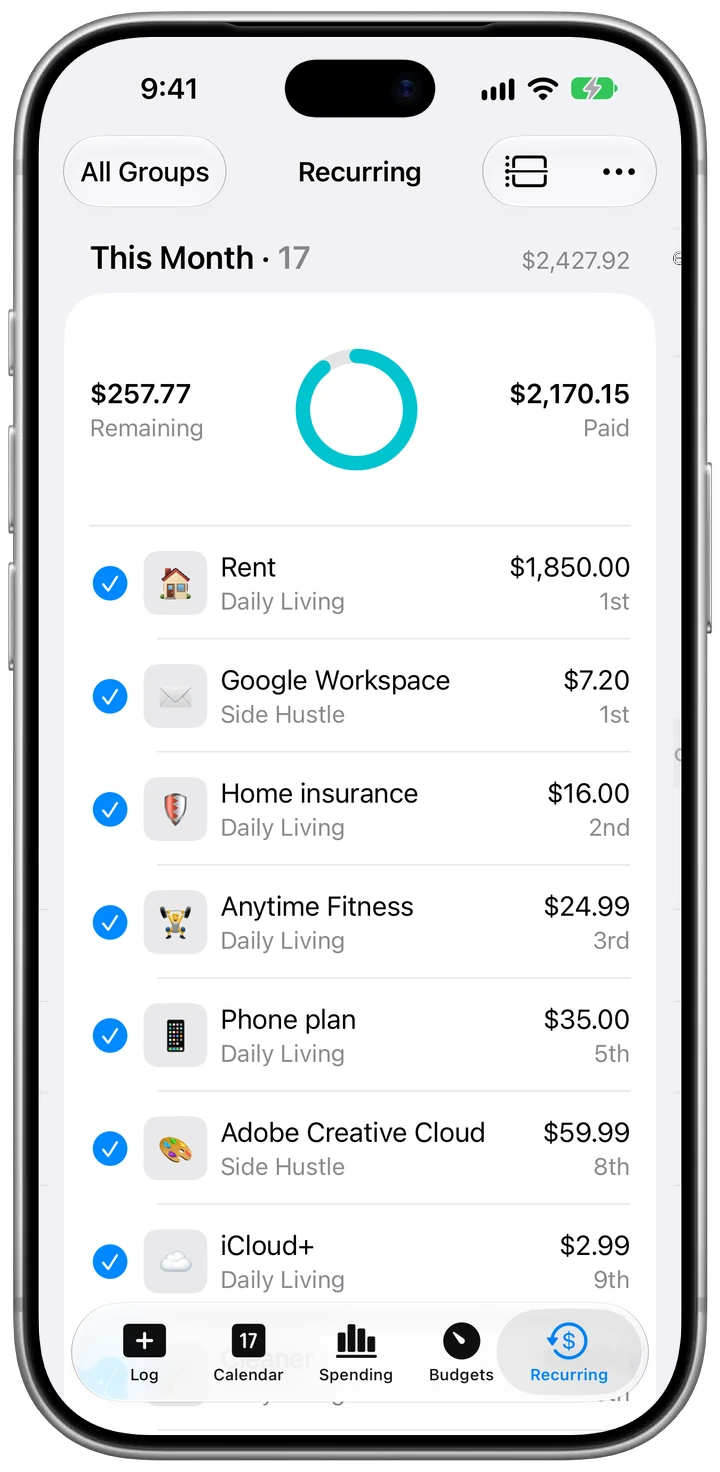
The Recurring tab has two view modes. Timeline lists this month's payments, paid and upcoming, then the ones after. Grid shows each recurring expense once with its price, most expensive first, under totals by the week, month, and year.
Set advance renewal reminders#
Every recurring entry can send you a reminder ahead of its billing date. Set its Reminder to Day of, 1 day before, 3 days before, or 1 week before. Bill reminders are included with CashJot Plus.
Advance reminders are especially handy for free trials you might want to cancel or annual policies you want to review before they renew. Reminders that land on the same day are combined into a single notification, delivered at the Reminder time you choose in Settings → Bill Reminders. Reminders are scheduled on each device, so turn on Bill Reminders on every iPhone where you want them.
Skip cycles, change prices, and cancel#
If you freeze a gym membership for a month, extend a trial, or have a utility bill that varies slightly, you can adjust a single payment without changing the rest of the schedule. Tap the payment under Upcoming on the recurring expense's page, or touch and hold it on the Recurring tab:
- Skip Payment: Skips that one payment while later payments continue as usual.
- Change Amount: Changes the amount of that one payment without altering the rest of the schedule.
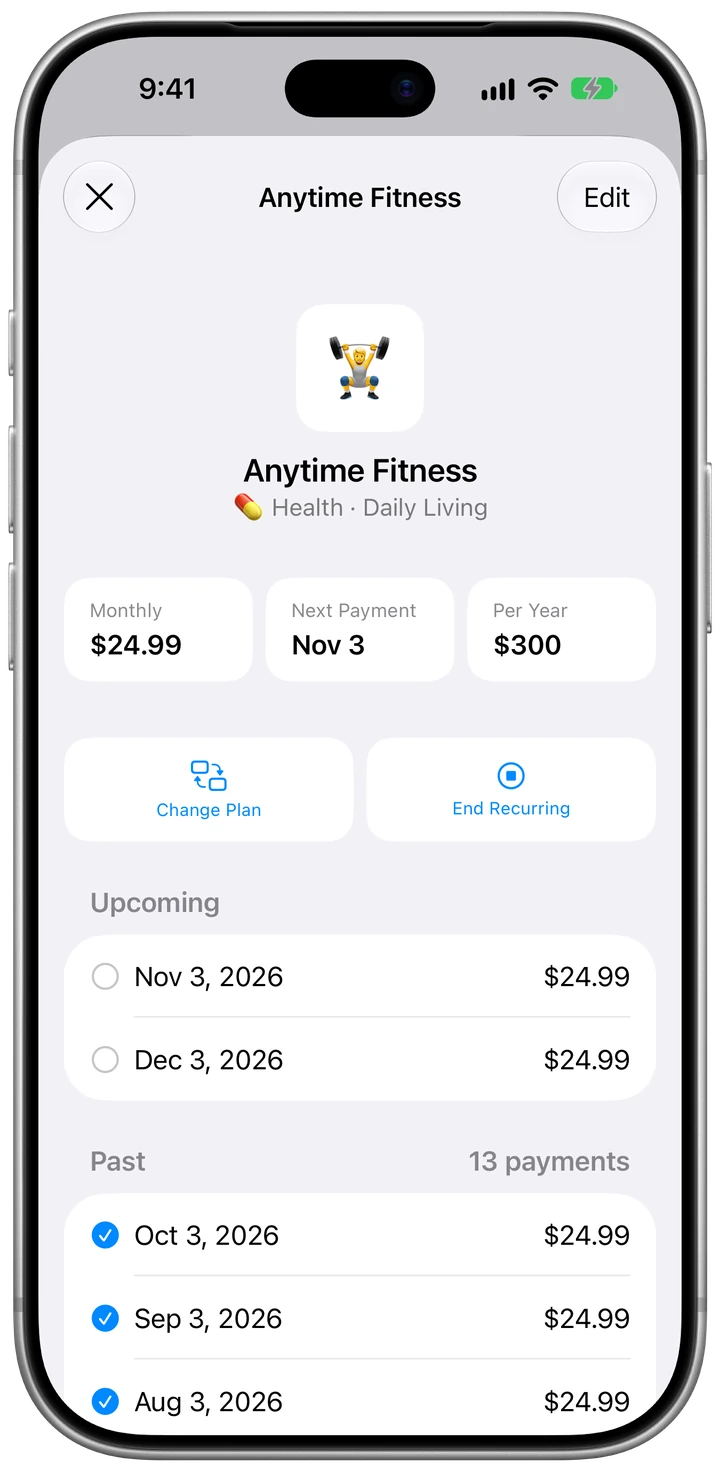
When the price itself changes, open the recurring expense and tap Change Plan, then pick the date the new price starts. Payments before that date keep the old amount, so your history stays accurate. When you cancel a subscription, tap End Recurring; its past payments stay in your history, and you can Resume it later.
Keep fixed bills out of your daily spending totals#
Rent and big monthly bills landing on the 1st shouldn't make your daily coffee budget look blown before the month even starts:
- Log Tab Totals: Tap the summary card at the top of the Log tab and turn on Exclude Recurring under Day Total, or for the week or month under Week & Month.
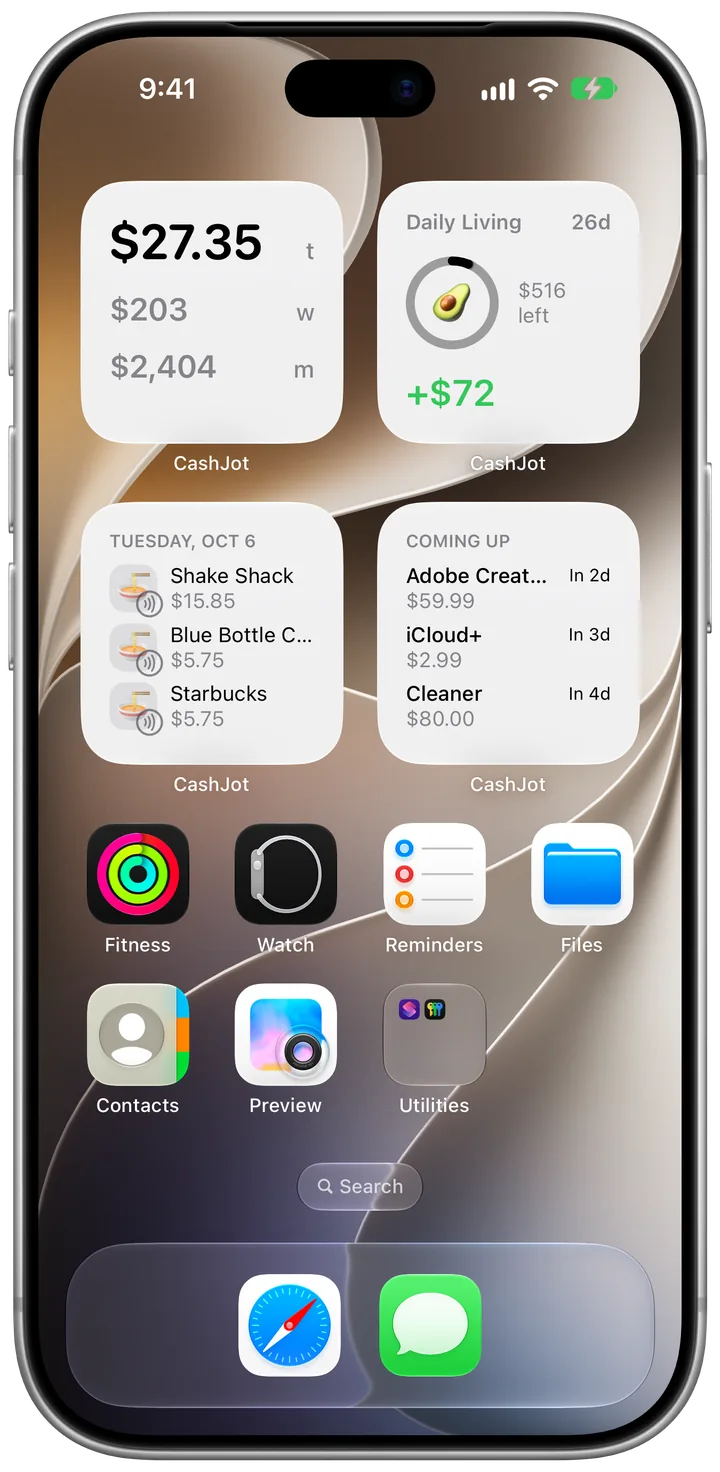
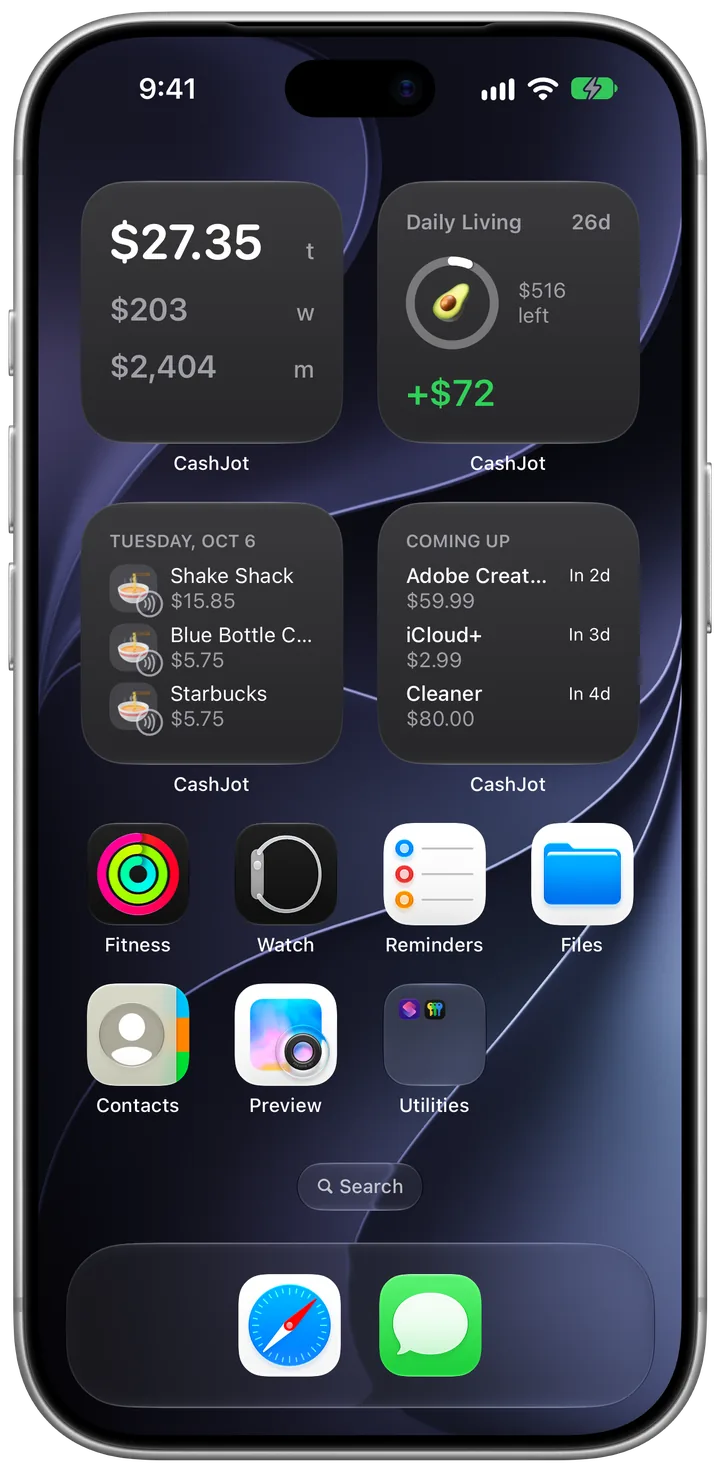
- Home Screen Widgets: Enable Hide Recurring in widget settings so your home screen total reflects only your everyday purchases.
- Upcoming Bills Widget: Place the Upcoming Recurring widget on your home screen to see your next three bills with countdowns.
Check your yearly subscription total#
Every recurring expense shows what it costs Per Year on its page, and the Recurring tab's Grid mode totals all your commitments by the week, month, and year. On the Spending tab, each period's total is split into Everyday and Recurring, so you can see how much of a month went to fixed bills. The Week and Year views on the Spending tab are part of CashJot Plus.
Checking your yearly subscription total gives you a clear reality check before signing up for another monthly service.
What manual bill scheduling doesn't do#
Scheduling recurring bills yourself tracks the subscriptions you know about without giving a third party access to your bank. It does not scan your bank statements to hunt down forgotten subscriptions automatically.
If you want an app to scan your statements for forgotten charges, a bank-linked service can do that, though our guide on manual tracking versus bank feeds covers the privacy and upkeep trade-offs.
Frequently asked questions#
How do I find all active subscriptions on my iPhone?#
For Apple-billed services, go to Settings → Apple Account → Subscriptions. For services billed directly to your card, check last month's bank statement and search your email inbox for "subscription" or "renewal".
Can I track subscriptions without linking my bank account?#
Yes. Schedule your active bills once in your tracker's Recurring tab. They post on their due dates and send advance reminders before renewal, with no bank connection needed.
How do I prevent rent from making my daily spending widget look overspent?#
Turn on Hide Recurring in the widget's settings (long-press the widget → Edit Widget). Your rent still counts in your monthly report, while your daily home-screen widget stays focused on everyday spending.