How to add a budget or spending widget to your iPhone home screen and lock screen
iOS won’t show your daily spending by default, but a home or lock screen widget puts today’s running total right where your eyes land. Setup takes under sixty seconds.
Updated
On this page
- Available widget types
- Add a widget to your home screen
- Add a widget to your lock screen
- Bank app widgets vs unified spending widgets
- Customize widget settings
- Troubleshooting
- The widget displays outdated totals
- The Budget widget shows "No Budget Configured"
- Total spending does not match expectations
- Spending is visible without Face ID authentication
- Frequently asked questions
- Does iOS include a native built-in spending widget?
- Can I place budget progress on the lock screen?
- How do I prevent rent and large bills from skewing my daily widget?
- What is the difference between "Over / Under" and "Spent / Left"?
- Why did my widget pause updating in the background?
- Do I need to unlock my iPhone to log from a widget?
Here is how to configure widgets on your home screen and lock screen, customize display styles, and ensure background data remains current.
Available widget types#
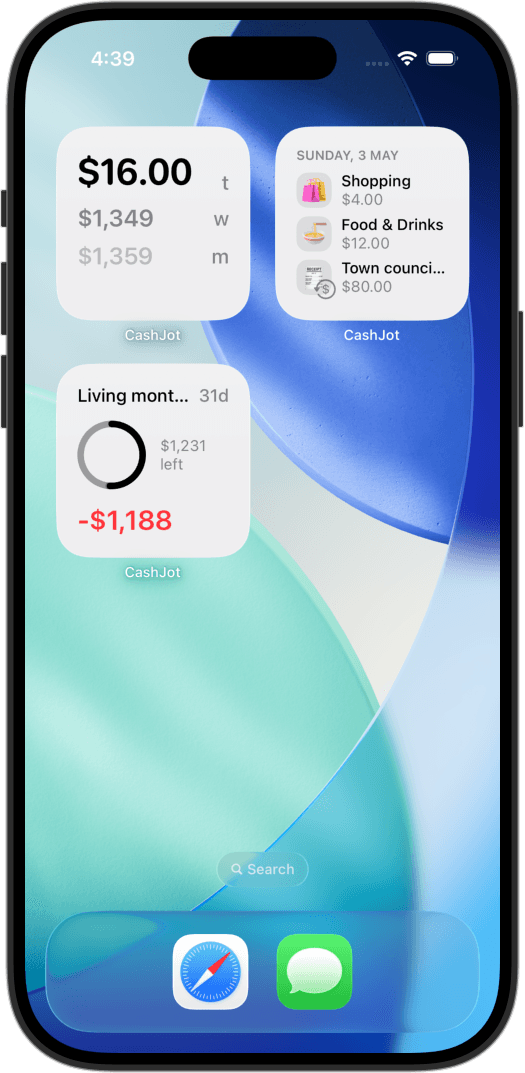
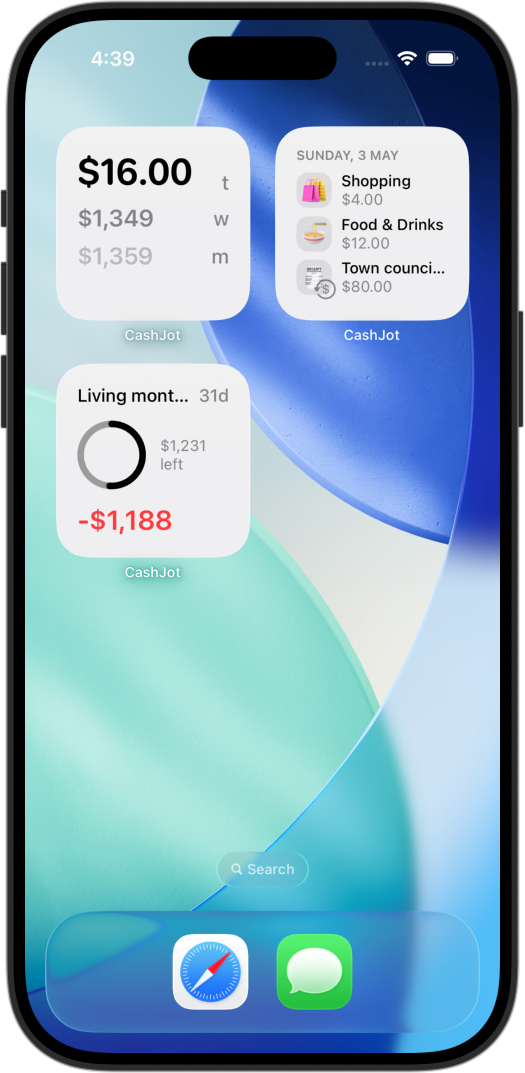
CashJot provides six interactive widget configurations (preview them in action):
Home Screen Widgets (Small square format):
- Spending Totals: Live daily, weekly, and monthly expenditure summaries at a glance.
- Budget Progress: Visual tracking of spending versus remaining allowance for a selected budget.
- Today's Transactions: A quick audit of recent entries logged today.
- Upcoming Recurring: Scheduled upcoming bills and subscription renewals with countdowns.
Lock Screen Widgets (Circular dial and rectangular gauge formats):
- Spending: A single expenditure total for your chosen timeframe (Today, Week, or Month).
- Budget: Real-time budget progress gauge visible without unlocking your phone.
Tapping any spending widget opens CashJot directly to the logging keypad; tapping a budget widget opens your detailed budget overview. Spending widgets are free, while tracking progress against custom targets requires a budget configured in CashJot Plus. Keeping today's total visible is especially effective if you are running a 30-day expense tracking challenge to stop guessing how much you spend daily.
Add a widget to your home screen#
- Touch and hold an empty space on your home screen until icons begin to jiggle.
- Tap Edit in the top-left corner, then tap Add Widget (on earlier iOS versions, tap the + icon).
- Search for CashJot and select your preferred widget format.
- Tap Add Widget, drag it to your desired position, and tap Done.
Add a widget to your lock screen#
On iOS 16 and later (including iOS 17 and iOS 18), lock screen widgets display spending and budget health before you unlock your phone:
- Wake your iPhone, unlock with Face ID without swiping up, and touch and hold the lock screen.
- Tap Customize at the bottom, then select Lock Screen.
- Tap the widget row directly beneath the clock.
- Select CashJot, choose either the circular dial or rectangular bar format for Spending or Budget, then tap the close icon and select Done.
Privacy consideration: Lock screen widgets display numbers openly to anyone viewing your screen. If you prefer to keep spending totals discreet, place widgets on internal home screen pages rather than the lock screen, and protect the app behind iOS Face ID locking.
Bank app widgets vs unified spending widgets#
Many banking apps provide account balance widgets, but a single bank widget only reflects money inside that specific institution.
| Widget Type | What It Shows | What It Misses |
|---|---|---|
| Bank Balance Widget | Account balance at one institution | Cash spending, secondary credit cards, and multi-bank totals |
| Unified Spending Widget | Total expenditures across all payment methods | Isolated bank account balances |
A dedicated spending widget reads from a single unified ledger where all your cash, card, and manual purchases are recorded together.
Customize widget settings#
Long-press any CashJot widget on your screen and select Edit Widget to adjust its parameters:
- Expense Groups: Choose All or select a Specific group (e.g., placing a dedicated "Tokyo Trip" widget on a travel focus screen, while keeping daily totals on your main home screen).
- Hide Recurring: Exclude scheduled recurring bills (such as rent or insurance) from the displayed total so variable daily spending remains accurate.
- Budget & Display Style: On Budget widgets, choose between Over / Under (pacing indicator showing whether you are ahead or behind budget) and Spent / Left (direct remaining currency balance).
- Spending Period: On Lock Screen widgets, toggle between Today, This Week, This Month, or All.
Troubleshooting#
The widget displays outdated totals#
Widgets update instantly when you log an entry and whenever the app is opened. In the background, iOS manages widget refresh cycles to conserve battery.
If a widget appears stale, opening CashJot once forces an immediate refresh. Also verify that the widget's Expense Groups setting includes the group you are currently logging to.
The Budget widget shows "No Budget Configured"#
The widget requires an active budget in the app. Create a budget in the Budgets tab, then long-press the widget, tap Edit Widget, and select the target budget.
Total spending does not match expectations#
Review two settings via long-press → Edit Widget: Expense Groups (ensure it is not restricted to an inactive group) and Hide Recurring (ensure bills are toggled appropriately).
Spending is visible without Face ID authentication#
iOS widgets render live on system screens outside application sandboxes. To protect financial privacy, avoid placing spending widgets on the lock screen and rely on interior home screen pages.
Frequently asked questions#
Does iOS include a native built-in spending widget?#
No. Apple provides the WidgetKit framework, but financial widgets are supplied by installed tracking applications.
Can I place budget progress on the lock screen?#
Yes. On iOS 16 and later, CashJot offers circular gauges and rectangular summary bars that display real-time budget progress directly on your lock screen.
How do I prevent rent and large bills from skewing my daily widget?#
Long-press the widget, select Edit Widget, and turn on Hide Recurring. This filters out scheduled fixed commitments, keeping the displayed number focused purely on daily discretionary spending.
What is the difference between "Over / Under" and "Spent / Left"?#
"Over / Under" is a pacing calculation that evaluates your spending rate relative to the days remaining in the period. "Spent / Left" displays absolute currency values showing total expenditures alongside remaining budget capacity.
Why did my widget pause updating in the background?#
iOS optimizes battery life by throttling background widget refreshes if an app has not been launched recently. Opening CashJot immediately reconciles all widgets.
Do I need to unlock my iPhone to log from a widget?#
Tapping a lock screen widget prompts biometric unlock and opens directly to CashJot's logging keypad. Tapping a home screen widget opens the keypad immediately.
Track daily spending without the chore
2-second keypad logging, automatic Apple Pay capture, and live home screen widgets. Free, private, and 100% offline.