How to require Face ID for any expense tracker on iOS
Lock your financial numbers behind Face ID with a single iOS long-press. How to use native system-level biometric protection on any iPhone expense app.
Updated
On this page
- Why biometric locking matters for spending logs
- How to enable Face ID for an expense app
- What native app locking protects
- Troubleshooting
- "Require Face ID" does not appear in the menu
- The app icon disappeared from the home screen
- The app no longer appears in Spotlight Search
- Where this fits in your security setup
- Frequently asked questions
- Does CashJot require a separate custom PIN?
- Which iPhone models support app locking with Face ID?
- Does locking an app encrypt its underlying database?
- Can I completely hide the expense app from my home screen?
- Does the biometric lock hide home screen widgets?
CashJot relies directly on native iOS App Lock rather than managing a separate in-app PIN. This uses the exact same biometric protection that secures Notes, Wallet, and Health, applied seamlessly to your spending log.
Why biometric locking matters for spending logs#
Even without bank balances, a detailed log of daily transactions (medical clinics, specific restaurants, boutique shops, or private gifts) reads like a personal diary. Requiring Face ID is particularly valuable when:
- You frequently hand your unlocked phone to children for games or media.
- You share a device with a partner or family member but prefer to keep specific personal budgets private.
- You are traveling and want to prevent anyone glancing at your unlocked screen from viewing your transaction history.
- You want an additional layer of security in the event your phone is borrowed or misplaced.
How to enable Face ID for an expense app#
On iOS 18 or later, you can enable biometric locking directly from your home screen:
- Long-press the app icon on your home screen until the quick actions menu appears.
- Tap Require Face ID (or Require Touch ID on compatible devices).
- Tap Require Face ID again in the confirmation prompt.
From then on, the app requires biometric authentication every time it is launched. If Face ID does not register (e.g., in low lighting or wearing sunglasses), iOS prompts for your device passcode.
You can also manage locked apps in Settings → Face ID & Passcode → App Lock.
What native app locking protects#
Understanding the security boundaries helps you configure your setup effectively:
- Protects app access. Even if your iPhone is already unlocked, opening the app requires your face, fingerprint, or passcode.
- Suppresses search results and notifications. Transaction contents, Siri suggestions, and notification previews from the locked app are hidden across iOS. Choosing Hide and Require Face ID goes a step further by removing the app icon from your home screen and placing it in a locked Hidden folder in the App Library.
- Does not encrypt remote cloud databases. For apps relying on centralized corporate servers, data transmission continues in the background; the lock restricts access to the on-device interface.
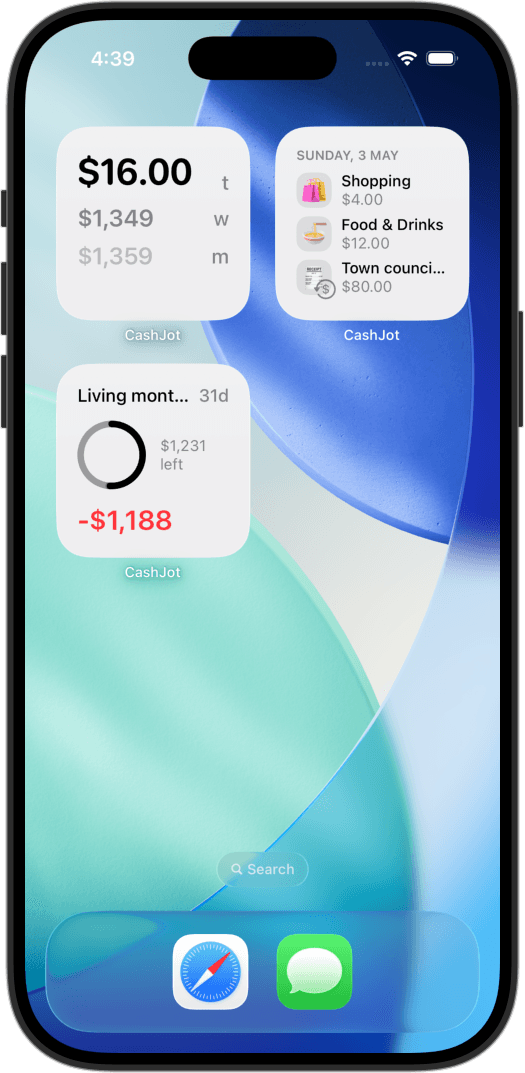
- Does not conceal home-screen widgets. iPhone spending widgets render numbers directly on your home or lock screen outside the app sandbox. If you prefer complete privacy, keep spending widgets on interior home screen pages or rely solely on in-app reviews.
Troubleshooting#
"Require Face ID" does not appear in the menu#
Native app locking requires iOS 18 or later. Update your device under Settings → General → Software Update if the option is missing.
The app icon disappeared from the home screen#
This occurs if you selected Hide and Require Face ID instead of standard Require Face ID. The app is safely stored in the locked Hidden collection at the bottom of your App Library.
To restore it, swipe to the App Library, unlock the Hidden folder with Face ID, long-press the app icon, and select Don't Require Face ID, then drag the icon back to your home screen.
The app no longer appears in Spotlight Search#
This is intentional system behavior: iOS suppresses locked applications from Spotlight Search and Siri suggestions to maintain privacy.
Where this fits in your security setup#
Because CashJot is local-first with private iCloud synchronization, there are no third-party account credentials or server databases. Applying the native iOS Face ID lock protects the sole access point to your financial records.
For bank-linked apps, biometric locking protects the local phone screen, while remote server accounts remain accessible via web portals.
In either case, combining biometric app locking with a secure device passcode provides comprehensive on-device privacy, fitting alongside widgets and Apple Pay capture as part of our complete iPhone tracking setup.
Frequently asked questions#
Does CashJot require a separate custom PIN?#
No. CashJot uses the native iOS App Lock framework. Because there are no external user accounts or company servers, system-level Face ID covers the only entry point to your ledger.
Which iPhone models support app locking with Face ID?#
Any iPhone running iOS 18 or later supports biometric app locking. Devices equipped with Touch ID utilize fingerprint authentication, with the device passcode available as a universal fallback.
Does locking an app encrypt its underlying database?#
Biometric app locking restricts visual access to the application interface. With CashJot, local data is already secured within the sandboxed iOS file system and encrypted in your personal iCloud account.
Can I completely hide the expense app from my home screen?#
Yes. Select Hide and Require Face ID from the long-press menu. This removes the app icon from your home screen and stores it inside the locked Hidden folder at the bottom of the App Library.
Does the biometric lock hide home screen widgets?#
No. iOS widgets render live on home and lock screens outside the app container. If you want spending totals kept private, place widgets on private home-screen pages or omit them entirely.
Track daily spending without the chore
2-second keypad logging, automatic Apple Pay capture, and live home screen widgets. Free, private, and 100% offline.