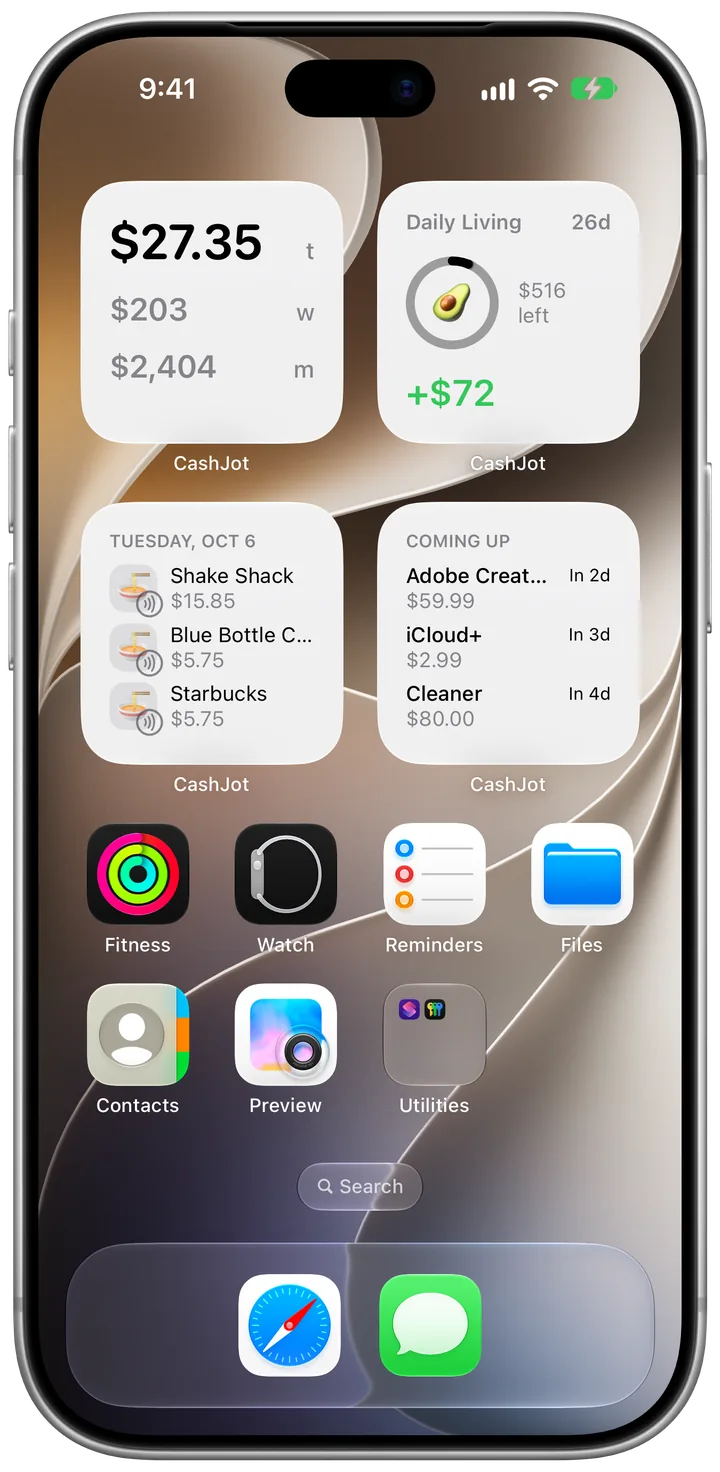
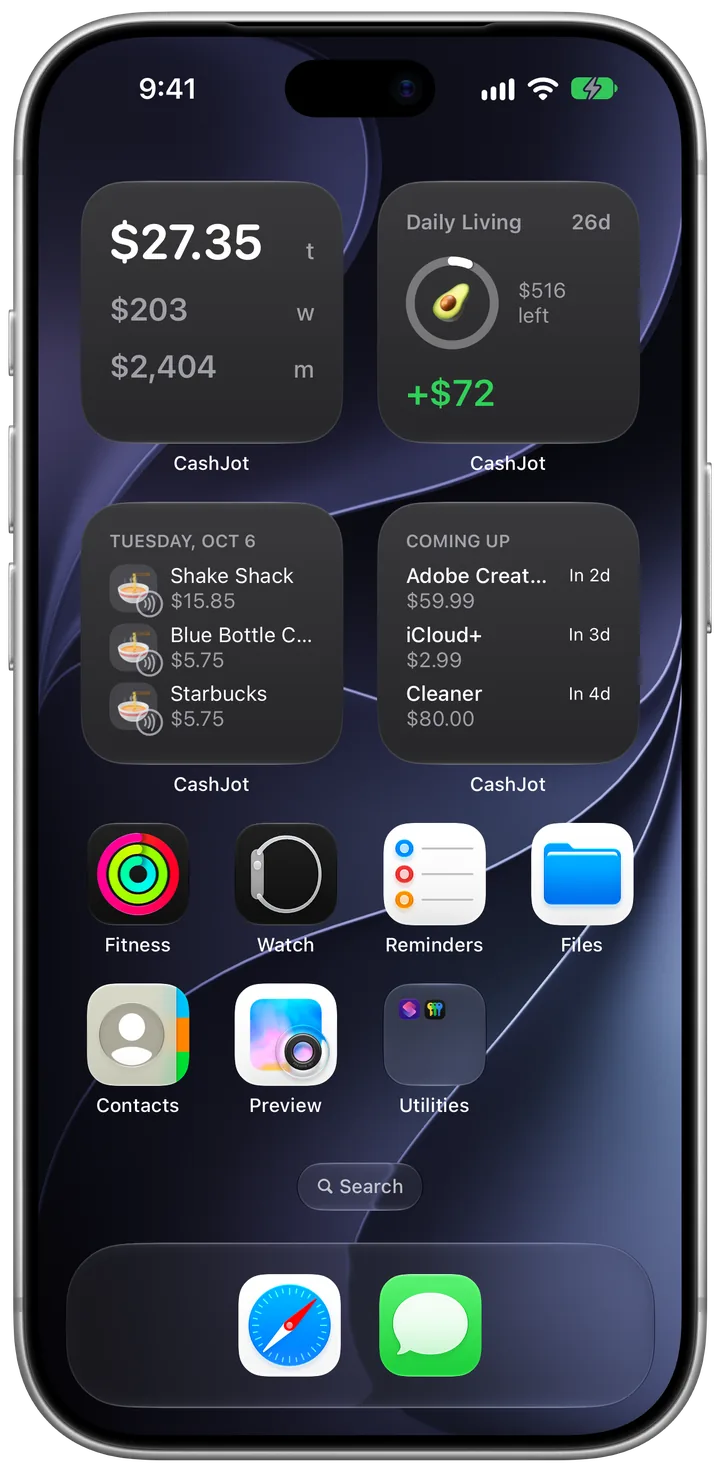
How to track Venmo, Cash App, and card payments from notifications on iPhone
Apple Pay catches in-store card taps, and iOS 27 notifications cover online cards, Venmo, Cash App, and Zelle. Here is how to set up card alerts so restaurant tips, split tabs, and credit card bill payments don't double-count.
Published
On this page
- In-store Apple Pay taps
- Card, bank, and Venmo notifications on iOS 27
- Card app settings to check
- When a card alert names the card instead of the store
- Restaurant tips, Venmo splits, and double alerts
- Merged automatically (within 3 minutes)
- Restaurant tips and bar tabs
- Venmo, Cash App, and splitting tabs with friends
- Credit card bill payments, pending alerts, and recurring bills
- Cleaning up SQ *, TST*, and AMZN Mktp names
- Frequently asked questions
- Do I have to link my Chase, Amex, or Venmo account?
- What about gas station holds and hotel pre-authorizations?
In-store contactless taps are only part of a week's spending. Online orders, sit-down restaurants where a server takes your card, Venmo for your half of dinner, Cash App, and Zelle never go through Apple Pay's Wallet trigger.
On iOS 27, you can pair the Apple Pay Wallet automation with CashJot's Capture Payment Notification shortcut so push alerts from your credit card apps, bank app, Venmo, Cash App, and PayPal wait right above the keypad on the Log tab, with no bank login or account aggregator.
| Payment | How it reaches CashJot | What to watch for |
|---|---|---|
| In-store Apple Pay tap | Apple Pay taps | Merges with your card's push alert if both arrive within 3 minutes |
| Online, swiped, or chip card | Card app notifications | Turn on push alerts for every purchase (remove $50 / $100 minimums) |
| Restaurant tab with added tip | Apple Pay or card alert | Update the pre-tip capture amount so it matches the final charge |
| Venmo, Cash App, PayPal, Zelle | App notifications | Outgoing payments count; money friends send you stays off the Log tab |
| Credit card bill payoff | Tap × to skip | Paying off a statement is an account transfer, not new spending |
Cash and fixed bills stay separate: log cash by hand (and if you type in a card payment yourself, a same-day alert for the same amount counts as already logged), and set rent, utilities, and subscriptions as recurring expenses.
In-store Apple Pay taps#
Follow the Apple Pay guide to add the Wallet automation once. With CashJot Plus, in-store taps log themselves as you pay. On the free plan, they appear in Captures and above the keypad on the Log tab with the amount in view.
If you carry more than one card in Apple Wallet, Card Rules under Settings → Apple Pay Taps → Card Rules can route a business card straight to your side-work Expense Group or a no-foreign-fee card to a trip group.
Card, bank, and Venmo notifications on iOS 27#
On iOS 27, one Shortcuts automation can pass notifications from several apps to CashJot on your iPhone. The payment notification guide walks through the setup.
Most setups include:
- Credit card apps (Chase, Amex, Capital One, Citi, Discover, Bank of America) for online orders and physical card swipes. Apple Card alerts come from the Wallet app.
- Your checking bank app for debit purchases and Zelle transfers.
- Venmo, Cash App, and PayPal for peer-to-peer payments and online checkouts.
Card app settings to check#
- Push notifications for purchases are on. Many card apps default to email alerts or security alerts only. Shortcuts only sees push notifications from the app on your iPhone.
- The dollar threshold is set to any purchase. Some card apps only alert you above a minimum, such as $50 or $100. Lower that threshold to $0.01 or $1.00 (or "any purchase") so coffee runs and lunch tabs still trigger a push.
After your first purchase, open Settings → Payments from Notifications and tap the app under Apps. If it says None in the last 30 days, that app's push text doesn't include a dollar amount.
When a card alert names the card instead of the store#
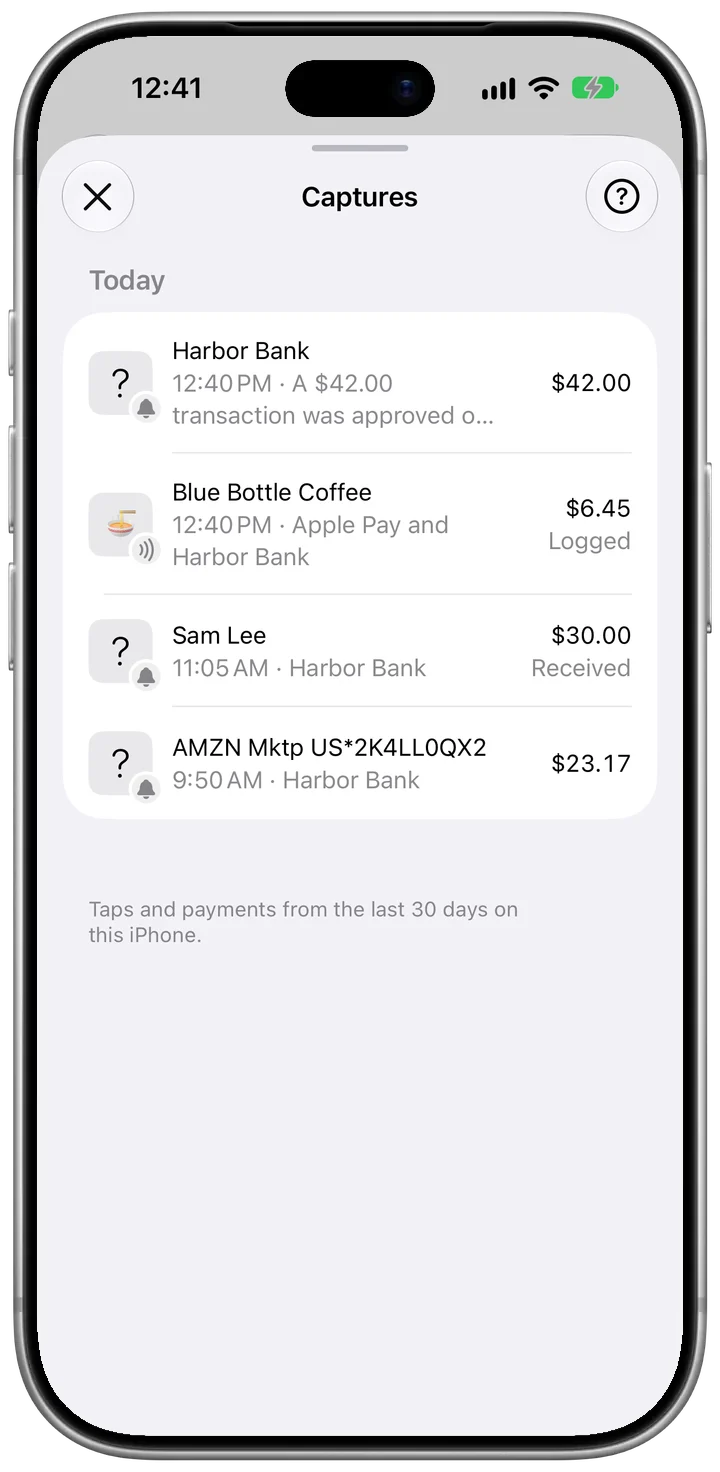
Some US card alerts include the merchant (You paid $8.90 at BLUE OAK CAFE LLC), while others only name your card (A $42.00 transaction was approved on your Platinum Card ending 1005 or on Quicksilver ending 3344).
With Apple Intelligence on, CashJot reads the merchant name on your iPhone only when it appears in the notification word for word, and leaves out card names (Platinum Card, Visa Debit, ending 1234). When an alert has no merchant name, the payment arrives above the keypad with $42.00 ready so you can pick the store name yourself.
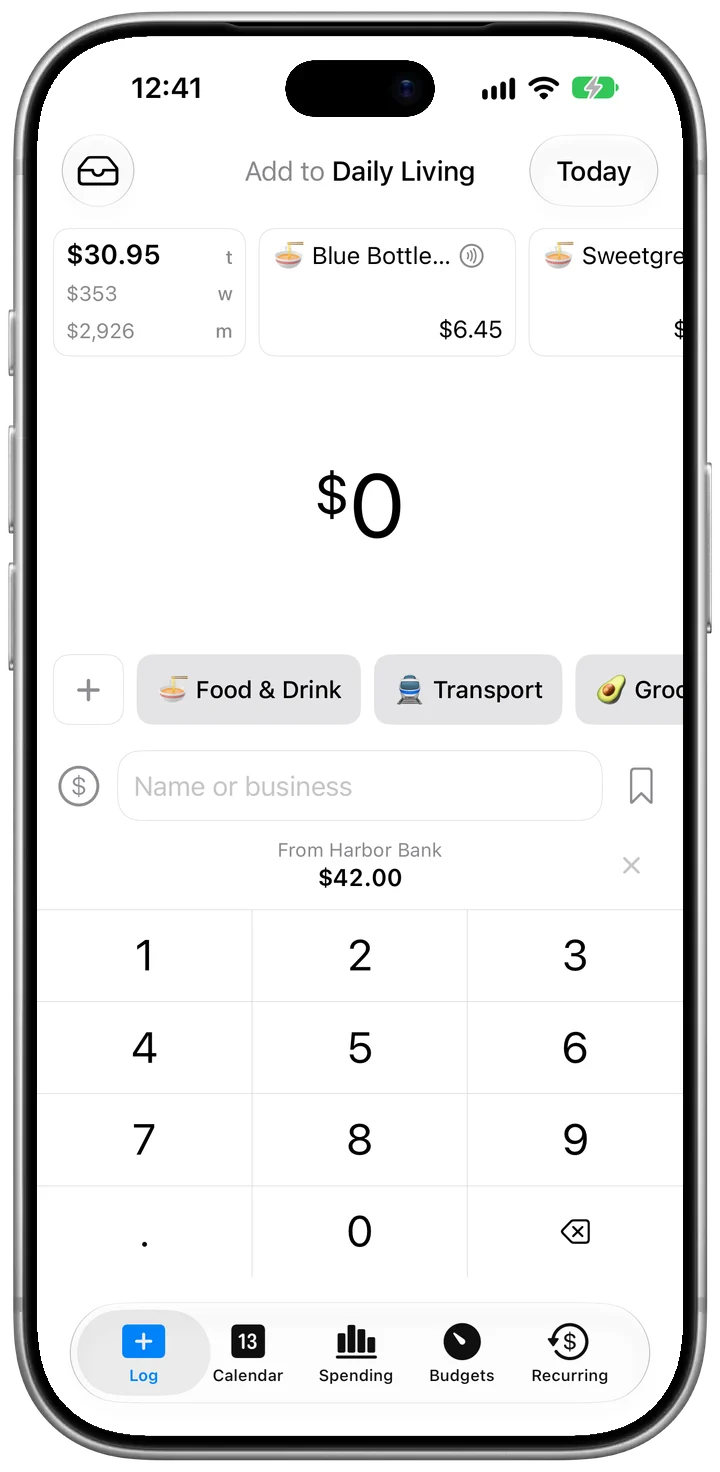
For single-purpose apps (like a transit app), open Settings → Payments from Notifications → Apps, tap the app, and set Name to App Name so every payment from it fills in the app's name and past category.
Restaurant tips, Venmo splits, and double alerts#
Card apps and wallets frequently send overlapping alerts. Notifications are only ever offered, never logged on their own, and CashJot merges matching pairs automatically. For everything else, tap × on a suggestion above the keypad to hide it from the Log tab while keeping it in Captures.
Merged automatically (within 3 minutes)#
When an Apple Pay tap and an alert, or alerts from two different apps, share the same amount and currency within 3 minutes, CashJot treats them as one payment:
- Apple Pay + your card's push alert: Tap your Chase or Amex card in Apple Pay at Trader Joe's, and the tap and the card alert become a single payment, keeping the merchant name from Apple Pay.
- Venmo or PayPal + the card behind it: Pay $24.00 on Venmo funded by a linked card or checking account, and if both apps notify you within 3 minutes, it counts once.
Restaurant tips and bar tabs#
When you tap a card at a restaurant or bar and add a tip on the receipt afterward, the initial Apple Pay tap or pending card alert is for the pre-tip check ($42.00). If your card app sends a second alert when the final charge with tip ($50.40) posts later, neither the time nor the amount matches.
Edit the initial capture to include your tip when you log it, and tap × if a second post-tip alert shows up later.
Venmo, Cash App, and splitting tabs with friends#
- Money friends send you: With Apple Intelligence on, incoming Venmo, Cash App, and Zelle payments (and refunds) are marked Received or Refund in Captures and stay off the Log tab. Without Apple Intelligence, tap × on incoming payments.
- When you pay for the whole table: If you put $120 on your card for dinner and three friends Venmo you $30 each, change the $120 capture to your $30 share before saving so the reimbursements don't inflate your dining total.
- When you pay a friend back: Your outgoing $30 Venmo payment arrives above the keypad as your expense. (For trips with a shared running tab, see Tricount, Splitwise, or an expense tracker.)
- Adding money to a balance: Loading $100 into Cash App or Venmo and later spending $24 from it are separate events. Log the individual purchases and tap × on balance reloads.
Credit card bill payments, pending alerts, and recurring bills#
- Paying off a credit card: When your checking account or card app notifies you that your monthly statement was paid ($1,850.00), that is money moving between your own accounts, not new spending. The individual purchases are already logged, so tap × if a card payoff alert appears above the keypad.
- Pending vs. posted alerts from the same card: The same notification passed on twice in a row is ignored, but if a card app sends a pending alert and a differently worded posted alert hours later, CashJot keeps both so two real purchases of the same amount aren't lost. Log one and tap × on the other.
- Recurring bills and BNPL: Rent, utilities, subscriptions, and buy-now-pay-later or card installment plans (set up as recurring expenses with End Repeat for the number of payments) log on their scheduled dates. Tap × when their card alert appears above the keypad, or leave a bills-only card app out of the Shortcuts automation.
- Subway and bus turnstiles (OMNY, Clipper, Ventra): CashJot's ready-made Wallet shortcut leaves out Transport so transit gate taps don't fire errors. Count transit in one place: via your card's post-ride alert, as a recurring monthly pass, or by hand.
Cleaning up SQ *, TST*, and AMZN Mktp names#
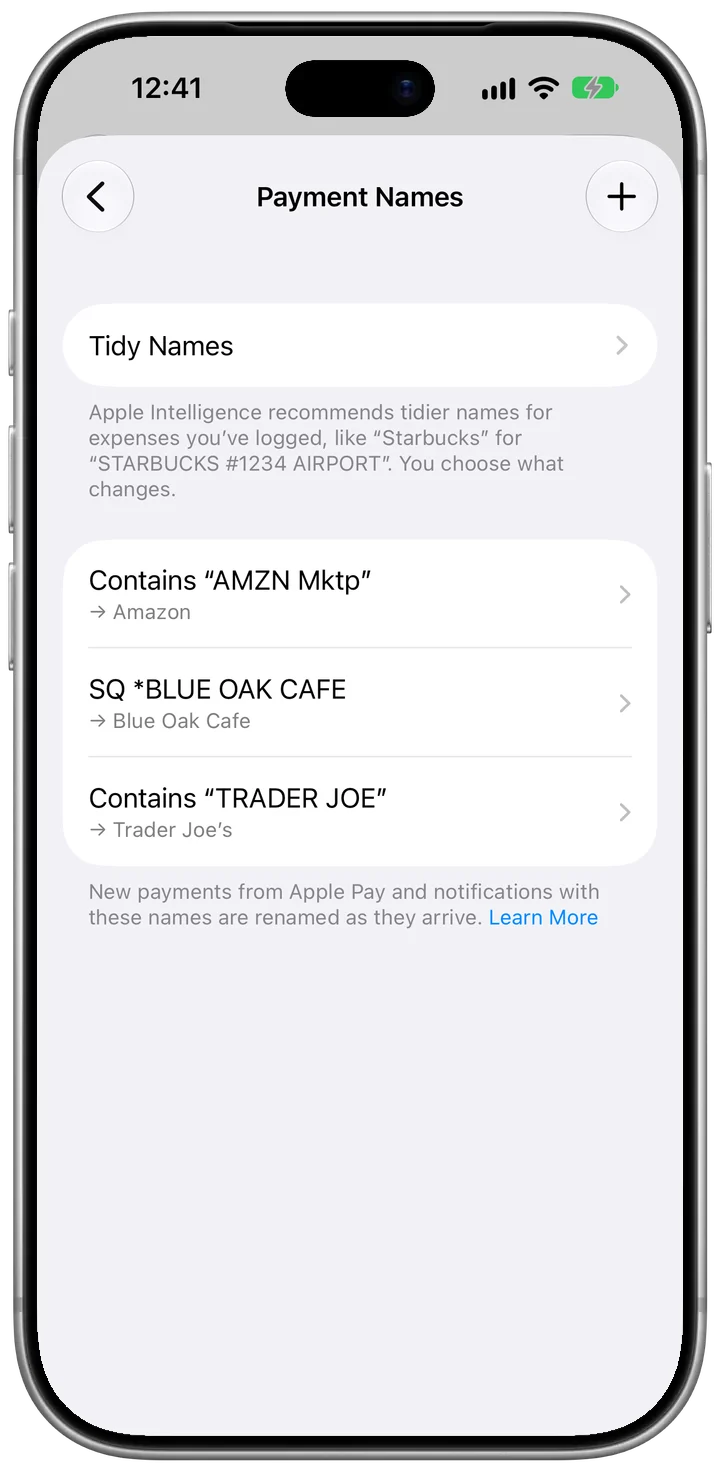
US card alerts often use raw statement strings like SQ *BLUE OAK CAFE, TST* TACOS, or AMZN Mktp US*2K4LL0QX2:
- Settings → Payment Names renames new payments from Apple Pay and notifications as they arrive. An Is entry matches one exact name (ignoring capitalization, spaces, and punctuation); a Contains entry matches a word anywhere in the string, so
AMZN Mktp→Amazoncovers every Amazon order code. - Settings → Tidy Names cleans up expenses you've already logged and creates a Payment Names rule for each old name so future alerts arrive tidy. Toggle off any suggestion you want left as is to move it to Skipped Names.
Frequently asked questions#
The payment notification guide covers how notifications are read and what's included on each plan. Here are the questions that come up in the US.
Do I have to link my Chase, Amex, or Venmo account?#
No. CashJot never signs in to your bank, card, or Venmo account, and there's no Plaid or account aggregator in between. It only reads the push notifications those apps already send to your iPhone, from the apps you choose in Shortcuts, and processes them on the phone. Turning off an app's notifications or removing it from the automation stops it right away.
What about gas station holds and hotel pre-authorizations?#
Pay-at-the-pump, hotel, and rental car charges often start with a temporary hold ($1, $100, or $175) before the final amount posts later. If you already know what you paid when the hold arrives, change the amount when you log it and tap × if a second alert comes through later. If you don't know the final total yet, leave the hold in Captures and log it once the real charge posts. With CashJot Plus, an Apple Pay tap logs the hold amount on its own, so open that expense and correct the amount instead.