How to keep side hustle expenses separate from your personal spending
Keep freelance purchases and client expenses cleanly walled off from personal groceries. Set isolated project budgets and export IRS-ready CSVs with a single tap.
Updated
On this page
- Why side projects need separate ledgers
- Create a dedicated Expense Group
- Keep merchant suggestions separated
- Configure a repeating operating budget
- Monitor and export for tax preparation
- Handling major irregular purchases
- Troubleshooting
- A transaction was logged to the wrong group
- Business merchant names appear in personal autocomplete
- The work spending total appears lower than expected
- Frequently asked questions
- How do I separate business and personal expenses without complex accounting software?
- How do I prevent large one-off purchases from skewing my monthly budget?
- Can I track side hustle expenses without linking a business bank account?
- Does CashJot track side hustle revenue or invoicing?
- What data is included in the CSV export?
- Is multi-group ledger management included in the free tier?
Maintaining a distinct ledger for freelance work, an online store, or consulting protects your personal budget from distortion. The same technique isolates irregular, big-ticket purchases like furniture or electronics.
Why side projects need separate ledgers#
Mixing business costs into your personal daily log distorts both perspectives: your personal daily spending average absorbs marketing fees and equipment costs, while your true side-hustle operating expenses get lost among grocery receipts.
Our freelance expense tracking workflow uses dedicated Expense Groups to keep project costs cleanly walled off from personal groceries in a single tap.
CashJot functions as a dedicated expense ledger rather than full corporate accounting software. It tracks spending rather than invoicing or receivables; revenue and profit calculations remain in your invoicing platform or spreadsheet. Multi-group workflows, dedicated budgets, and CSV exports are included in CashJot Plus.
Create a dedicated Expense Group#
- On the Log tab, tap the active group name at the top to open the group picker.
- Tap New Expense Group and name it after your project (e.g., "Freelance Design", "Etsy Shop", or a client name).
- Select this group whenever recording business-related purchases; CashJot remembers your active group for subsequent entries.
Each Expense Group functions as an independent ledger with its own transaction history, budget limits, category reports, and currency settings. If you bill international clients, you can add their foreign currency with a fixed conversion rate as explained in our currency and exchange rate guide.
Keep merchant suggestions separated#
In the group editor, the Name Suggestions setting determines where smart autocomplete draws historical recommendations: This Group Only or All Groups.
Selecting This Group Only ensures packaging suppliers, software subscriptions, and commercial vendors never surface when logging personal expenses, and personal dining spots never clutter your business autocomplete history.
Configure a repeating operating budget#
While travel ledgers use fixed-date budgets, ongoing side ventures benefit from repeating spending limits:
- Open the Budgets tab and add a budget assigned to your work group.
- Set Repeat to monthly (or weekly).
- Set your target operating expenditure ceiling.
A recurring budget provides continuous answers to operational questions ("are software and material costs on pace this month?") without ongoing manual setup.
Monitor and export for tax preparation#
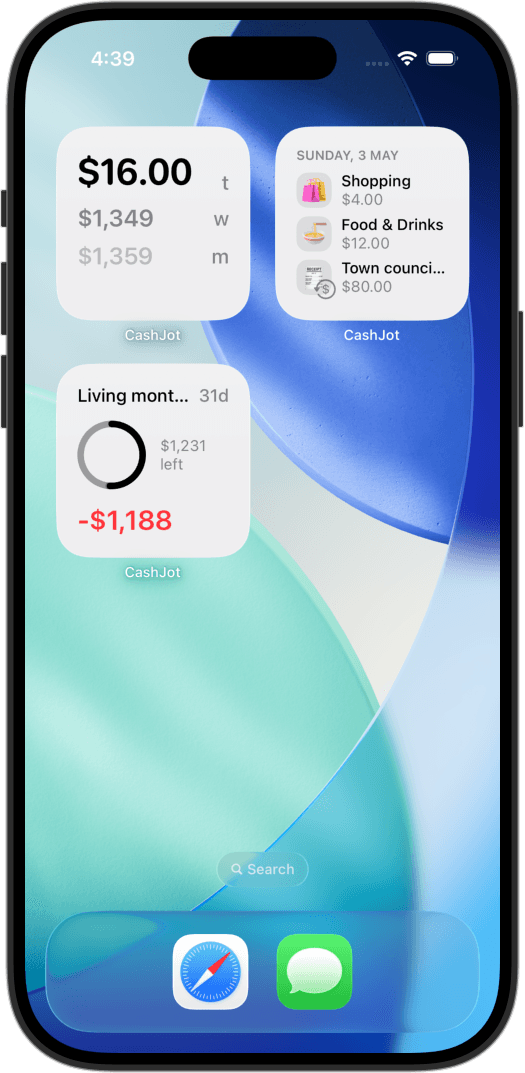
The work group integrates across all analysis features: the calendar and category breakdowns can be filtered exclusively for business expenses, and a dedicated home-screen widget can display business spending directly on a work focus screen.
At tax time, open your business group and tap Export to CSV. CashJot produces a clean spreadsheet file containing dates, merchant names, local and base currency amounts, category tags, and notes, ready for your accountant or tax software.
Handling major irregular purchases#
Large, irregular purchases present the same reporting challenge as business expenses: logging a new sofa or laptop in your daily group creates an artificial spending spike that makes your baseline monthly living costs appear out of control.
You can solve this by creating a dedicated group for irregular expenses (such as "Big Ticket" or "Home Renovation"):
- Daily personal averages and routine budgets remain clean and meaningful.
- The major purchase remains fully documented with its own cumulative total.
- Fixed monthly bills can simultaneously be hidden from widget totals using the Hide Recurring setting.
Troubleshooting#
A transaction was logged to the wrong group#
Open the transaction, tap edit, and select the correct Expense Group. To reassign multiple entries at once, use the search filter on the Log tab, select the target transactions, and choose Move to Expense Group.
Business merchant names appear in personal autocomplete#
Open your group settings in the editor and set Name Suggestions to This Group Only for each ledger.
The work spending total appears lower than expected#
Verify that your active filter or widget is scoped to the correct Expense Group, and check whether recent transactions were accidentally recorded under your default personal group.
Frequently asked questions#
How do I separate business and personal expenses without complex accounting software?#
Maintain two distinct Expense Groups in your tracker: one for personal living costs and one for side-hustle expenses. Logging remains a two-second habit at the counter, while keeping reports, budgets, and autocomplete suggestions completely isolated.
How do I prevent large one-off purchases from skewing my monthly budget?#
Assign major irregular expenses (like appliances, electronics, or furniture) to a dedicated "Big Ticket" Expense Group. This preserves the accuracy of your daily living budget while maintaining a complete historical record.
Can I track side hustle expenses without linking a business bank account?#
Yes. Entries are recorded manually in seconds, and in-store card purchases can log themselves via Apple Pay Shortcuts automations assigned specifically to your business card.
Does CashJot track side hustle revenue or invoicing?#
No. CashJot focuses specifically on expenditure tracking. Income, invoicing, and client receivables are best managed in dedicated invoicing tools or spreadsheets.
What data is included in the CSV export?#
CSV exports include transaction dates, merchant names, local currency amounts, base currency equivalents, category tags, Expense Group assignments, recurring status, and notes.
Is multi-group ledger management included in the free tier?#
Basic single-group manual logging is free. Managing multiple Expense Groups, custom budgets, foreign currencies, and CSV exports is part of CashJot Plus.
Track daily spending without the chore
2-second keypad logging, automatic Apple Pay capture, and live home screen widgets. Free, private, and 100% offline.