How to track PayPay, Suica, and card payments from notifications on iPhone
iD and QUICPay at the konbini, Suica at the ticket gate, PayPay at lunch, and a credit card online. Here is how to set up each one on your iPhone so nothing gets counted twice.
Published
On this page
- In-store Apple Pay (iD, QUICPay, and contactless)
- PayPay, credit card, and bank notifications on iOS 27
- Card and QR notification settings
- Counting each payment once
- Merged automatically (within 3 minutes)
- When to tap ×
- Suica, PASMO, and ICOCA: count top-ups, not rides
- Cleaning up statement names (AMAZON.CO.JP)
- Frequently asked questions
- Is the app in English?
- Is everything recorded automatically?
Cashless payments in Japan run across three separate systems on an iPhone: contactless cards in Apple Wallet (iD, QUICPay, Visa/Mastercard touch), QR wallets (PayPay, Rakuten Pay, d払い, au PAY), and transit IC cards (Suica, PASMO, ICOCA).
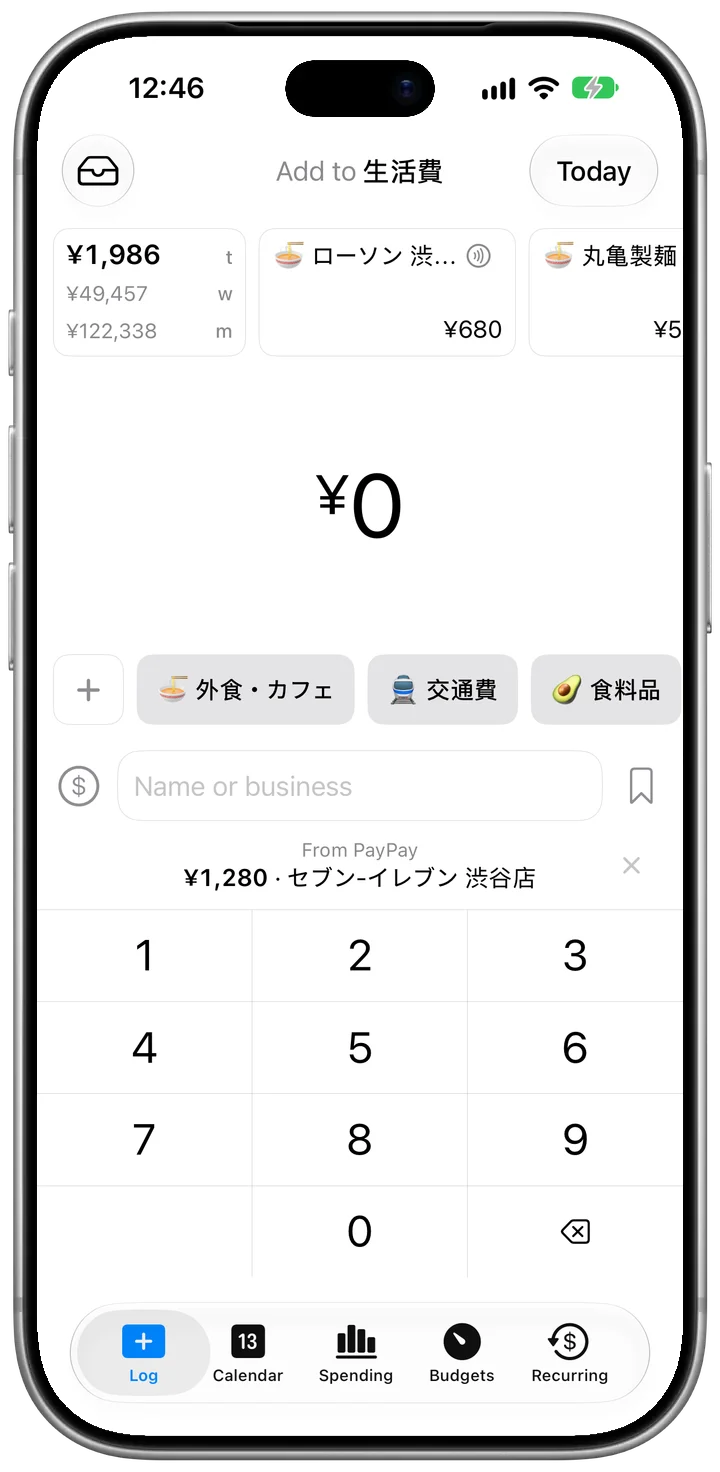
Apple's Wallet automation catches in-store iD, QUICPay, and contactless card taps, while iOS 27's notification automation brings PayPay, credit card, bank, and transit top-up alerts straight above the keypad on CashJot's Log tab.
| Payment | How it reaches CashJot | What to watch for |
|---|---|---|
In-store Apple Pay (iD, QUICPay, touch) | Apple Pay taps | Merges with your card's push alert if both arrive within 3 minutes |
| PayPay, Rakuten Pay, d払い, au PAY | App notifications | Log either wallet top-ups (チャージ) or individual purchases, not both |
| Online or physical credit card | Card app notifications | Turn on app push alerts (not just email) in Vpass, Rakuten Card, or JCB |
| Suica, PASMO, ICOCA | Log top-ups or pass | Ticket gate taps don't fire the Wallet automation |
Cash and fixed bills stay separate: log cash by hand (and if you type in a card payment yourself, a same-day alert for the same amount counts as already logged), and set rent, phone plans, and subscriptions as recurring expenses.
In-store Apple Pay (iD, QUICPay, and contactless)#
Even when you tell the cashier "iD de" or "QUICPay de" at a konbini or supermarket, the payment runs through Apple Wallet on your iPhone and triggers the Apple Pay Wallet automation with the store name and yen amount. With CashJot Plus, taps log themselves automatically; on the free plan, they appear in Captures and above the keypad on the Log tab. (For why Apple Wallet's own history falls short, see checking Apple Pay history on iPhone.)
CashJot's ready-made Wallet shortcut leaves out the Transport category so transit gate taps don't fire errors, which means Suica, PASMO, and ICOCA ticket gate taps don't arrive as Apple Pay taps.
PayPay, credit card, and bank notifications on iOS 27#
On iOS 27, a Shortcuts automation passes notifications from the apps you choose to CashJot on your iPhone. The payment notification guide walks through the setup.
In Japan, one automation usually covers:
- QR wallets: PayPay, Rakuten Pay, d払い, au PAY.
- Credit card apps: SMBC Vpass, Rakuten Card, MyJCB, EPOS, Saison for online orders and physical card payments.
- Your bank app: for bank transfers and account payments.
- Multi-currency cards: Wise or Revolut for foreign websites and overseas trips.
Card and QR notification settings#
- App push notifications vs. email statements. Many Japanese card issuers (SMBC, JCB, Rakuten Card) default to email alerts (
ご利用のお知らせメール). Shortcuts only sees push notifications from the iPhone app itself, so turn on push alerts inside Vpass, Rakuten Card, or MyJCB. - Minimum alert amounts. Lower any minimum notification threshold so a ¥500 lunch or konbini coffee still sends a push. After your first payment, check Settings → Payments from Notifications → Apps; if an app shows None in the last 30 days, its push text doesn't include a readable amount.
- Points and coupons. CashJot uses the exact yen amount written in the notification. When you pay partly with PayPay Points or Rakuten Points, check Captures on your first couple of purchases to see whether that app pushes the pre-point or post-point figure.
For single-purpose apps whose alerts don't spell out a merchant name, open Settings → Payments from Notifications → Apps, tap the app, and set Name to App Name so every payment from it fills in the app's name and your past category.
Counting each payment once#
When you combine Apple Pay, PayPay, and credit card alerts, a single purchase can trigger two notifications. Notifications are only ever offered, never logged on their own, and CashJot merges matching pairs automatically. For everything else, tap × on the suggestion above the keypad to hide it from the Log tab while keeping it in Captures.
Merged automatically (within 3 minutes)#
When an Apple Pay tap and an alert, or alerts from two different apps, share the same amount and currency within 3 minutes, CashJot counts them as one payment:
- Apple Pay (
iD/QUICPay) + card push: Pay withiDat Lawson and get an immediate push from SMBC Vpass, and both merge into one payment. - PayPay + PayPay Card: Pay ¥1,280 on PayPay with PayPay Card, and if both PayPay and the card app notify you within 3 minutes, it counts once, taking its name from the first notification that has one.
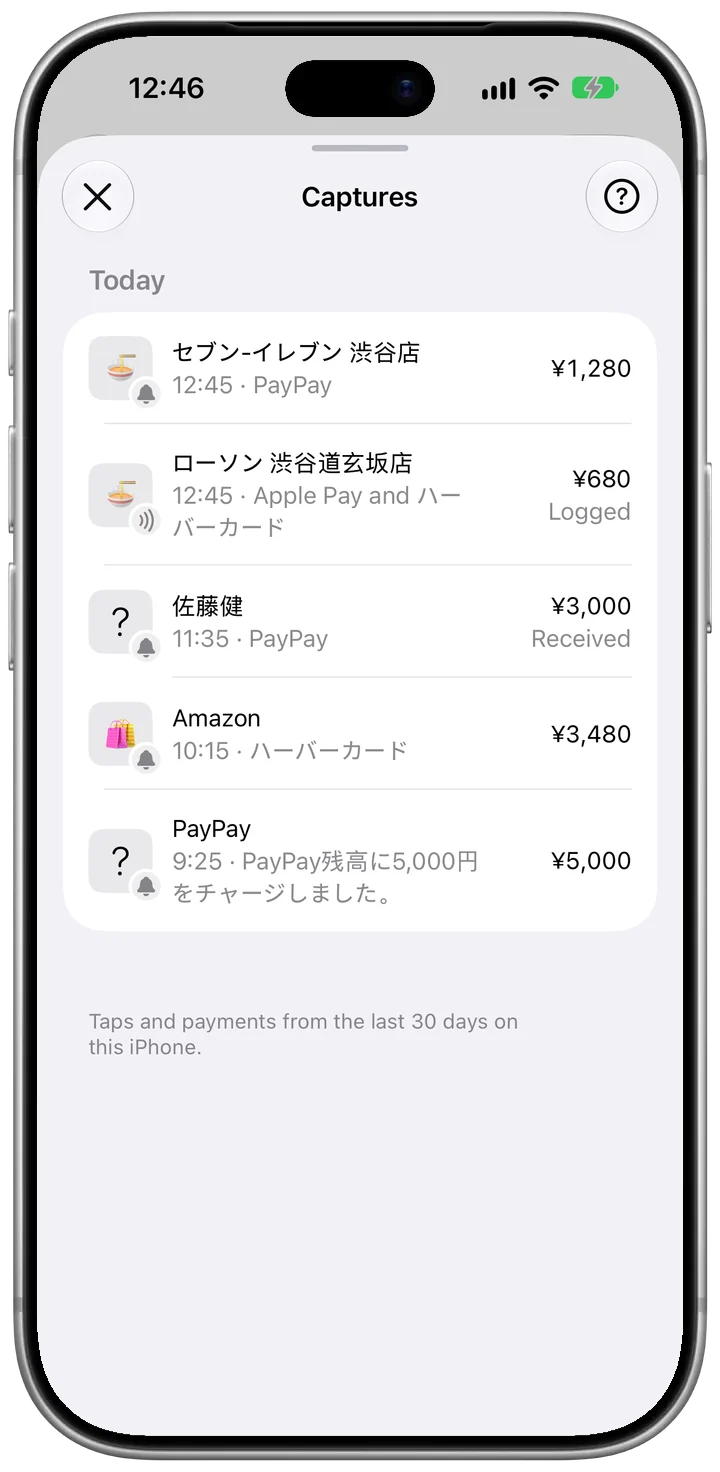
When to tap ×#
- PayPay balance top-ups (
チャージ) vs. spending: Loading ¥5,000 into your PayPay balance and later spending ¥1,280 at lunch are separate transactions at different times, so both arrive in Captures, and each waits above the keypad until a newer payment takes its place. For wallets you use across restaurants, drugstores, and shops, log each purchase so your categories stay accurate, and tap × on the top-up alert. - Preliminary (
速報版) vs. final card alerts: The same notification passed on twice in a row is ignored, but some Japanese card apps (notably Rakuten Card) send a quick amount-only alert right after you pay and a second alert with the merchant name a few days later. Because they arrive more than 3 minutes apart, both stay in Captures. Log one and tap × on the other. - Receiving a PayPay split (
割り勘) from friends: With Apple Intelligence on, money you receive (佐藤健さんから3,000円を受け取りました) and refunds are marked Received or Refund in Captures and stay off the Log tab. When you pay for the whole table at an izakaya and friends send their share on PayPay, change the capture's amount to your own share before saving. - Recurring bills and card instalments (
分割払い): Fixed bills and card instalments (set up as recurring expenses with End Repeat for the number of payments) log on their scheduled dates. Tap × when their card alert appears above the keypad, or leave a bills-only card app out of the Shortcuts automation.
Suica, PASMO, and ICOCA: count top-ups, not rides#
Ticket gate taps don't fire the Apple Pay Wallet automation (Transport is left out), and logging dozens of ¥178 train rides one by one is tedious. Pick one way to count IC transit:
- Log top-ups (
チャージ). Add the app that notifies you when you reload Suica, PASMO, or ICOCA (or log the reload when you top up in Wallet) and assign it to your transport category. - Set a commuter pass (
定期券) as a recurring expense if your monthly fare is fixed. - Log rides by hand only if you take occasional single trips.
Watch out for konbini and vending machine Suica purchases: If you log every ¥3,000 Suica top-up as Transport, don't also log the ¥150 vending machine drink or konbini snack paid from that Suica balance, or you'll count the same yen twice.
Cleaning up statement names (AMAZON.CO.JP)#
Credit card alerts often use katakana or uppercase statement strings like AMAZON.CO.JP or store branch codes:
- Settings → Payment Names renames incoming payments from Apple Pay and notifications as they arrive. Use Is for an exact match, or Contains so a single rule covers every branch of a chain.
- Settings → Tidy Names scans expenses you've already logged and creates a Payment Names rule for each old name so future payments arrive tidy. Toggle off any name you want left alone to move it to Skipped Names.
Frequently asked questions#
The payment notification guide covers how notifications are read and what's included on each plan. Here are the questions that come up in Japan.
Is the app in English?#
Yes. CashJot follows your iPhone's language, so it stays in English unless your iPhone is set to Japanese, and it works in yen either way. Japanese shop names from notifications (like ローソン or セブン-イレブン) come through as written; if you prefer English names, add a rule under Settings → Payment Names, such as ローソン → Lawson.
Is everything recorded automatically?#
In-store Apple Pay taps (iD, QUICPay, and contactless) log themselves automatically with CashJot Plus. PayPay, card, and bank notifications aren't logged until you save them. The latest one waits above the keypad, and every one stays in Captures: with Plus, one tap fills in the expense, and on the free plan you type the amount in yourself. Cash and anything without a notification take a two-second manual entry. See Log as you pay for how both work on each plan.