Spreadsheets vs Notion vs Apps vs Paper: How to Choose Your Tracking System
Spreadsheets give you total formula control; Notion connects money to your notes; iPhone apps put today's total on your Home Screen; paper keeps you off screens. Pick the one that fits where you actually pay.
By Pierre Teo · Updated
On this page
- Five questions to pick your tool in 60 seconds
- Where the record lives, side by side
- Spreadsheets (Google Sheets, Excel, Apple Numbers)
- Notion: money alongside your notes and projects
- Notion vs Google Sheets, Excel, or Apple Numbers for budgeting
- The 5-column setup that survives month two
- What about AI in Sheets, Excel, and Notion?
- An iPhone app: built for the checkout counter
- Paper notebook: when pen and paper win
- How entries get in: by hand vs bank sync
- Where to go from here
- Frequently asked questions
- Is Notion good for tracking expenses on an iPhone?
- Can Notion log an expense with Back Tap on iPhone?
- Is Google Sheets or Apple Numbers better for budgeting on iPhone?
- Which expense tracking option is the cheapest?
The best expense tracker is the one you still use in week three. That comes down to two things: where your record lives, and how annoying it is to add a purchase while you're standing at the checkout counter.
In the US, spreadsheets are still the most common budgeting tool at 35% of adults, compared with 16% for mobile apps (YouGov, 2026). Both work; they just fit very different routines. (If you're still figuring out what you want to track in the first place, start with our iPhone expense tracking guide.)
Five questions to pick your tool in 60 seconds#
Think about an ordinary week:
- How many times a day do you pay for something? If you make lots of small buys (coffee, transit, lunch), you need a two-second log on your phone. If you only make a few purchases a week, a spreadsheet or notebook on Sunday evening works fine.
- Do you use cash? Bank feeds can't see physical cash, so you'll need a way to enter purchases by hand on the spot.
- Do you like building your own templates? If tweaking formulas, Notion rollups, or iOS Shortcuts sounds like a fun Saturday project, you'll love spreadsheets or Notion. If that sounds like homework, pick an app or a paper notebook.
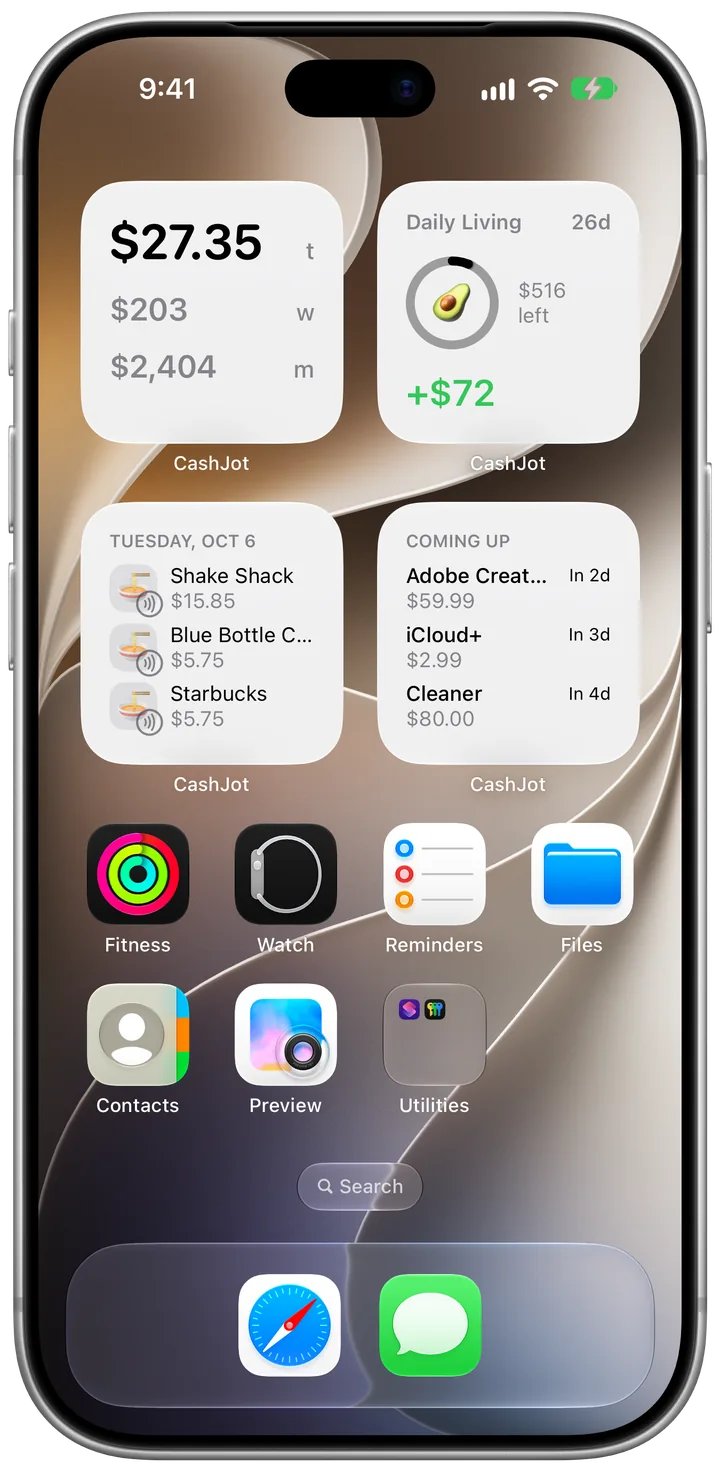
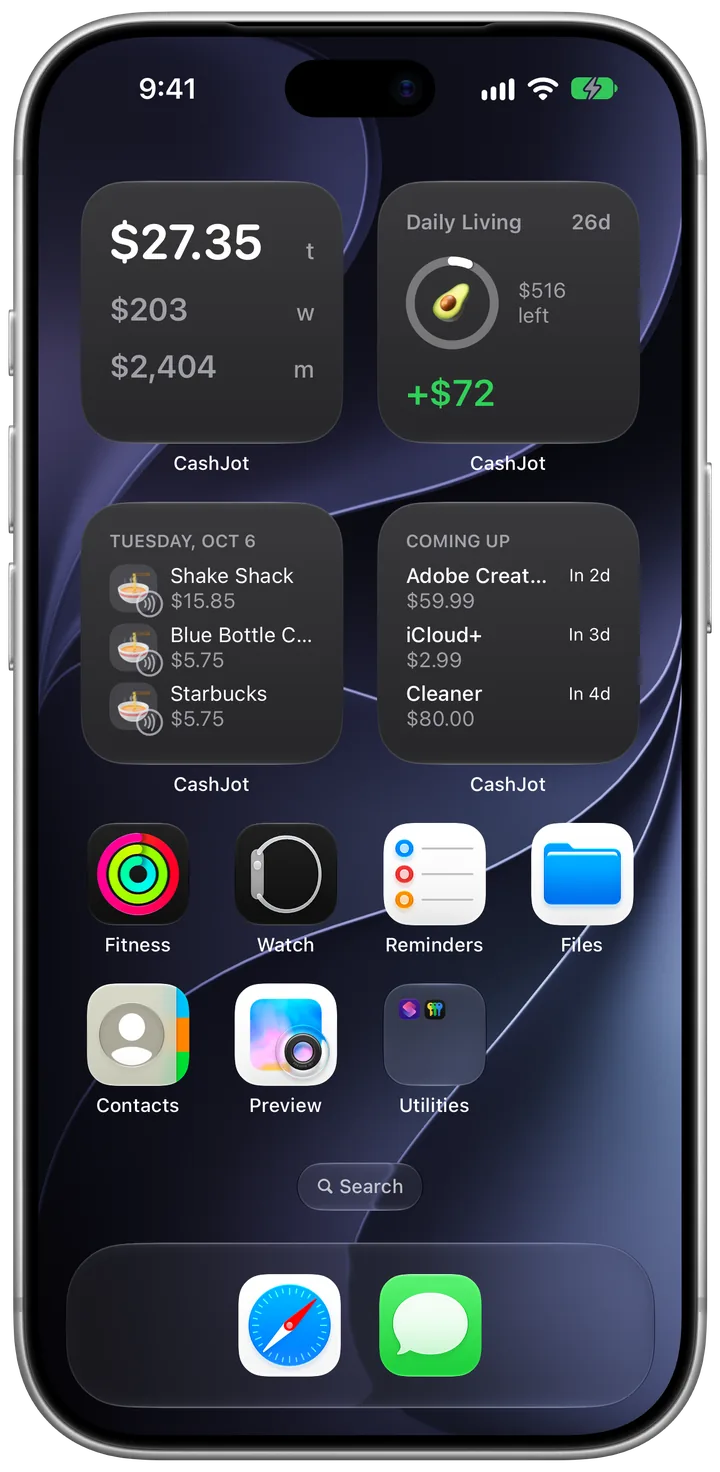
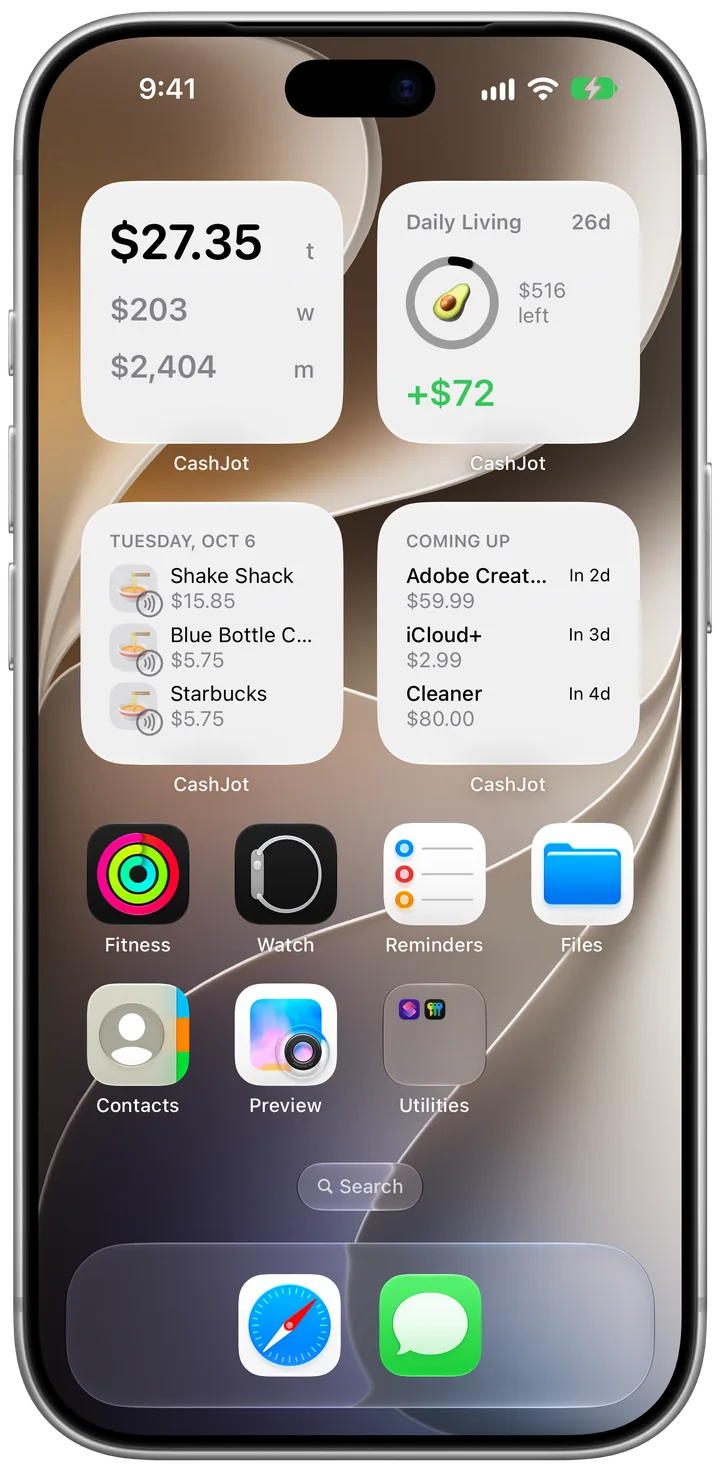
- Do you want to see today's total without opening anything? Only a native mobile app can put today's spending on your iPhone Home Screen and Lock Screen widgets.
- Are you tracking solo or with a partner? Two people editing the same numbers points to Google Sheets, a shared Notion workspace, or an app with shared wallets.
Where the record lives, side by side#
| Spreadsheet (Sheets, Excel, Numbers) | Notion | iPhone App | Paper Notebook | |
|---|---|---|---|---|
| Logging on iPhone | Cramped in the grid; easier via a Google Form or Shortcut | Takes a Shortcut prompt or waiting for the database to load | Open and type in 2 seconds, or capture Apple Pay taps | Pocket notebook and pen |
| Setup time | Pick a template or build your own columns | Build database properties, views, and rollups | Install and start logging | Open to a blank page |
| See total on Home Screen | No (must open the file) | No (must open the page) | Yes (Home and Lock Screen widgets) | No (add up by hand) |
| Works offline | Yes in Apple Numbers and Excel; partial in Google Sheets | Limited | Yes, if built local-first | Always |
| Ongoing upkeep | Fixing broken formulas, adding new monthly tabs | Maintaining views, relations, and Shortcuts | Almost none | Doing the math yourself |
| Cost | Free (Numbers, Sheets) or Microsoft 365 | Free for personal use | Free tiers; optional upgrades | Price of a notebook |
Spreadsheets (Google Sheets, Excel, Apple Numbers)#
Best for: Anyone who wants complete control over every column, formula, and chart, and wants a file that will still open twenty years from now.
Why people love them: If you can write it as a formula, you can build it. You don't have to start from a blank sheet either: Apple Numbers comes free on every iPhone and Mac with a clean Personal Budget template, Google Sheets makes sharing with a partner effortless in any browser, Excel handles heavy pivot tables and multi-year models, and free community templates like Aspire Budgeting give you a full envelope system in Google Sheets.
The catch on a phone: Pinching and zooming into tiny spreadsheet cells at a checkout counter gets old fast. Most people who stick with a spreadsheet on iPhone either log through a Google Form / iOS Shortcut or wait until they're back at a laptop, which makes it easy to forget small cash and coffee buys.
Notion: money alongside your notes and projects#
Best for: People who already run their life, trip planning, and to-do lists in Notion and want their spending in the same sidebar.
Why people love it: Context. In Notion, you can link vacation expenses directly to your trip itinerary page, or tie software subscriptions to your freelance client projects. Rollups calculate totals automatically, and you can filter the same database by month, category, or tag without touching a spreadsheet formula.
The catch on a phone: Notion is built for pages and databases, not two-second checkout logging. Even if you wire up an iOS Back Tap Shortcut that asks for the amount and category, each entry takes several pop-up prompts. The mobile app is also slower to open on spotty cell service, and you can't see what you've spent today without opening the database.
Notion vs Google Sheets, Excel, or Apple Numbers for budgeting#
If you're torn between building your budget in Notion or a spreadsheet, the real difference comes down to math vs context:
| Google Sheets | Apple Numbers | Microsoft Excel | Notion | |
|---|---|---|---|---|
| Best at | Sharing live with a partner in any browser | Clean, private iCloud templates on iPhone/Mac | Heavy pivot tables & multi-year models | Linking expenses to trip pages & projects |
| Formulas & charts | Full (SUMIFS, pivot tables, charts) | Full formulas + multiple small tables per sheet | Industry standard | Basic Sum footers & relation rollups |
| Mobile entry on iPhone | Cramped grid; best via a Google Form | Native Form view adds rows cleanly | Cramped grid | Slow database load; multi-step Shortcut |
| Offline support | Requires offline sync enabled per file | Works offline by default | Works offline for local files | Limited offline caching |
| Price | Free | Free on Apple devices | Microsoft 365 subscription | Free for personal use |
- Pick Google Sheets or Excel if you care about math, speed, and charts. Spreadsheets calculate instantly across thousands of rows, build pivot tables and multi-year charts in seconds, and never lock you into a proprietary database structure. Google Sheets is best for real-time browser sharing; Excel is best for power formulas.
- Pick Apple Numbers if you want a clean, private template on iPhone and Mac. Numbers is free on Apple devices, stores files in your iCloud, works offline by default, and includes a built-in New Form mode on iPhone that turns any table into a clean mobile entry form.
- Pick Notion if your budget lives inside bigger projects. Notion's superpower is linking an expense row to a trip page, a gift list, or a home-renovation tracker. Just know that Notion's table "Sum" footers and rollups are much more basic than real spreadsheet formulas.
The 5-column setup that survives month two#
Whichever one you pick, resist the urge to build a 15-column dashboard on day one. Every working spreadsheet or Notion expense log only needs five columns:
- Date (
YYYY-MM-DD) - Amount (positive numbers for spending)
- Category (5 to 8 broad tags: Food, Transit, Bills, Shopping, Fun)
- Merchant / Note (optional, e.g., "Trader Joe's" or "Coffee")
- Group / Trip (optional, e.g., "Everyday", "Tokyo Trip", or "Side Hustle")
On an iPhone, both Notion and spreadsheets share the same weak spot: neither gives you a two-second checkout keypad or a live Home Screen spending widget out of the box. Many people log daily purchases in a fast iPhone app and export a clean CSV matching those exact columns to Google Sheets, Excel, or Apple Numbers once a month.
What about AI in Sheets, Excel, and Notion?#
Every tool now markets an AI assistant, though none of them solves the hardest part of expense tracking, which is remembering to log the purchase in the first place:
- Notion AI can answer questions about your database ("how much did I spend on dining out in June?"). It is included on Business and Enterprise plans, with a limited trial on Free and Plus plans (Notion pricing).
- Copilot in Excel and Gemini in Google Sheets can write
SUMIFSformulas and summarize monthly tables. Copilot requires a Microsoft 365 Personal or Family plan with files saved to OneDrive (Microsoft), and Gemini in Sheets requires an eligible Google Workspace or Google AI plan (Google). - On iPhone, the most practical automation isn't a chatbot; it's iOS Shortcuts. A Wallet automation can capture in-store Apple Pay taps the moment you pay, and Back Tap can open your logging keypad with a double-tap on the back of your phone.
An iPhone app: built for the checkout counter#
Best for: Anyone who wants to log purchases in two seconds and see today's spending total on their Home Screen without opening a file.
Why people love it: Everything is built around the phone in your pocket: Home and Lock Screen widgets showing today's total, recurring bill schedules, offline logging, and Face ID lock.
On iPhone, in-store Apple Pay taps can even arrive in the app through a one-time Shortcuts automation with no bank login required. In CashJot, taps appear in Captures on the free plan, and CashJot Plus logs them automatically.
The catch: You use the app's layout instead of designing your own grid. Before committing to any app, make sure it offers clean CSV export so you can take your history to a spreadsheet anytime (in CashJot, CSV export is part of CashJot Plus). For a side-by-side look at apps that don't ask for bank credentials, see our guide to the best iPhone expense trackers without a bank login.
Paper notebook: when pen and paper win#
Best for: People who remember things better when they write them by hand, make only a few purchases a day, or want a break from screens.
Why people love it: Zero setup, zero subscriptions, and zero bugs. Writing $6.50 in a pocket notebook creates an immediate mental pause.
The catch: You have to add up the numbers yourself, there is no Home Screen widget, and losing the notebook loses the record. If doing the weekly addition starts feeling like a chore, move the log to your phone before you quit tracking altogether.
How entries get in: by hand vs bank sync#
Where your record lives is half the decision; the other half is how purchases get in:
- By hand (plus Apple Pay capture): You type the amount and tap a category when you pay, and on iPhone, an on-device Apple Pay Shortcut can capture in-store card taps without a bank login. Cash, market stalls, and your share of split bills all get counted accurately.
- Automated bank sync: Card purchases import in the background, but cash is invisible, bank connections break, and you have to hand your banking credentials to a data aggregator.
Before linking a bank account, read what happens when you link a budgeting app to your bank, our study of 1,586 one-star budgeting app reviews, and our comparison of manual tracking vs bank feeds.
Where to go from here#
The articles below dive deeper into manual vs automated tracking and the best no-bank-login apps on iOS:
Frequently asked questions#
Is Notion good for tracking expenses on an iPhone?#
It works well if you already live in Notion and set up an iOS Shortcut for quick entry. Without a Shortcut, opening the Notion app, waiting for the database to load, and adding a row at the checkout counter takes too many taps for most people.
Can Notion log an expense with Back Tap on iPhone?#
Yes. You can build an iOS Shortcut that prompts you for an amount and category, adds a page to your Notion database, and runs when you double-tap the back of your iPhone. It takes a few pop-up dialogs per entry, whereas a native expense app opens straight to a number pad.
Is Google Sheets or Apple Numbers better for budgeting on iPhone?#
Apple Numbers feels much more native on an iPhone: it works offline by default, stores files in iCloud, and includes a mobile-friendly form view for adding rows to a table. Google Sheets is better if you share the budget live with a partner who uses Windows or Android.
Which expense tracking option is the cheapest?#
All four have free options: Apple Numbers and Google Sheets are free, Notion's free plan covers personal databases, a pocket notebook costs a few dollars, and manual-first iPhone apps like CashJot let you log unlimited expenses and use Home Screen widgets on the free plan.
Written by Pierre Teo, maker of CashJot.