Guide
How to track travel expenses on your iPhone, one trip at a time
Published
On this page
- Why the trip gets its own ledger
- Create a group for the trip
- Add the local currency and set the rate
- Set a budget with the trip's dates
- Log in the local currency
- Keep the trip in view
- When the trip ends
- Troubleshooting
- The amount field only offers my home currency
- An entry landed in the wrong group
- The trip total doesn't match my card statement
- My daily average spiked during the trip anyway
- Frequently asked questions
- How do I track travel expenses without linking a bank account?
- How do I log an expense in a different currency?
- What exchange rate should I use for a trip?
- Does this work without internet while traveling?
- Can I set a budget for specific dates instead of a month?
- What do I do with the trip group after the trip?
The whole playbook is one idea: one trip, one ledger. A trip gets its own Expense Group in CashJot, with the local currency at a rate you set and a budget that starts and ends with the flights. Spending stays visible while you're there, and the vacation never inflates your daily average back home.
Why the trip gets its own ledger#
Travel spending answers different questions than everyday spending. Mid-trip you want pacing ("can we do the nice dinner?"), and afterwards you want one number ("what did Tokyo actually cost?"). Mixed into your daily log, a trip ruins both: the trip looks like a two-week spending spree at home, and the trip's own total takes filtering to reconstruct. A separate group answers both questions by construction; the travel page shows what that looks like in the app.
Everything below is manual logging plus an optional automation, with no bank login anywhere. The setup uses more than one Expense Group, added currencies, and a budget, which are part of CashJot Plus.
Create a group for the trip#
- On the Log tab, tap the group name at the top to open the group picker.
- Tap New Expense Group and name it after the trip. The name field's own suggestions ("Tokyo 2026") are the idea: one group per trip.
- Pick the group whenever you log trip spending; the Log tab stays on the group you last used.
An Expense Group is a full ledger of its own: separate entries, currencies, budgets, and reports. Your everyday group stays untouched.
Add the local currency and set the rate#
In the group's editor, tap Add Currency, choose the trip currency, and set the exchange rate to your home currency. Two things worth deciding deliberately:
- One rate for the whole trip. The rate is yours, not a live feed. Your card will apply slightly different rates day to day, but a single fixed rate keeps the math stable and the totals honest enough for pacing. If you'd rather over-count than under-count, set the rate a little high.
- Where to find a rate: the mid-market rate on any currency site the day you set up, rounded to something you can do in your head.
Every entry then shows both values, and the group's totals roll up in your home currency.
Set a budget with the trip's dates#
- In the budgets view, add a budget on the trip's group.
- Set Repeat to Never, then give it the trip's start and end dates.
- Set the amount you intend to spend.
That makes the budget a one-off window instead of a repeating month: progress fills over the trip and freezes when it ends. Mid-trip, the number tells you whether to ease off or treat yourself while the decision is still yours to make, rather than the card statement's.
Log in the local currency#
Log the way you always do: amount, tag, save. With the trip currency added to the group, the currency next to the amount field switches between the group's currencies, so a 1,200 yen lunch is logged as 1,200 yen and counted at your rate.
Two travel-specific notes:
- No signal needed. Entries save on the phone, on the plane or off the grid, and sync through your own iCloud when you're back online.
- Paying by card? In-store Apple Pay taps can log themselves through a one-time Shortcuts automation. For travel cards that charge in the merchant's currency, leave the automation's Currency Code unset and it infers per tap; the details are in that guide's currency section.
Keep the trip in view#
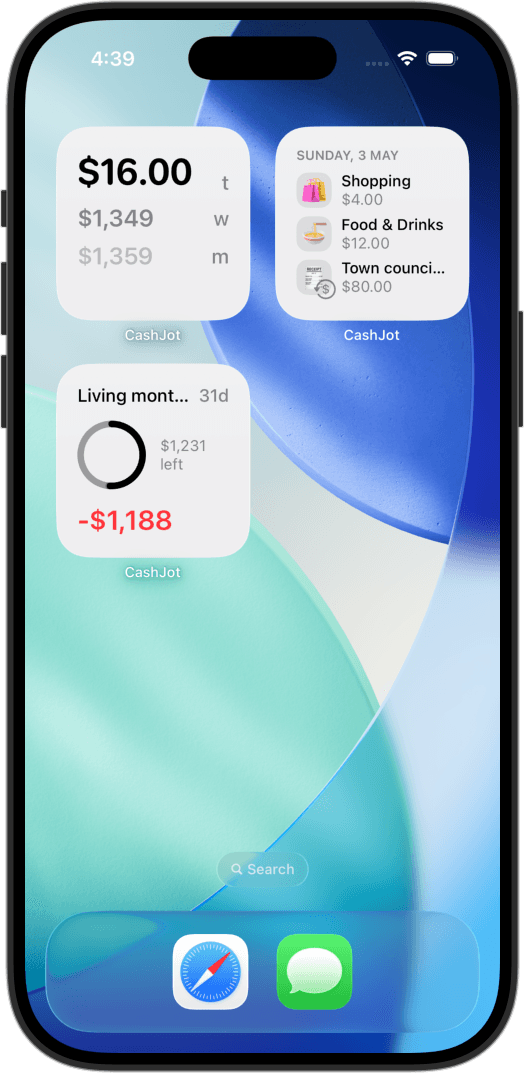
The trip group works everywhere the app filters by group: the spending reports and the calendar can show just the trip, and widgets can be scoped to it. A Budget widget for the trip on the home screen (or a focus screen you use while traveling) turns pacing into a glance: what's spent, what's left, no taps.
When the trip ends#
Archive the group. It moves to an Archived section at the bottom of the group pickers, out of the way of daily logging, with every entry, rate, and report intact. "What did Tokyo cost" stays one tap away years later, and the next trip starts as a fresh group.
Troubleshooting#
The amount field only offers my home currency#
The group doesn't know the currency yet. Open the group's editor, tap Add Currency, and set a rate. Recording in more than one currency is part of CashJot Plus.
An entry landed in the wrong group#
Open the entry and change its Expense Group in the editor; the amount and date come along. For a whole batch in the wrong place, search is faster: select the entries and use Move to Expense Group to move them all at once.
The trip total doesn't match my card statement#
Expected, within a margin. Your rate is fixed; the card applied a slightly different rate each day, plus any fees. The gap is the price of stable mental math. If it bothers you, set the group's rate a little above the market rate so the total errs on the high side.
My daily average spiked during the trip anyway#
Some entries went to the everyday group. Check the trip dates in your daily group's calendar and fix the strays: a single entry moves from its own editor, several at once with Move to Expense Group from search. Then check which group is active on the Log tab before logging the airport breakfast.
Frequently asked questions#
How do I track travel expenses without linking a bank account?#
Log them as you spend, in a tracker that separates the trip from daily life. Every entry here is one you typed (about two seconds each), with in-store Apple Pay taps able to log themselves through a Shortcuts automation if you prefer. No bank connection is involved at any point, which also means nothing breaks abroad.
How do I log an expense in a different currency?#
Add the currency to the Expense Group with an exchange rate you set, then pick it next to the amount when logging. The entry keeps both values: the local amount you paid and what it counts as in your home currency.
What exchange rate should I use for a trip?#
A single fixed one, set when you create the group: the mid-market rate that day, rounded, or slightly above it if you want the totals to err high. Pacing needs a stable number, not a live feed.
Does this work without internet while traveling?#
Yes. Logging is on-device and works with no signal; entries sync across your devices through your own iCloud once you're back online.
Can I set a budget for specific dates instead of a month?#
Yes. A budget with Repeat set to Never takes a start and an end date, so it covers exactly the trip and stops when it stops.
What do I do with the trip group after the trip?#
Archive it. Archived groups sit in their own section of the pickers, out of the way of daily logging, with the trip's totals and reports kept. And if you're rethinking how you track expenses beyond travel, start there.
Know what today cost you
CashJot is an iPhone expense tracker. Jot each expense in a couple of taps, then see today's total straight from the home-screen widget. Free on the App Store.