Guide
Capture Apple Pay taps in CashJot
Updated
On this page
- What you'll end up with
- How Wallet automations work
- Before you start
- Set up the automation
- 1. Open the Shortcuts app, Automation tab
- 2. Add a new Wallet automation
- 3. Pick cards and run immediately
- 4. Add the CashJot action
- 5. Connect the fields
- Currency settings
- What this captures
- Which Expense Group gets the tap
- Troubleshooting
- In-store NFC only
- Bank-dependent
- One automation per card
- Plus required
- Name suggestions
- Noisy merchant names
- Merchants you never want logged
- Transit taps
- Currency mismatch
- Multi-currency cards
- Swiped the notification away?
- Frequently asked questions
- Can an iPhone track Apple Pay purchases automatically?
- Does this need a bank login?
- Why is a tap missing from CashJot?
- Does it capture online or in-app Apple Pay purchases?
- Is Apple Pay capture free?
- Do I still log the rest by hand?
Wallet automations let iOS hand each in-store Apple Pay tap to CashJot the moment it happens, on your device, with no bank login involved. This guide covers the setup, currency settings, and the edge cases that come up in normal use.
What you'll end up with#
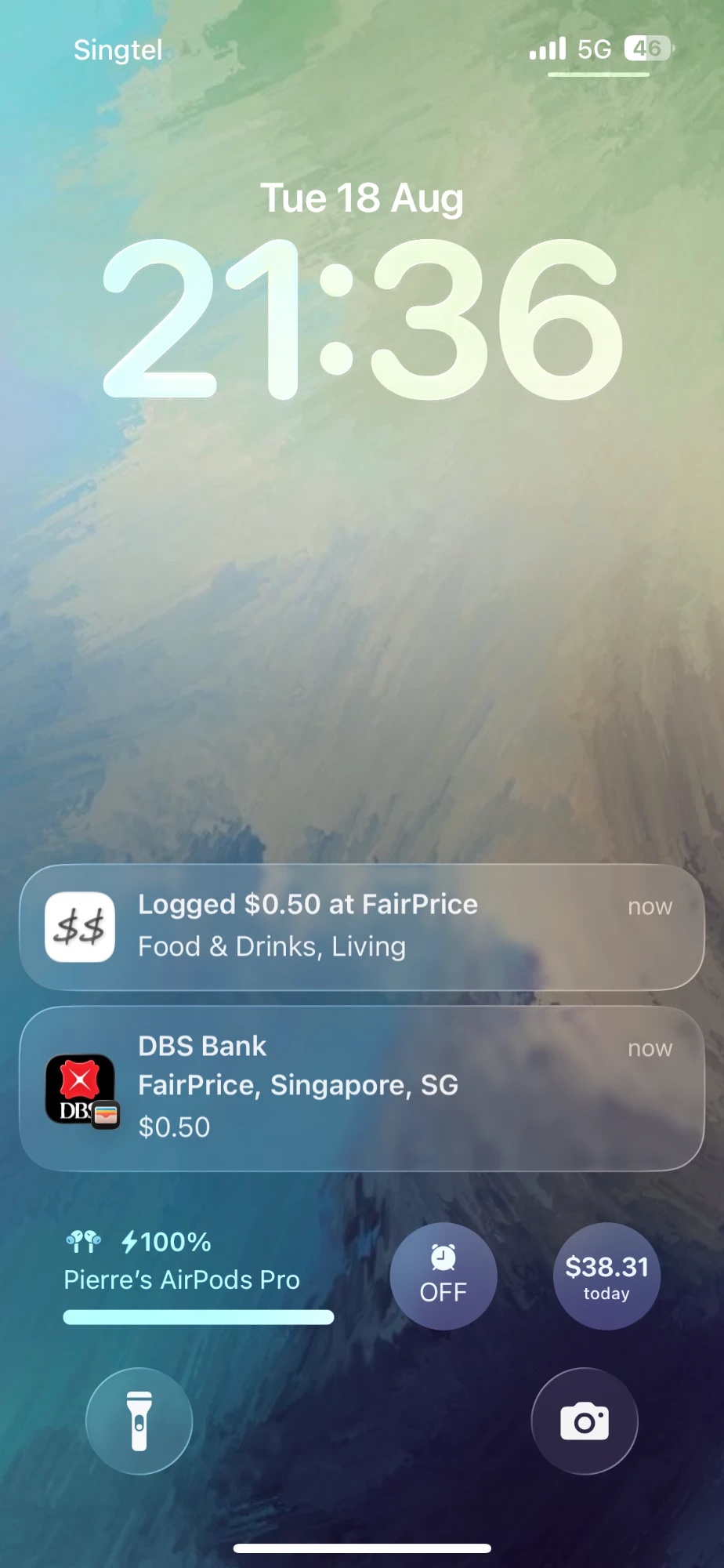
After setup, qualifying Apple Pay taps are saved to your CashJot log automatically within seconds, with a confirmation push notification — tap it to open the logged transaction, or touch and hold it to reveal the Undo button. Captures that need a second look (currency mismatch, zero-amount holds) land in the Captures view for review.
How Wallet automations work#
A Wallet automation is a kind of personal automation in Apple's Shortcuts app, available since iOS 17. The trigger is a transaction landing in Apple Wallet: after a tap goes through, iOS runs the shortcut you attached and hands it the tap's amount, merchant, and card. The setup below connects that trigger to CashJot's Capture Tap-to-Pay action, so each tap becomes a saved entry in your log.
Everything runs on the phone. There is no bank login in the loop and no aggregator sitting between your bank and your log, which is what separates this from bank-linked import, where the connection itself is the single most complained-about feature in budgeting apps. The trade-off is coverage: Wallet automations only see Apple Pay taps at a physical terminal (details in What this captures), so the rest of your spending stays a quick manual entry: amount, tag, save.
Before you start#
- An iPhone running iOS 17 or later. Screenshots are from iOS 26; the steps are the same on earlier versions.
- CashJot installed, with CashJot Plus active.
- Capture Apple Pay taps turned on in CashJot, under Settings → Apple Pay Capture.
- At least one card added to Apple Wallet.
Set up the automation#
1. Open the Shortcuts app, Automation tab#
The Shortcuts app comes with iOS. Open it and tap Automation at the bottom.
2. Add a new Wallet automation#
Tap New Automation, then choose Wallet from the trigger list.
3. Pick cards and run immediately#
Under When I tap, select the cards you want CashJot to log. Under Category, uncheck Transport so transit gantry taps don't fire error notifications (see Transit taps in Troubleshooting). Leave Filter Merchants empty. At the bottom of the screen, choose Run Immediately so the automation fires silently, then tap Next.
4. Add the CashJot action#
Tap Create New Shortcut. Under Search Actions, search for cashjot. Select CashJot from the app list, then select Capture Tap-to-Pay.
5. Connect the fields#
The action has three fields visible (Amount, Merchant, Card), plus Date and Currency Code hidden under Show More. Binding each one to the right magic variable takes a non-obvious sequence of taps in Shortcuts.
For each of Amount, Merchant, and Card:
- Tap the field.
- Above the keyboard, scroll the variables row horizontally until you see Shortcut Input.
- Tap Shortcut Input. The field fills with a generic Shortcut Input chip.
- Tap the chip you just placed to reveal the list of trigger outputs.
- Tap the matching one: Amount for the Amount field, Merchant for Merchant, Card or Pass for Card.
Then tap Show More to reveal the rest:
- Date. Tap the field, scroll the variables row to Current Date, and tap it.
- Currency Code. Tap the field and pick the card's home currency from the list. Leave unset for multi-currency cards (Wise, Revolut, and so on).
Tap Done. Your next Apple Pay tap will be saved to CashJot within a few seconds, with a push notification confirming the log.
Currency settings#
Currency Code on the automation tells CashJot what currency to record each capture in:
- Single-currency card. Set Currency Code to that currency (USD, SGD, EUR, and so on).
- Multi-currency travel card. Wise, Revolut, and similar cards charge in the merchant's currency. Leave Currency Code unset so each capture infers per-tap. The inference uses your app default to break ties when the symbol is ambiguous.
- Different cards, different rules. Create separate automations with different Currency Code settings.
What this captures#
Wallet automations fire on in-store NFC taps at a payment terminal. Online checkout, in-app Apple Pay, Safari Apple Pay, and Apple Cash sent to friends do not fire. Log those by hand.
Which Expense Group gets the tap#
Each capture is logged into one Expense Group, decided in order: a card rule wins first, then your default group, then whichever group is open on the Log tab. Set rules under Settings → Apple Pay Capture → Card Rules if different cards should feed different groups — the trip card into the trip's group, the daily card into daily life.
The category is suggested from your past expenses at the same merchant, and the same tap firing twice moments apart is detected and dropped, so a flaky terminal doesn't create duplicates.
Troubleshooting#
In-store NFC only#
Online checkout, in-app Apple Pay, Safari Apple Pay, and Apple Cash to friends won't fire.
Bank-dependent#
Wallet automations are triggered by the payment confirmation push your bank sends after each tap. Banks vary: some send it within a second, some delay it up to a minute, some only send it for credit cards, and a few don't send one at all. If a tap hasn't appeared in CashJot after about two minutes, it usually isn't coming.
One automation per card#
Selecting all cards in the multiselect creates one trigger per existing card. New cards added to Wallet later need to be added to the automation's card list, or given their own automation.
Plus required#
Apple Pay capture is part of CashJot Plus. Without Plus the automation still runs, but the tap isn't saved: nothing lands in the Captures view, and CashJot sends a notification saying capture needs Plus, at most once a day. Upgrade from Settings → Apple Pay Capture and the next tap goes through.
Name suggestions#
The merchant string from Apple Pay fills the Name field on each capture. Turn off Fill name in settings to leave the name blank and type it yourself.
Noisy merchant names#
Apple Pay sends strings like STARBUCKS #1234 SOMERSET. Add a Merchant alias with pattern STARBUCKS and display name Starbucks; one rule covers every location. Match is case-insensitive whole-word contains; the more specific rule wins on overlap.
Merchants you never want logged#
Add it under Settings → Apple Pay Capture → Excluded Merchants and its taps are captured silently and never logged — useful for a top-up terminal or a work card's regular charge.
Transit taps#
Many transit operators batch-bill the daily total instead of charging per tap. The gantry tap still fires the automation but errors out with There was a problem running the automation since there's no charge to capture, and the next-day batch settlement doesn't fire either (it isn't a tap-to-pay event). To silence the error notifications, edit the Wallet automation in Shortcuts and uncheck the Transport category.
Currency mismatch#
If the tap currency isn't in your group, the tap isn't logged automatically. The capture waits in the Captures view instead, and the notification asks you to add the currency to the group. Fastest fix: edit the Shortcut automation and set Currency Code to the card's home currency. Or tap the notification to open the form and save in a currency the group knows, or add the currency to the group via the Log tab editor.
Multi-currency cards#
Wise, Revolut, and similar travel cards charge in the merchant's currency, not a fixed home currency. Leave Currency Code unset on the automation so each capture infers per-tap; the inference uses your app default to break ties on ambiguous symbols like the dollar sign.
Swiped the notification away?#
It's still there. Tap the tray icon on the Log tab or open Settings → Apple Pay Capture → Captures.
Frequently asked questions#
Can an iPhone track Apple Pay purchases automatically?#
Yes, for in-store taps. Since iOS 17, a Wallet automation in the Shortcuts app can hand each tap-to-pay transaction to an expense tracker the moment it happens. The setup above is a one-time job; after that, qualifying taps log themselves.
Does this need a bank login?#
No. The trigger comes from Apple Wallet on the phone itself, so there are no bank credentials to hand over and no connection to break. How this kind of capture compares with bank-linked import is a decision worth making deliberately.
Why is a tap missing from CashJot?#
The automation rides on the payment confirmation your bank sends after each tap, and banks differ in how quickly and reliably they send it. If a tap hasn't appeared after about two minutes, it usually isn't coming. The Troubleshooting section covers this and the other common cases.
Does it capture online or in-app Apple Pay purchases?#
No. Wallet automations fire on in-store NFC taps at a payment terminal. Online checkout, in-app Apple Pay, Safari Apple Pay, and Apple Cash don't fire; log those by hand.
Is Apple Pay capture free?#
Logging by hand is free and stays free. Apple Pay capture is part of CashJot Plus, the subscription tier.
Do I still log the rest by hand?#
Everything that isn't an in-store tap, yes: amount, tag, save, with autocomplete and favourites covering the repeats. If you're still deciding how you want to track expenses at all, start there.
Know what today cost you
CashJot is an iPhone expense tracker. Jot each expense in a couple of taps, then see today's total straight from the home-screen widget. Free on the App Store.