Guide
Set up spending and budget widgets on your iPhone
Published
On this page
- Why put the number on the screen at all
- The widgets you can add
- Add a widget to the home screen
- Add a widget to the lock screen
- Point a widget at the right things
- Troubleshooting
- The widget isn't updating
- The Budget widget says there's nothing to track
- The total looks wrong
- The number is visible without Face ID
- Frequently asked questions
- Does the iPhone have a built-in spending widget?
- Can I put a budget widget on the lock screen?
- How do I keep recurring bills out of the widget total?
- What's the difference between Over / Under and Spent / Left?
- Why did my widget stop updating?
- Do I need to unlock my phone to log from a widget?
A spending widget puts today's total where you already look dozens of times a day: the home screen and the lock screen. This guide covers adding CashJot's widgets to both, the options each one takes, and what to check when a widget misbehaves. The adding steps are Apple's own and work the same for any app that offers widgets.
Why put the number on the screen at all#
Awareness is the whole point of tracking, and a total you have to open an app to see is awareness on a delay. A widget makes the check free: the number is just there when you glance at the phone, before the next small purchase rather than after it. If you want to see what the widgets look like before setting them up, the widgets page shows them in place.
The widgets you can add#
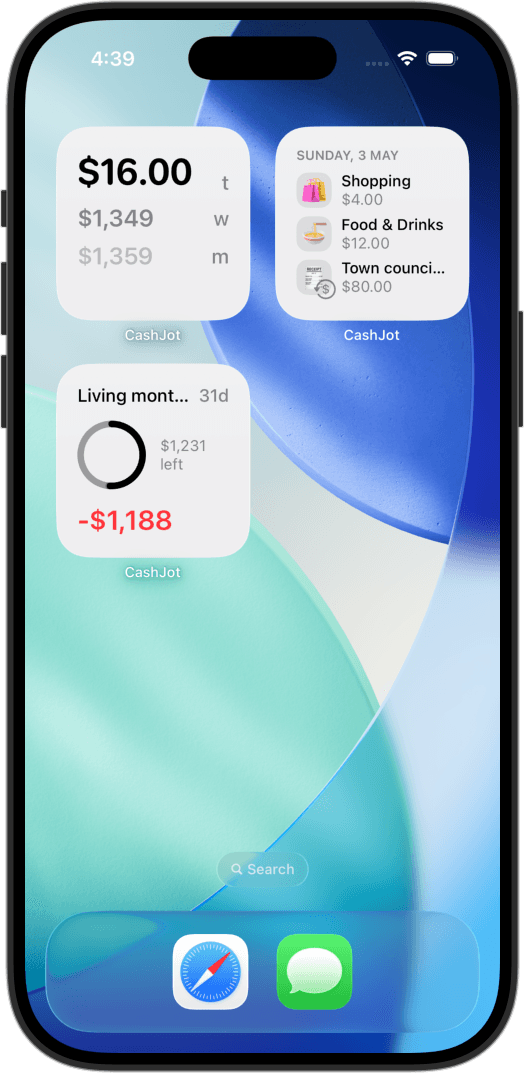
CashJot has six. On the home screen (all use the small square size):
- Spending Totals: today, this week, and this month, at a glance.
- Budget Progress: what's spent and what's left against a budget you pick.
- Today's Transactions: your latest entries for today, a "did I already log lunch?" check.
- Upcoming Recurring: your next few recurring entries with relative dates.
On the lock screen, in dial (circular) and one-line (rectangular) forms:
- Spending: one total for the period you pick.
- Budget: progress against a budget you pick.
Tapping a spending or transactions widget opens the Log tab; tapping a budget widget opens the budgets view. The widgets are free; the Budget ones need a budget to track, and budgets are part of CashJot Plus.
Add a widget to the home screen#
- Touch and hold an empty area of the home screen until the apps start to jiggle.
- Tap Edit in the top corner, then Add Widget. (Older iOS versions show a + button instead.)
- Search for CashJot and pick a widget from the list.
- Tap Add Widget, drag it where you want it, then tap Done.
To make room on a busy screen, you can drag the widget onto a fresh home screen page while the apps are still jiggling.
Add a widget to the lock screen#
Lock screen widgets need iOS 16 or later.
- Unlock the phone, then touch and hold the lock screen until the customize view appears.
- Tap Customize, then choose Lock Screen.
- Tap the widget frame under the clock.
- Pick CashJot, choose the dial or the one-line form of Spending or Budget, then tap the close button and Done.
The lock screen shows the number before you unlock anything. Worth knowing: that also means the number is visible to anyone who picks up your phone, and an app lock doesn't hide widgets. If that trades the wrong way for you, keep the widget on the home screen instead.
Point a widget at the right things#
Long-press any widget and tap Edit Widget to reach its options:
- Expense Groups: All, or a Specific group. This is how a trip or a side project gets its own widget: a "Tokyo" Budget widget on a focus screen, the daily totals on the main screen. Each widget instance is configured on its own.
- Hide Recurring: exclude recurring entries from a total, per window (today, week, month), so the number reflects just the day-to-day spending. Rent on the first of the month stops looking like a blown Tuesday.
- Budget and Style (Budget widgets): pick which budget to track, and how to read it. Over / Under shows how far ahead of or behind pace you are; Spent / Left (or Left on the lock screen) shows the plain amounts.
- Spending Period (lock screen Spending widget): Today, This Week, This Month, or All, which fits today, week, and month together into the one-line form.
Troubleshooting#
The widget isn't updating#
Widgets refresh when you log an entry and when you open the app; iOS also refreshes them in the background on its own schedule, which it throttles to save battery. If a widget looks stale, open the app once. If it stays stuck, check that the widget's Expense Groups setting includes the group you've been logging to, and as a last resort remove the widget and add it again.
The Budget widget says there's nothing to track#
It needs a budget to exist first. Create one in the app's budgets view, then long-press the widget, tap Edit Widget, and pick it. Budgets are part of CashJot Plus.
The total looks wrong#
Two settings decide what a total includes: Expense Groups (All vs one specific group) and Hide Recurring. A widget scoped to your trip group won't count the coffee you logged to Daily, and a widget hiding recurring won't count rent. Long-press, Edit Widget, and check both.
The number is visible without Face ID#
That's how iOS widgets work: they render on the home and lock screen outside any app lock. The fix is placement, not settings; keep spending widgets off the screens other people see, and lock the app itself for everything behind the tap.
Frequently asked questions#
Does the iPhone have a built-in spending widget?#
No. iOS supplies the widget system, but the widgets themselves come from apps. Whatever expense tracker you use has to offer its own; CashJot has six.
Can I put a budget widget on the lock screen?#
Yes, on iOS 16 or later. CashJot's lock screen Budget widget comes as a small dial or a one-line bar, and either form opens the budgets view when tapped.
How do I keep recurring bills out of the widget total?#
Long-press the widget, tap Edit Widget, and turn on Hide Recurring for the windows you want. The total then reflects only what you actively logged, without rent and subscriptions.
What's the difference between Over / Under and Spent / Left?#
Two readings of the same budget. Over / Under compares you to the pace the budget implies, so it answers "am I ahead or behind?" Spent / Left shows the raw amounts, so it answers "how much is gone, how much remains?" Pick per widget in Edit Widget.
Why did my widget stop updating?#
Usually one of three things: the app hasn't been opened in a while (open it once and the totals catch up), the widget is scoped to a group you're not logging to, or iOS has throttled background refresh. The Troubleshooting section walks through each.
Do I need to unlock my phone to log from a widget?#
Tapping a lock screen widget asks for unlock on the way in, then lands in the Log tab. From the home screen you're already unlocked, so the tap goes straight to the form: amount, tag, save. If you're still deciding how you want to track expenses in the first place, start there.
Know what today cost you
CashJot is an iPhone expense tracker. Jot each expense in a couple of taps, then see today's total straight from the home-screen widget. Free on the App Store.