Help
Get faster at logging in CashJot
Published
On this page
- How do I clear the log form?
- Put your most-used categories first
- Save exact repeats as favourites
- Let bills log themselves
- Keep recurring out of the totals
- Reorder a day's entries
- Put the number where you'll see it
- Frequently asked questions
- Does clearing the form delete anything?
- Why does a recurring expense show up in today's total?
- Are favourites shared between Expense Groups?
- Can I change the order of entries within a day?
The log form is CashJot's first tab, already open: amount, tag, save. Everything on this page is about keeping that at two seconds as your history grows, plus answers to the small questions the form itself doesn't explain.
How do I clear the log form?#
Tap the Log tab again while you're on it. The form empties for a fresh entry; nothing you've saved is touched. That's the whole gesture, and it's easy to miss because no button says it.
Put your most-used categories first#
The form shows the first few categories as tap targets, so the order decides how often your tag is one tap away. Open Edit Categories (from the category picker on the form) and drag your everyday ones to the top: if most entries are food and transport, those two belong first, and the categories you use twice a year belong at the bottom.
Save exact repeats as favourites#
For entries that recur with the same amount and name (the usual lunch, the standard train fare), open the saved entry and tap Add to Favorites. Favourites sit one tap from the form and fill everything in for you. They belong to the Expense Group they were saved in, so the daily group's lunch never clutters the trip's shortcuts. Manage the list with Edit Favorites.
For everything else, autocomplete does the remembering: start typing a name and your history fills the rest, sorted by how often you use it.
Let bills log themselves#
Rent, subscriptions, and anything else on a schedule belongs in the Recurring tab, created once and appearing on time every month. Bills stop depending on your memory, and the log stays for the spending you actually decide. A few recurring entries are free; more are part of CashJot Plus. In-store card taps are the other self-logging entry: Apple Pay capture handles those.
Keep recurring out of the totals#
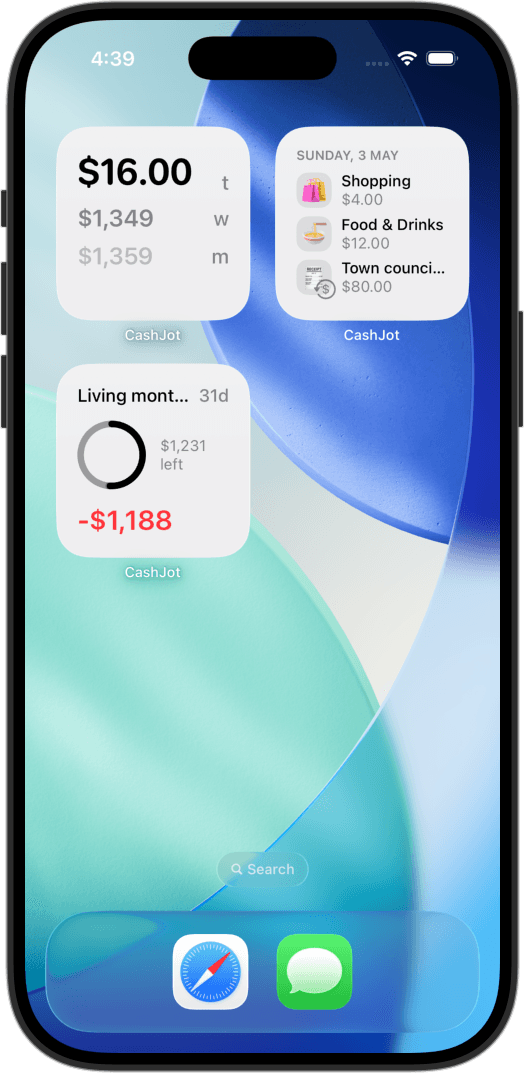
The totals at the top of the log include recurring expenses unless you say otherwise. Tap the totals card to open its settings and switch on Exclude Recurring per window (today, week, month), so rent landing on the first doesn't read as a blown Monday. Widgets have the same choice, set per widget with Hide Recurring.
Reorder a day's entries#
Entries keep the order you logged them, which isn't always the order the day happened. Open any entry from the log or calendar and choose Reorder to drag that day's entries into place.
Put the number where you'll see it#
A spending widget on the home or lock screen closes the loop: the total reminds you to log, and tapping it lands directly on the form. The habit survives on exactly this kind of friction removal, which is the whole design of the quick log.
Frequently asked questions#
Does clearing the form delete anything?#
No. The tab tap only empties the form's fields for the next entry. Saved entries, favourites, and settings all stay put.
Why does a recurring expense show up in today's total?#
Recurring expenses scheduled for today count toward the total unless you exclude them. Tap the totals card and switch on Exclude Recurring for the windows you want; the same setting exists per widget.
Are favourites shared between Expense Groups?#
No, each group keeps its own favourites list. That's deliberate: the shortcuts that make sense while travelling or running the side project aren't the ones you want at home.
Can I change the order of entries within a day?#
Yes. Open any of that day's entries and choose Reorder, then drag. Order within a day is yours to set; dates and amounts don't change.
Know what today cost you
CashJot is an iPhone expense tracker. Jot each expense in a couple of taps, then see today's total straight from the home-screen widget. Free on the App Store.